
Every time you ask a question, XLlama sends some of your spreadsheet to the AI model on your computer. The small button above the message box, called the chip, shows what will be sent. You can change it with one click.
Read the chip #
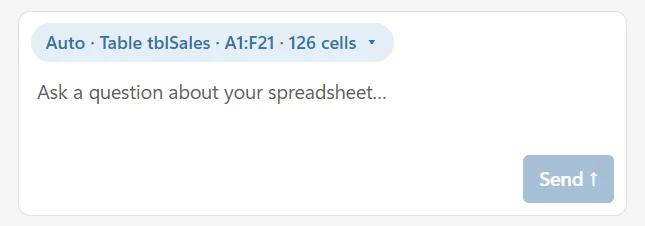
The chip works like a label. For example, it may say Auto · Table tblSales · A1:F21 · 126 cells. That means:
- Auto is the choice you made.
- Table tblSales is what XLlama found. Here it is an Excel table.
- A1:F21 is the area of the sheet.
- 126 cells is how many cells go with your question.
The chip updates by itself when you click somewhere else in Excel. You do not need to select anything for a simple question.
Change what XLlama reads #
- Click the chip.
- Choose one of the five options.
- Type your question and choose Send.
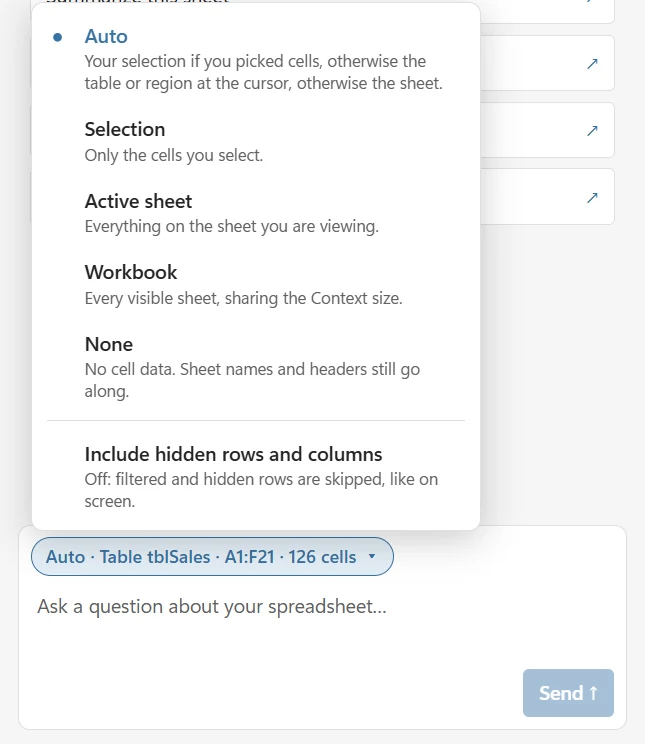
- Auto (the default): XLlama picks for you. See below.
- Selection: only the cells you have selected.
- Active sheet: everything on the sheet you are looking at.
- Workbook: every visible sheet in the file. The sheets share the space XLlama can read, so a very large workbook may be shortened.
- None: no cell data at all. Use it for general questions, such as “How do I add a drop-down list?”
All five options work on Free and Pro.
What Auto does #
Auto looks for the best data, in this order:
- If you selected two or more filled cells, it uses your selection.
- Otherwise it uses the Excel table, or the block of data, around the cell you clicked.
- If it finds neither, it uses the whole sheet.
This is why you can click any cell in a table and just ask your question.
XLlama always knows your sheet and column names #
With every question, XLlama also sends a short outline of your workbook: the sheet names, the tables, and the column headers. Only the headers are sent, not the rows below them.
This works even when the chip is set to None. You can ask What is on the Costs sheet? without sending any cells.
Hidden and filtered rows #
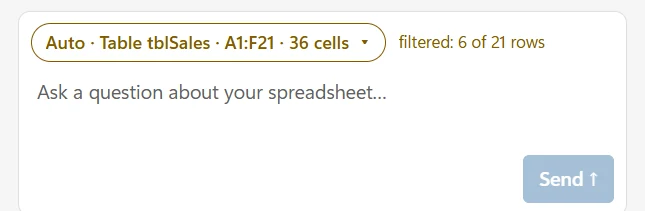
Rows you hid or filtered out are left out, just like on your screen. Hidden columns are left out too. The chip tells you when this happens, for example filtered: 6 of 21 rows. That means XLlama reads 6 of the 21 rows. If columns are hidden, the chip says how many were skipped.
To include hidden rows and columns:
- Click the chip.
- Choose Include hidden rows and columns at the bottom of the menu.
On a very large sheet (more than 50,000 rows), XLlama does not count the rows. The chip then says may be filtered.
When the chip says “sample” #
The AI can only read a limited amount at once. If your data is bigger than that, the chip says sample and shows how much will be sent, for example sample: 2,206 of 24,000 cells.
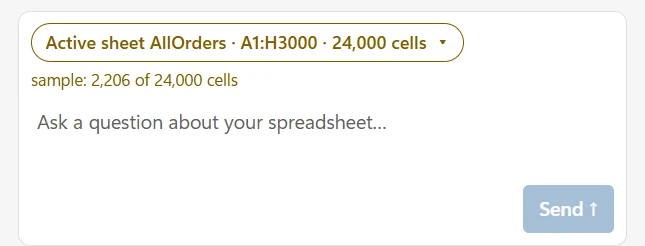
A sample is the first part of your data. The answer may miss rows further down. When you choose Send, XLlama asks what to do: Use sample, Send without cells or Cancel. To read more of your data, select a smaller area or choose a bigger size. See How much data can XLlama read?.
Example questions #
- Auto with your cursor in a sales table: Which product has the highest unit price?
- Selection with a few comments selected: Summarize this feedback in three bullet points.
- Active sheet: What is this sheet about?
- Workbook: Which sheets could I combine?
- None: What does the XLOOKUP function do?
For exact totals and counts, ask XLlama to write a formula and use Insert formula. Small AI models can make mistakes when they add up many numbers.
More about chat: Chat with your spreadsheet.