
Chat lets you ask questions about your spreadsheet in plain English. XLlama sends your question, and the data it needs, to the AI model on your computer. The answer appears in the chat.
Ask your first question #
- Open a workbook. You do not need to select anything first.
- Type your question in the message box, for example Which product has the highest unit price?
- Choose Send, or press Enter.
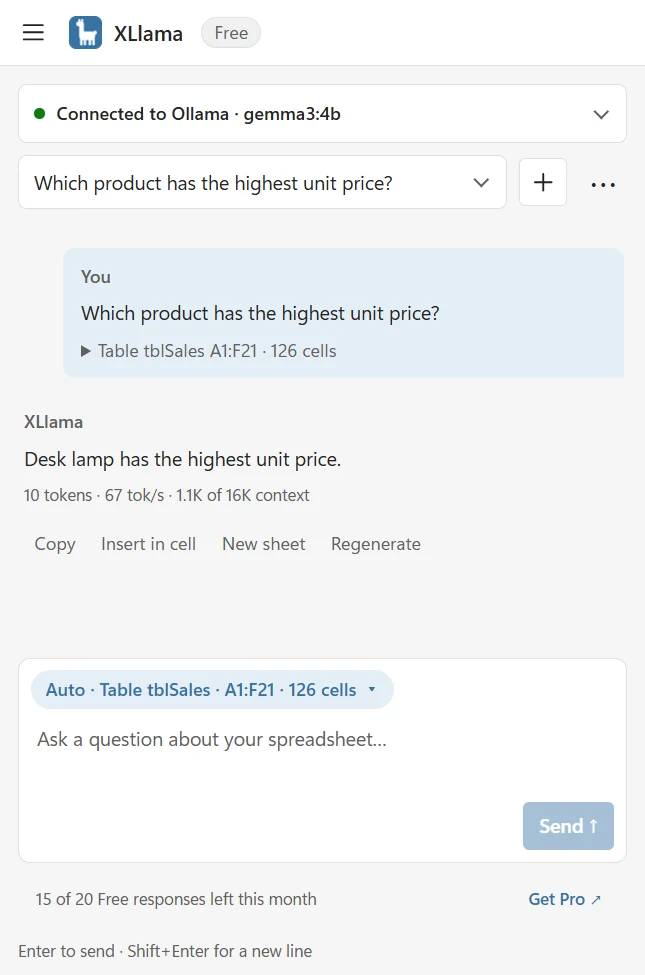
On Free, each answer uses one of your 20 responses for the month. No response is used until the answer starts to appear.
Choose what goes with your question #
The button above the message box is called the chip. It shows which data goes with your question. Click it to change.
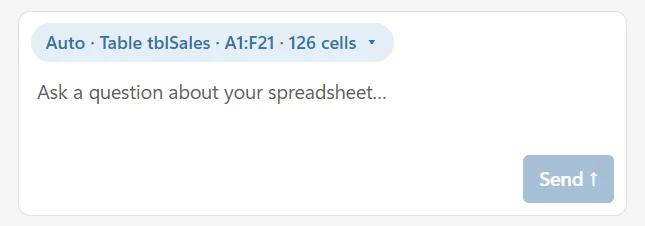
- Auto (default): your selection if it holds two or more filled cells, otherwise the table or block of data around your cursor, otherwise the whole sheet.
- Selection: only the cells you select.
- Active sheet: everything on the sheet you are viewing.
- Workbook: every visible sheet.
- None: no cells, for a general question.
XLlama always knows your sheet names, tables and column headers, even with None. So you can ask What is on the Costs sheet? without sending any cells. All five options are available on Free and Pro.
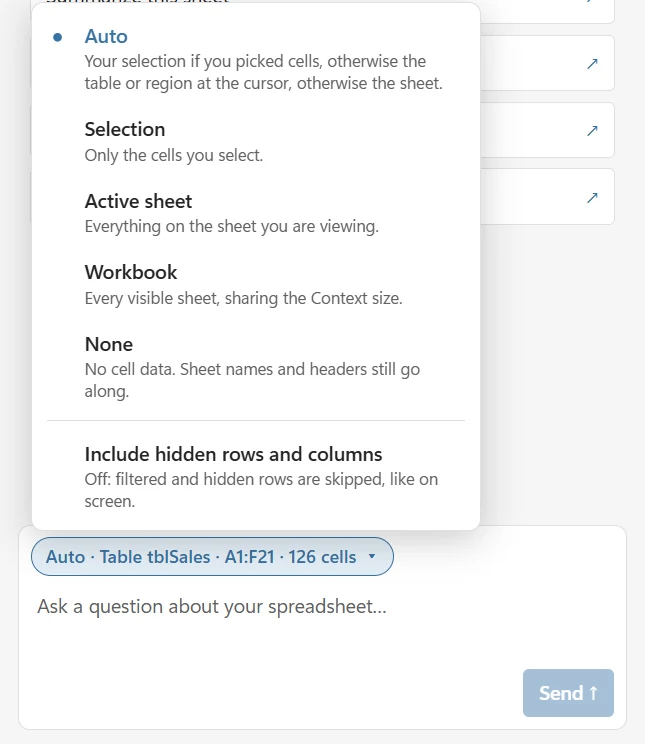
Hidden and filtered rows are skipped unless you include them. The chip also tells you when the data is only a sample. Read more in Choose what XLlama reads.
How much data can XLlama read? #
The AI can only read a limited amount at once. If your data is bigger, the chip says sample and XLlama asks you what to do when you choose Send:
- Use sample: send the first part of the data. The answer may miss rows further down.
- Send without cells: ask your question without any cells. Earlier messages in the chat still apply.
- Cancel: keep your question and select a smaller area.
- Send all data: offered only when everything fits. It can be slow on a computer without a graphics card.
The sample preview shows what will be sent. Very long text in a cell is shortened to 500 characters. If you choose several ranges, they share one sample, so later ranges may be left out.
XLlama never sends data that cannot fit. If the data and your question are too big together, it tells you which one is the problem. Select less data or choose a bigger size in Settings → Context size. See How much data can XLlama read?.
While XLlama reads a large selection, it shows progress. Choose Stop to cancel.
Select separate ranges #
In Auto or Selection mode, hold Ctrl while you select another range, for example A1:A5 and D1:D5. XLlama sends each range on its own. The cells between them are not included. Empty rows and columns around each range are trimmed.
Choose the data format #
Open Settings → Selected data format, then save:
- Table (simple, default): a range label followed by plain table rows. Good for summaries and comparisons. Existing formulas follow the table.
- Cell references: every value gets its cell address, such as
A1: "Product"andD3: "99". Good for questions about specific cells, or when you want a formula.
Both formats include existing formulas. Dates, percentages and error values are sent in a clear form, such as 2026-10-19, 15% and #N/A. Excel tables always keep their header row, even when you select only the rows below it. This setting changes chat only. It does not change the arguments of your XLLAMA formulas.
Continue or start fresh #
The conversation list at the top switches between saved chats. Choose + for a new conversation. This does not delete your other chats. The … menu offers Rename, Export and Delete.
Each question is sent with up to the last 12 messages (six questions and answers). A saved conversation keeps up to 30 messages, and XLlama saves up to 20 conversations. Repeat important details if the chat gets long.
If the data from an earlier question no longer fits next to a long answer, XLlama sends your follow-up without it and says Earlier data in this chat no longer fit and wasn’t sent. Re-select the data if the answer needs it. Select the data again if you need it.
Stop, regenerate and read the answer line #
On a slower computer you may see Reading data before the first word. That is normal. To end an answer early, choose Stop or press Escape. If some text had already appeared, it stays in the chat and is marked Stopped. If the answer takes too long, XLlama says it timed out.
Regenerate asks the same question again and writes a new answer.
Under each answer is a line like 10 tokens · 67 tok/s · 1.1K of 16K context. It shows how long the answer is (a token is a small piece of text, about one word), how fast it was written, and how much of the reading space was used. You can ignore it if you like.
Drafts and retries #
XLlama saves your unfinished question on your computer as you type. When you reopen Excel, your last draft is back. Other unfinished chats show a Draft label in the conversation list. You can keep up to 20 drafts. Deleting a chat also deletes its draft.
If a question fails, it goes back into the message box. Retry sends the original question with the original data, even if you have selected other cells since. Very large data cannot be kept for a retry. In that case choose Reattach data, select the cells again and choose Send. Retry uses the model and settings you have now. On Free, a retry counts as a new response once the answer appears.
If a finished answer cannot be saved, you still see it, with a warning. Fix the storage problem, then choose Save again. You can switch to another chat and come back while the pane stays open. Copy or export the chat before you close Excel. If storage is full, export and delete an older chat, then choose Save again.
Use an answer #
Answers can contain headings, lists, tables and code. Copy, Insert in cell and New sheet use the answer as plain text.
Insert a working Excel formula #
- Ask for an Excel formula. When the answer contains a formula that starts with
=, choose Insert formula…. - Check or edit the formula. If there are several, choose the one you want. Use English function names and commas, as in
=SUM(A1:A4). - Type one destination cell on the active sheet, such as I1, and choose Review insertion.
- Check the workbook, sheet, destination and anything that would be replaced. Choose Insert formula, or Cancel.
The AI suggests the formula. XLlama writes it only after you confirm, and Excel does the calculation. If the destination changes while you review, XLlama asks you to review again.
Choose an editable cell outside merged cells, existing array or spilled formulas, and Excel tables. A formula in an Excel table can fill the whole column by itself. Links to other workbooks, macro calls and network functions are not supported here. You can still copy any formula and check it yourself.
Answers that fail without any text are not saved in the chat.