
Open Settings from the menu at the top left of the XLlama pane. Here you can change the instructions for the AI, how creative it is (temperature), how long Ollama keeps the model ready, how reasoning is shown, how your cells are sent, how much data XLlama can read, and how XLlama looks. Choose Save settings to apply your changes.
How your cells are sent #
Selected data format is Table (simple, default) at first. It sends a range label and plain table rows. Use it for summaries. Choose Cell references if you ask about specific cells. Both formats work with Ctrl-selected ranges.
Max cells per question (optional) is empty by default, which means Auto: XLlama sends as many cells as fit. Enter a number to send fewer. If your data is bigger than what fits, XLlama offers Use sample, Send without cells or Cancel. Send all data is offered only when everything fits. Empty rows and columns around each range are trimmed.
Context size #
Context size decides how much data XLlama can read at once. Choose Auto (recommended), 8K, 16K, 32K or 64K. Auto uses 16K, and never more than your AI model can handle.
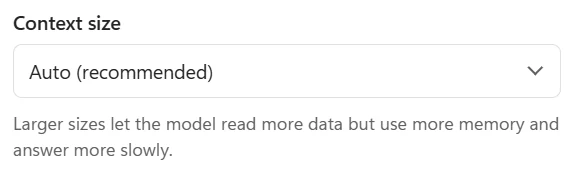
A bigger size lets the AI read more data, but it uses more memory and answers more slowly. XLlama never sends more than fits. If it cannot, it asks you to send less. A warning under an answer means the data filled all of the reading space.
If Ollama says it does not have enough memory, set Context size to 8K or use a smaller model. For a simple explanation of all sizes, see How much data can XLlama read?.
Appearance #
The default is Auto (match Windows). You can also choose Light or Dark.
Advanced connection #
XLlama talks to Ollama at http://127.0.0.1:11434. This is an address on your own computer. Under Advanced you can use another address or port on this computer. Test connection checks the address you typed without saving it. Restore default puts the original address back. Choose Save settings afterward.
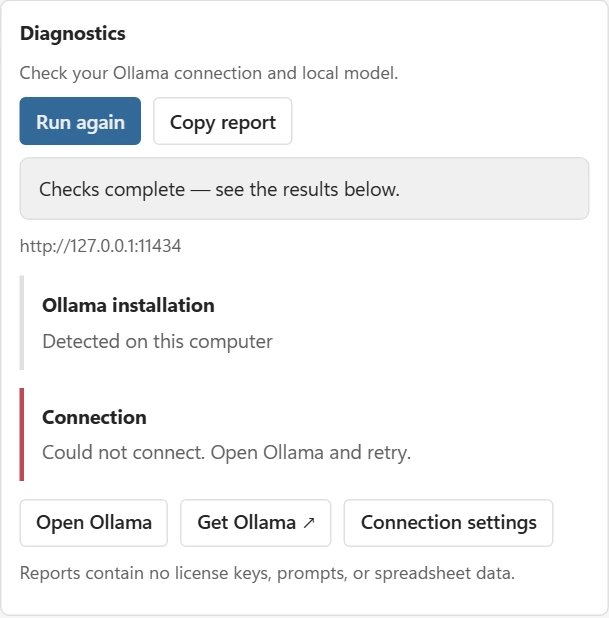
Diagnostics #
Open Help → Diagnostics and run the checks. They look for Ollama on your computer, test the connection, show the Ollama version and check your selected model. If the connection works, you can ignore a message that Windows cannot find the installation.
Test model response is optional. It sends a short test message with no spreadsheet data and does not use a Free response. Copy report copies the version, whether Excel is 32-bit or 64-bit, the local address and the check results. It does not include keys, chat text, spreadsheet data or model names.
Updates and privacy #
Automatic update checks are off by default. You can always check by hand. If you saved a license key, XLlama checks it separately. Free users without a key make no license requests.
Refresh formula answers #
Select cells that contain PROMPT or EXTRACT formulas, then choose Refresh selected formula answers under Worksheet tools. You can refresh up to 1,000 formula cells at once. Other cells keep their answers. For an EXTRACT table, select the top-left formula cell. The Free limits still apply, and on Free each new answer uses one of the 20 monthly responses.