
- Open Ollama from Windows Start and let it finish starting.
- In XLlama, open Help → Diagnostics → Run diagnostics.
- If Connection fails, open Connection settings. Choose Restore default, then Test connection. Save settings to apply the address.
- If Connection succeeds but the model is missing, open Models and download or select a local model.
The default address is http://127.0.0.1:11434. Change it only if Ollama runs on another local port. XLlama does not accept remote servers.
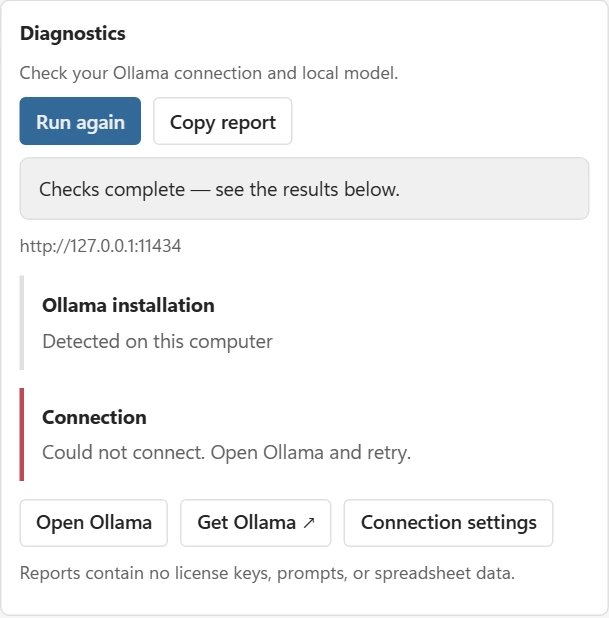
Installation detection is only a hint: a WSL or Docker setup can have a working local API without a standard Windows installation being detected. A successful connection is what matters.
If the model is verified, choose Test model response. This sends a short fixed prompt, uses no worksheet data and does not count toward Free usage. It can take up to 60 seconds.
An error mentioning registry.ollama.ai during a download is about Ollama’s download server. It does not necessarily mean the local connection is broken. Retry the download when the internet connection is working.
The Windows installer edition needs no OLLAMA_ORIGINS command, Office.js permission, HTTPS proxy or browser workaround.