
The AI model can only read a limited amount of text at once, like a desk that only fits so many pages. The setting called Context size decides how much fits. Most people never need to change it.
The short answer #
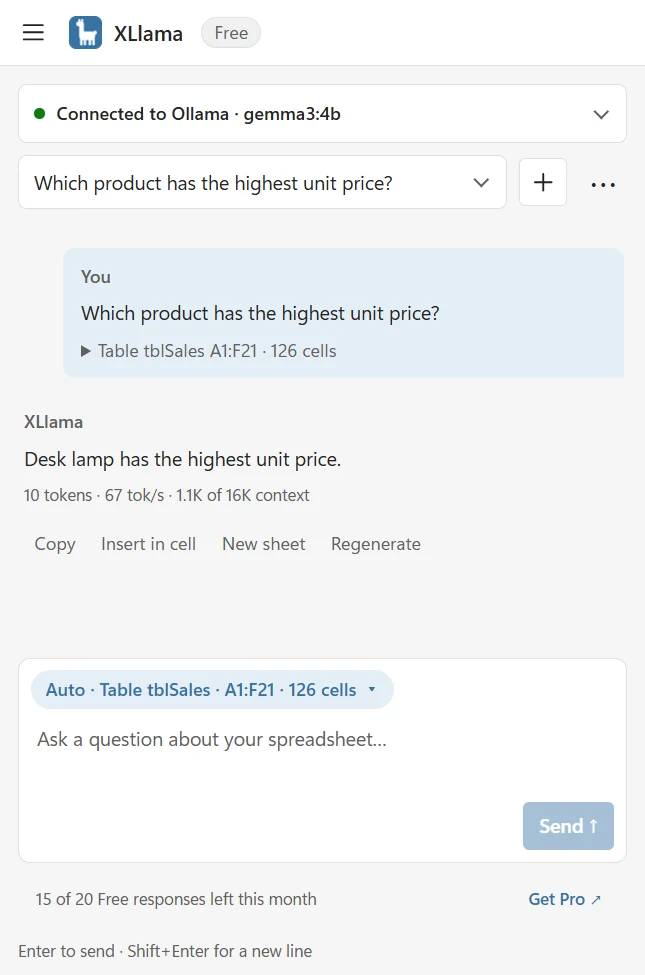
Leave Context size on Auto (recommended). XLlama then uses 16K, a size that works for most tables on most computers. A small table of 126 cells plus a question used about 1.1K of the 16K.
Change it only if you see one of the messages below, or if your tables are very large.
Change Context size #
- Open the menu at the top left of the XLlama pane and choose Settings.
- Find Context size.
- Choose a size from the list.
- Choose Save settings.
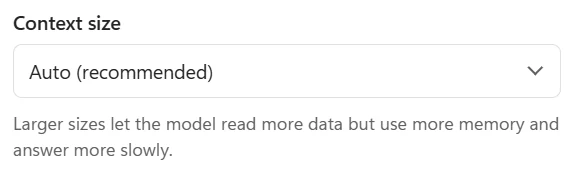
The sizes are Auto (recommended), 8K, 16K, 32K and 64K. A bigger number means more data can be read.
Which size should I pick? #
- Auto: a good choice for almost everyone. XLlama uses 16K, and never more than your AI model can handle.
- 8K: choose this if your computer is slow, or if you see the message “Ollama doesn’t have enough memory for this request”.
- 16K: the same as Auto on most computers.
- 32K or 64K: choose one of these if you ask about very big tables and your computer is strong, ideally with a graphics card.
There is a trade-off. Bigger sizes let the AI read more data, but they use more memory and make answers slower. If answers become too slow, go back to Auto.
What the messages mean #
“All 24,000 cells don’t fit the current Context size”
Your data is bigger than what XLlama can read at once. A window opens with the title Choose how to use this selection. Nothing has been sent yet, and no Free response is used.
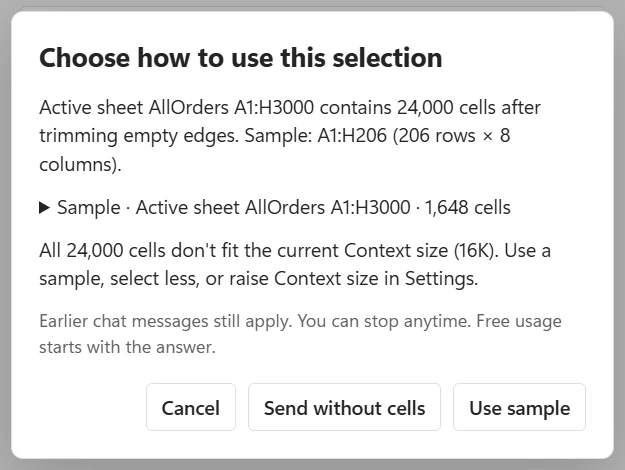
Choose one of these:
- Use sample: send the first part of the data. The answer may miss rows further down.
- Send without cells: ask your question without any cells.
- Cancel: go back, select a smaller area, or raise the Context size in Settings.
If everything fits, the window also offers Send all data. On a computer without a graphics card, this can be slow.
“Reading data…”
This is not an error. XLlama has handed your data to the AI, and the AI is reading it before it writes the first word. A bigger table takes longer to read, especially on a slower computer. Wait for the answer, or choose Stop (or press Escape). No Free response is used until the answer starts.
“Part of the data may not have fit”
You may see this warning under an answer. The full message is Part of the data may not have fit. Raise Settings → Context size or attach less data. It means the data filled all of the reading space, so the AI may have missed the beginning. Ask again with a smaller selection, or choose a bigger Context size.
“The attached data doesn’t fit the model’s context”
XLlama stopped before sending, because the data and your question are too big together. No Free response was used. Select less data or raise Context size. If the message says the question itself doesn’t fit, shorten the question.
“Ollama doesn’t have enough memory for this request”
Your computer ran out of memory for the chosen size. Set Context size to 8K, or choose a smaller model in Models. Close other big programs and try again.
“Earlier data in this chat no longer fit and wasn’t sent”
A follow-up question is sent together with earlier messages. When the old data no longer fits next to a long answer, XLlama leaves it out and tells you. Select the data again if the answer needs it.
The line under each answer #
Under each answer XLlama shows a line such as 10 tokens · 67 tok/s · 1.1K of 16K context. It shows three things: how long the answer is (a token is a small piece of text, about one word), how fast it was written, and how much of the reading space was used. In the example, 1.1K of the 16K was used.
Limit the number of cells #
Under Context size, Max cells per question (optional) is empty by default, which means Auto. Auto sends as many cells as fit. Enter a number to send fewer.
Next: Choose what XLlama reads. If something goes wrong: XLlama says Excel didn’t respond, memory is low or data doesn’t fit.