
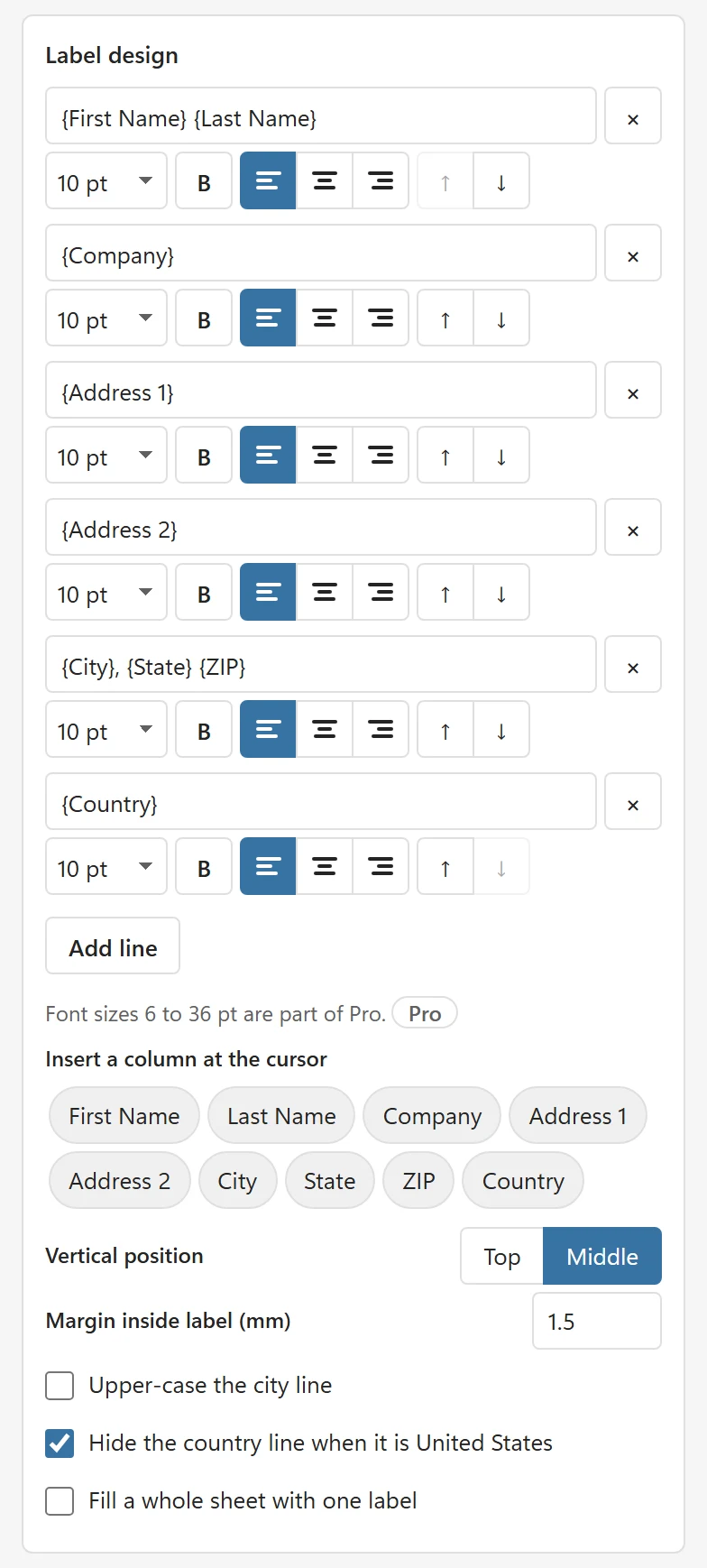
When your list is loaded (Use selection, or Sample data), LabelPop suggests a label from your column names. The Label design card lets you change it: the lines of text, their size, bold and alignment, where the text sits in the label and how much margin it has. Changes show in the preview straight away and are used by the PDF.
Lines and columns #
A label is made of lines. Each line is a text box. Write words as they should print and put a column of your list in curly brackets, for example {First Name} {Last Name} or {City}, {State} {ZIP}. The pane shows the names of your columns as buttons under Insert a column at the cursor. Click in a text box where the column should go, then click the column button; LabelPop types the column name in brackets at the cursor.
- Add line adds a line at the end. A label can have up to 8 lines.
- The arrows move a line up or down. The × button removes it.
- The size list sets the font size of the line, B makes it bold, and the three alignment buttons align it left, centered or right.
Words you type in a line, such as TO: or The, print for every label.
Font size #
The free version offers sizes from 7 to 18 pt, or the size the sheet suggests when that is larger (name badges and full sheet labels start bigger). Larger and smaller sizes (6 to 36 pt) are listed with Pro next to them, for example 24 pt · Pro. The label font is Noto Sans; Pro also has Noto Serif.
Where the text sits #
- Vertical position: Top or Middle of the label. Middle is the default.
- Margin inside label (mm): space between the label edge and the text, from 0 to 6 mm.
- Upper-case the city line prints the line that holds the city column in capitals.
- Hide the country line for the commonest country appears when your list has a country column. The line then reads Hide the country line when it is United States (your commonest country), and that country is left off. Other countries still print.
What LabelPop does with empty and odd values #
- A line whose columns are all empty for a row is left out of that label, so the label closes up. A comma or other separator next to an empty column is removed with it.
- A cell with line breaks becomes several lines on the label.
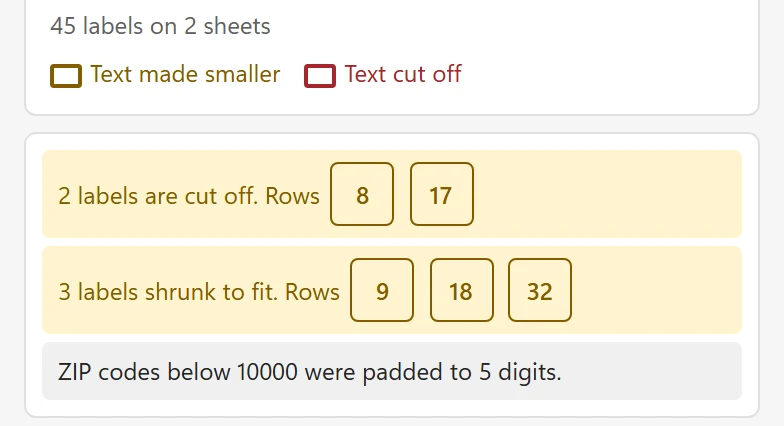
- Numbers, dates and currency print as Excel shows them. ZIP codes below 10000 are padded to 5 digits on US lists, with a note under the preview.
- If a line uses a column that is not in your list, the card says Not found in your list: {Fname}. Use the column buttons to insert a column. (with the name you typed). Fix the spelling or insert the column with its button.
When text does not fit #
LabelPop measures the text with the same fonts the PDF uses. A long line is made smaller, down to 7 pt, then wrapped once, and if it still does not fit it ends with “…”. Lines that were changed are outlined in the preview, with a key under the sheet (Text made smaller, Text cut off). The notes under the preview name the rows: 2 labels shrunk to fit. or 2 labels are cut off. Click a row number to select that row in Excel, shorten the text there, and the preview updates. To get more room, choose a sheet with larger labels, lower the font size or reduce the margin.
Start over #
Until you change something, the design follows your list and your sheet. After you edit, Reset to suggested layout appears below the options and brings the suggestion back. Fill a whole sheet with one label repeats the first row on every label; see Print return address labels.
Pro options #
The Pro options card sits below the design. The options need a Pro license; on the free version they are shown with a Pro badge so you can see what they do.
- Copies per row: Same number for every row (1 to 100) or From a column. An empty cell or a cell without a number prints one label.
- Sort: choose a column under Sort by and an Order (A to Z, smallest first or Z to A, largest first). Keep the list order turns sorting off.
- Duplicates: One label per unique address. Rows that print the same text give one label.
- Font: Sans (Noto Sans) or Serif (Noto Serif).
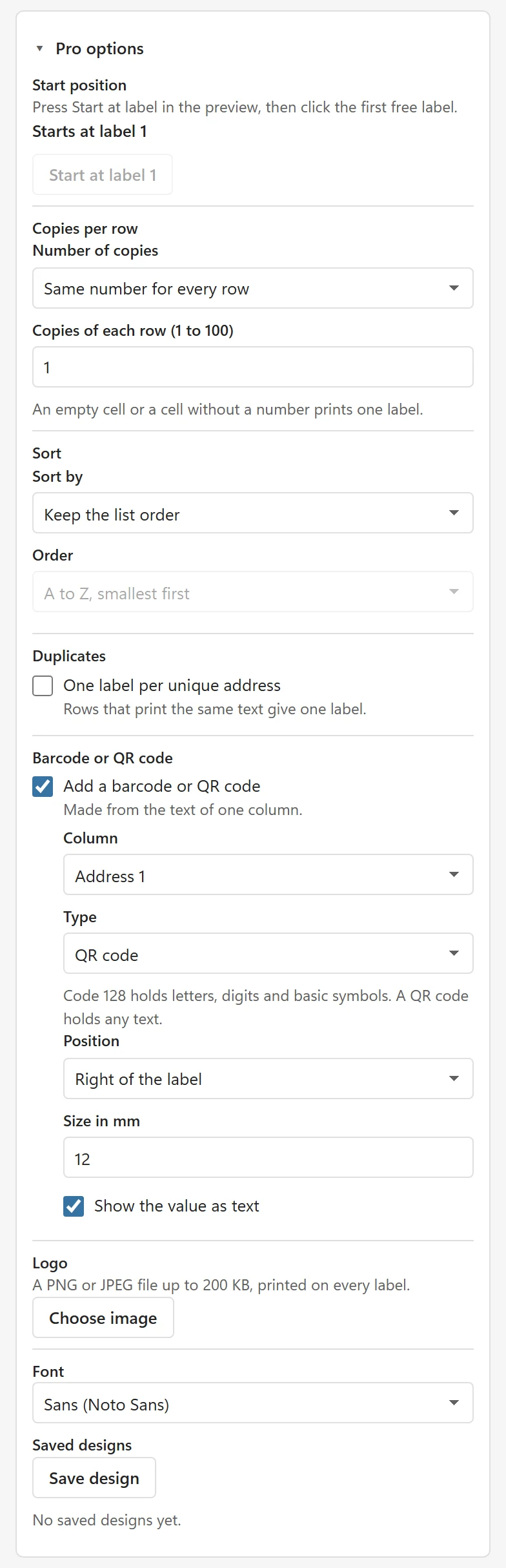
Pro options also has the start position (Start on a used sheet), barcodes and QR codes and a logo.
Saved designs (Pro) #
A saved design keeps the sheet and the design under a name, so you can bring it back for the next mailing.
Later, click Apply next to a saved design to load it, or Delete to remove it. LabelPop asks once; choose Delete it to remove it or Keep to cancel.
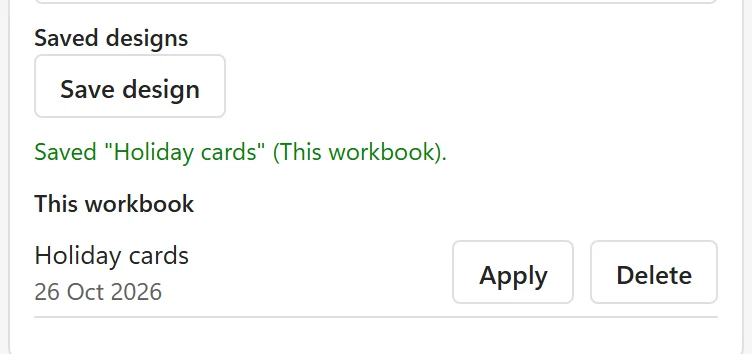
A design saved in the workbook travels with the file. A design saved on this computer stays on this computer. A custom size is saved with the design. Each place keeps up to 20 designs. A logo larger than 200 KB is left out of a saved design.