
A sheet of labels that was only partly used still has good labels on it. With Start at label you tell LabelPop which label to print on first, so nothing is wasted. This is a Pro feature. On the free version the button is shown with a Pro badge.
Set the first label #
- Choose your list and your label sheet as usual.
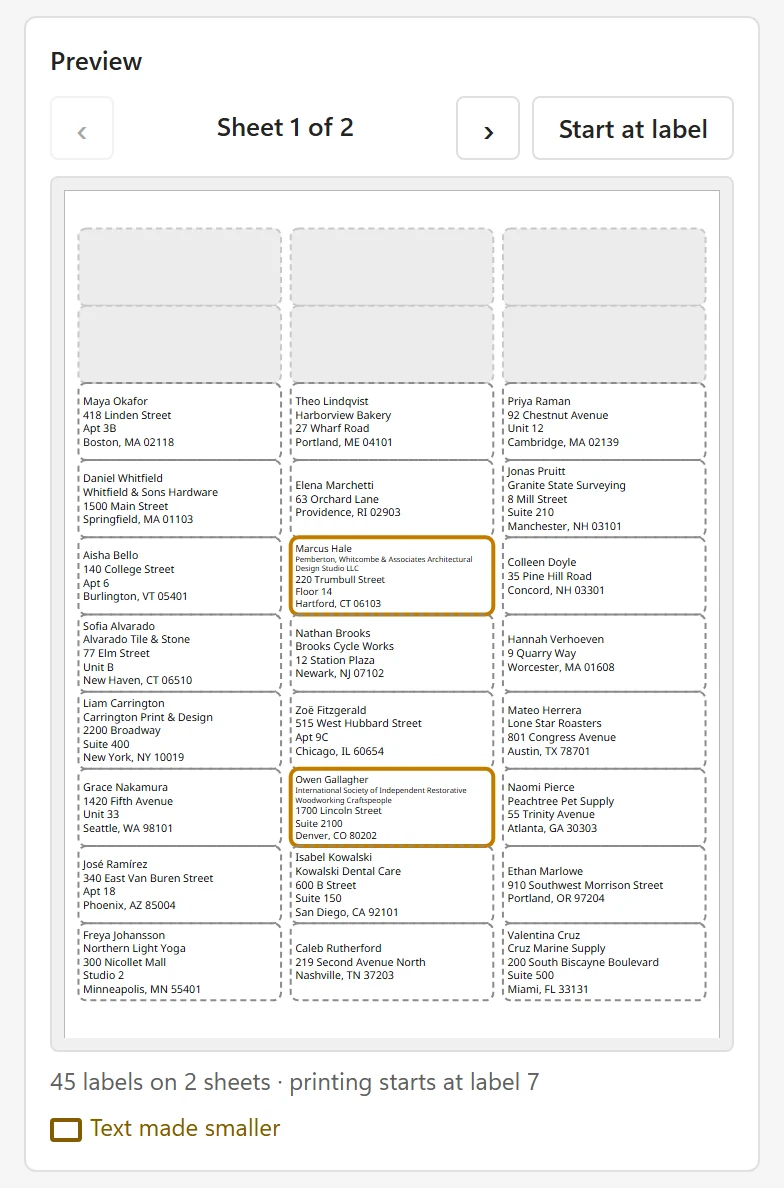
- In the Preview card, click Start at label. The note under the sheet says Click the first label to print on.
- Click the first free label on the sheet. LabelPop greys out the labels before it, and the note changes to something like 45 labels on 2 sheets · printing starts at label 7.
- Click Create PDF. The first printed label lands on the label you chose.
Labels count from the top left, row by row: left to right, then top to bottom. Hold your real sheet next to the preview to find the first free one.
Check and change it #
- The Pro options card shows Starts at label 7 under Start position. Start at label 1 puts it back to the first label.
- The start position applies to the first sheet only. Following sheets are full.
- When you pick another label sheet, the start position goes back to label 1.
- The skipped positions stay blank in the PDF.
On the free version #
Clicking Start at label and then a label shows Choosing where to start is part of Pro. This is a preview only. and the PDF starts at label 1. See Plans and licensing for what Pro adds.
Tips #
- Print the page on plain paper first and hold it against your partly used sheet. This shows right away whether the first printed label lines up with the first free one.