
You can print your logo on every label: on return address labels, shipping labels or name badges. The logo is part of the PDF, so it prints at full sharpness. This is a Pro feature. On the free version the logo controls are shown with a Pro badge, and the free PDF leaves the logo out.
Add the logo #
- Choose your list and your label sheet.
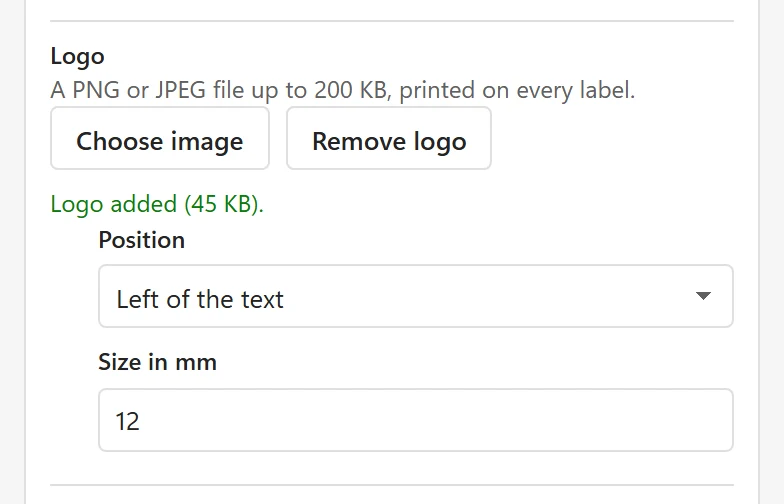
- Under Pro options, open the Logo section. The hint says A PNG or JPEG file up to 200 KB, printed on every label.
- Click Choose image and pick the file from your computer. The status line says Logo added (45 KB).
- Choose the Position: Left of the text or Above the text.
- Set the Size in mm (4 to 40, start with 12). The text area shrinks to make room.
The preview shows the logo at its real size on every label. Click Remove logo to take it away.
Choose a good file #
- Use a PNG or JPEG. Other types give This file is not a PNG or JPEG image. Choose a PNG or JPEG file.
- The file can be up to 200 KB. A larger file is refused with This image is larger than 200 KB. Use a smaller image. Above 100 KB, LabelPop warns that Large images make the PDF bigger.
- A picture a few hundred pixels across is plenty for a logo that prints 12 mm wide. A smaller file keeps the PDF small.
- If the picture cannot be read, you see This image could not be read. Choose another PNG or JPEG file.
Good to know #
- The logo is in the PDF only. Label sheet in Excel says Logos are only in the PDF.
- To keep the logo for the next job, save the design with Save design. A logo larger than 200 KB is left out of a saved design.
- If the logo sits too close to the edge of the label, raise Margin inside label (mm) in the Label design card.