
You can print address labels from an Excel list in about two minutes: click a cell in your list, pick the label sheet, check the preview and click Create PDF. This guide goes through each step with the sample list or your own, and explains how the PDF reaches your printer on Excel on the web and outside Excel on the web (for example Excel for Windows and Mac).
Before you start #
- Put each person or company in its own row, with a header row above that names the columns (First Name, Last Name, Company, Address 1, City, State, ZIP and so on). LabelPop recognizes common names in English, German, Spanish and French.
- Have the label sheets you will print on. If you only want to try LabelPop, plain paper and the sample list are enough: Sample data in the menu or on the card under Use selection adds it and loads it as your list at once, so you can skip step 1.
- The pane is open: Home tab, LabelPop group, LabelPop.
1. Click your list and use the selection #
Click any cell in your address list, then click Use selection. LabelPop reads the table or the block of cells around the cell you clicked, and the card shows what it found, for example Using LabelPopSample · 45 rows · 9 columns. If you select several cells instead of one, LabelPop uses exactly those cells.
- Rows hidden by a filter or by hand are skipped, and the card tells you how many (3 hidden rows skipped). Filter your list first to print labels for only some people.
- If the first row does not look like headers, LabelPop says No header row found. The columns are named A, B, C and so on.
- A list can have up to 10,000 rows. Beyond that the card says Only the first 10,000 rows are used.
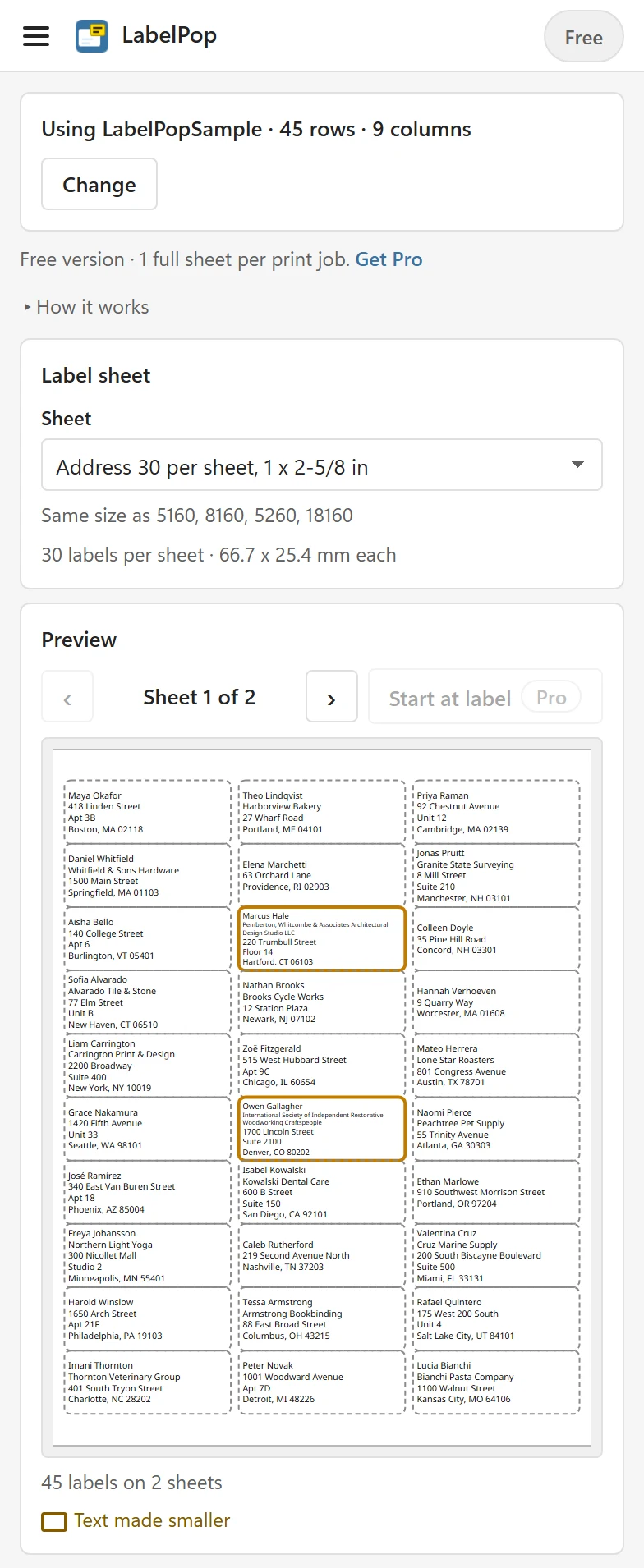
To switch to another list, click Change, click a cell in the new list and click Use selection, or choose Keep the current list. If you see There is no data there. Click a cell inside your list, or select the cells you want, then try again., the cell you clicked is outside your list.
2. Pick your label sheet #
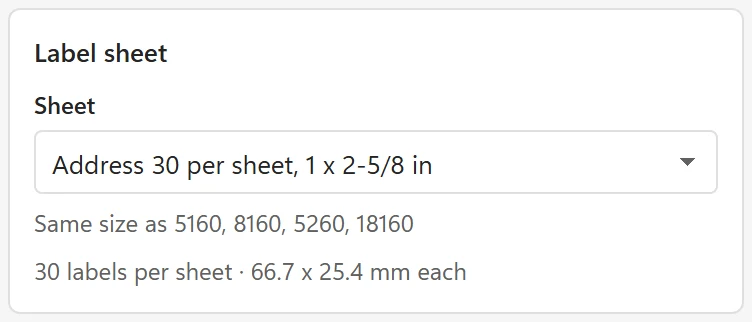
In the Label sheet card, open the Sheet list. Sheets are grouped by paper and type, for example US Letter · Address labels. LabelPop starts with 30 per sheet on US Letter or 21 per sheet on A4, depending on your Excel region; Settings has a Default paper choice. Under the list, Same size as 5160, 8160, 5260, 18160 helps you match the product code on your box, and a second line gives the number of labels and the label size, for example 30 labels per sheet · 66.7 x 25.4 mm each.
If your Excel region uses another paper than the sheet you picked, a warning appears: This is a US Letter sheet, but your Excel’s region usually prints on A4. If your label sheets are A4, pick an A4 sheet. or This is an A4 sheet, but your Excel’s region usually prints on US Letter. If your label sheets are US Letter, pick a Letter sheet. The warning goes away when you pick a sheet that matches.
Not sure which sheet you have? See Choose the right label size.
3. Check the label design #
The Label design card shows the lines LabelPop suggested from your column names: the name, the company if there is one, the street, the second address line, the city with state and ZIP, and the country. If most rows are in one country, the country line is hidden for that country. You can leave the suggestion as it is. To change the lines, sizes or alignment, see Design your label.
4. Check the preview #
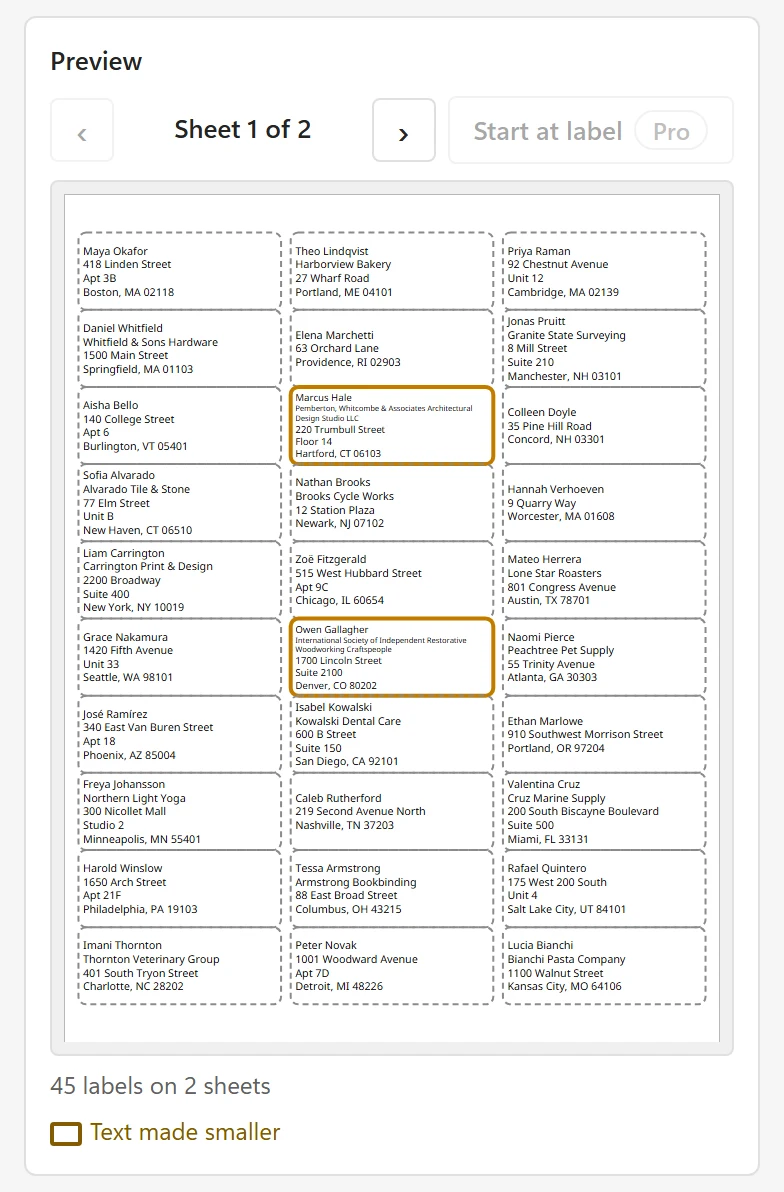
The Preview card draws every sheet at true size, using the same layout as the PDF. The summary says how many labels and sheets you have (45 labels on 2 sheets). Use Previous sheet and Next sheet (the arrows) to flip through the sheets, and click a label to enlarge it. In the enlarged view, Previous label and Next label (or the Left and Right arrow keys) step through the labels, a counter such as Label 7 of 45 · row 8 says which one you see and which row of your list it is, and Back to sheet returns.
- Labels whose text had to be made smaller, or is too long and gets cut off, are outlined in the preview, with a key under the sheet (Text made smaller, Text cut off). The notes below the preview list the rows, for example 2 labels are cut off. Click a row number to select that row in your list and fix it.
- Filtered or hidden rows are not in the preview, and ZIP codes below 10000 are padded to 5 digits (ZIP codes below 10000 were padded to 5 digits.).
- Empty rows are skipped (2 empty rows were skipped.).
5. Click Create PDF #
Click Create PDF. What happens next depends on where you use Excel.
On Excel for the web #
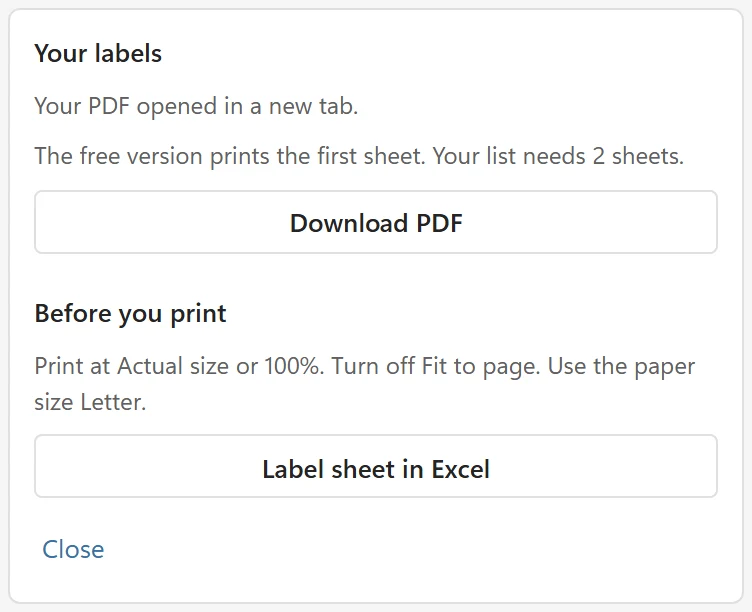
LabelPop builds the PDF in your browser, so nothing is uploaded. It opens in a new tab and the card says Your PDF opened in a new tab. If your browser blocked the new tab, the card says Your browser did not open a new tab. Use Open PDF or Download PDF. To open it by itself next time, allow pop-ups for this site. Click Open PDF or Download PDF. The PDF stays available in the card for 10 minutes; after that the card says This link has expired. Click Create PDF again.
Outside Excel on the web (Excel for Windows and Mac) #
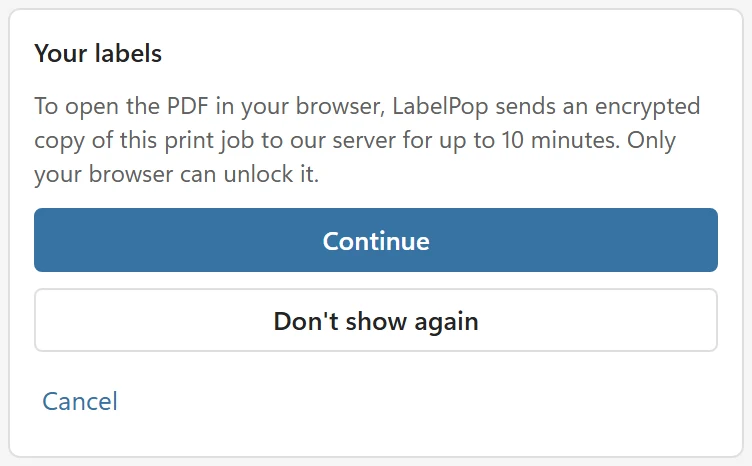
The desktop apps cannot show a PDF from inside the pane, so LabelPop opens it in your default browser. The first time, LabelPop shows a short notice: To open the PDF in your browser, LabelPop sends an encrypted copy of this print job to our server for up to 10 minutes. Only your browser can unlock it. Choose Continue to go on (the notice comes back the next time you open the pane), Don’t show again to go on and never be asked again on this computer, or Cancel to stop. How this works, and why the server cannot read your addresses, is explained in Where is my data?
LabelPop then opens the print page in your default browser. The print page shows your PDF and a Download PDF button. In the pane the card says Your PDF is opening in your browser. If nothing opened, use Copy link and paste it into any browser. The link works once, for 10 minutes. If no browser window appears, click Copy link, paste the whole link into a browser address bar and press Enter.
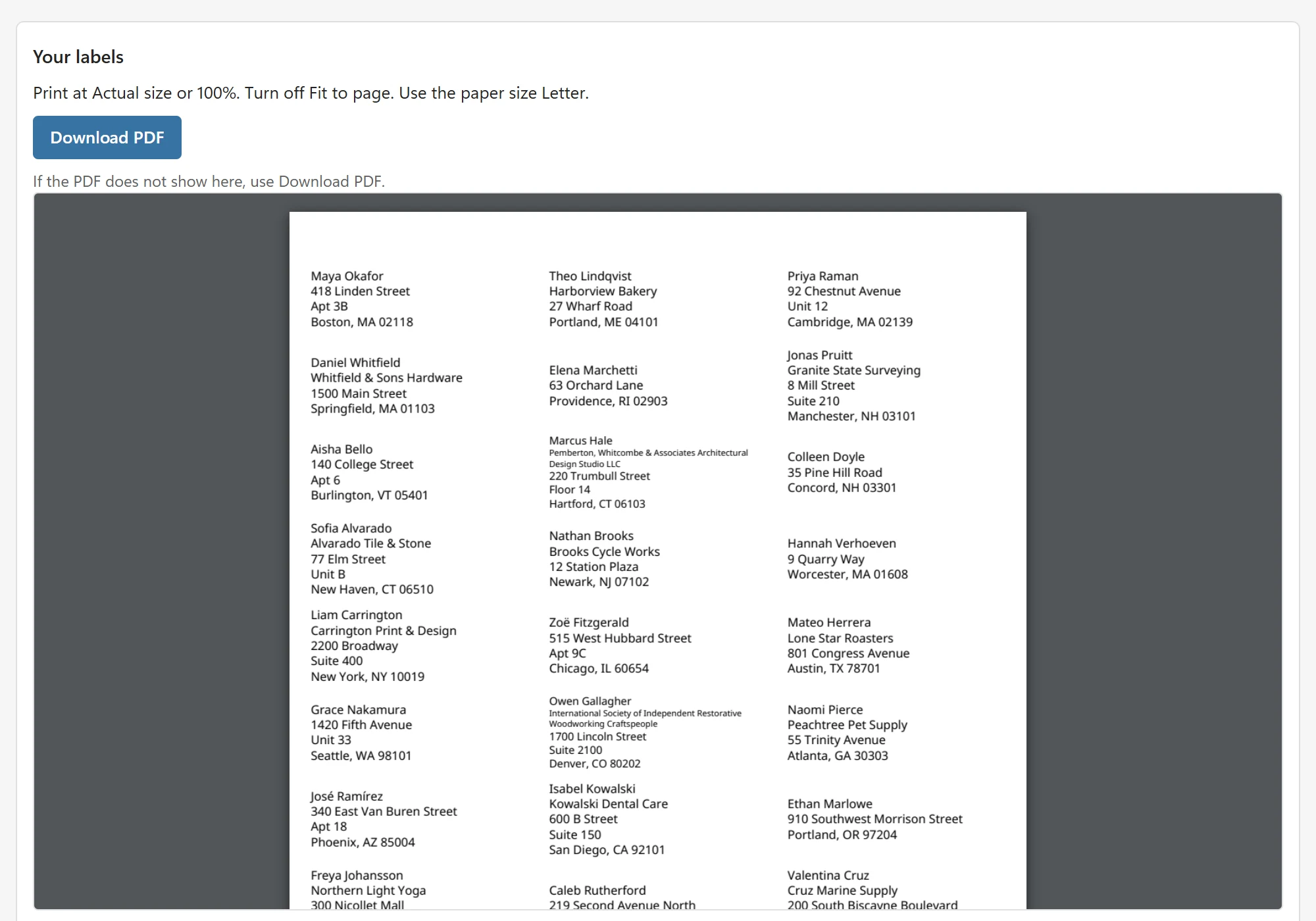
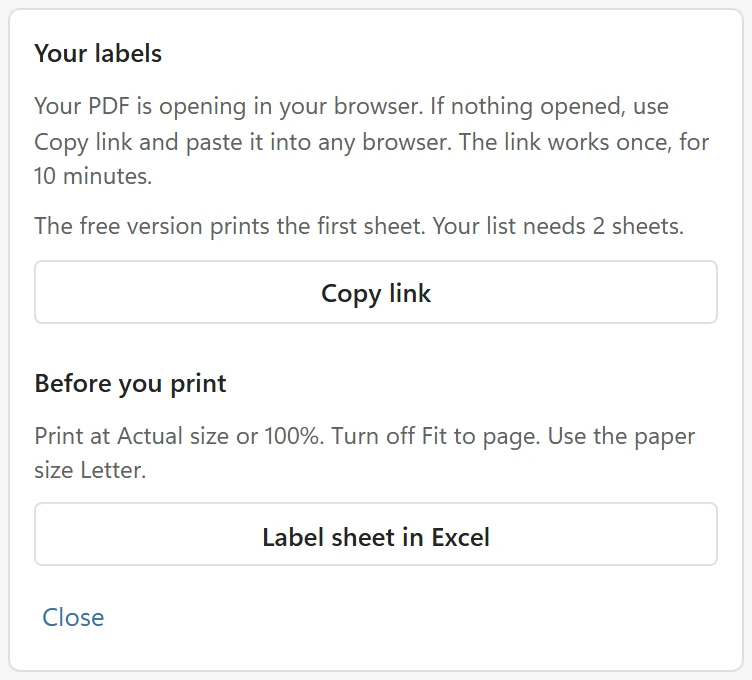
On the free version the PDF has the first full sheet. If your list needs more, the card above the button says so and Print first sheet prints that sheet. Plans and licensing explains the limit.
6. Print at Actual size #
The card below the buttons says Before you print: Print at Actual size or 100%. Turn off Fit to page. Use the paper size Letter. (or A4). The PDF is already the exact size of the page, so any scaling moves the text off the labels.
- Open the print dialog from the PDF viewer (Ctrl+P, or Command+P on Mac).
- Choose your printer and the paper size shown in the card.
- Set the scale to Actual size, or to 100 in Edge and Chrome, and make sure Fit to page and Shrink to fit are off.
- Print one page on plain paper first. Hold it against a real label sheet in front of a window or a lamp: the text should sit inside the labels. Then print on the label sheet.
If the text is off by a few millimetres, your printer shifts the page. Fix alignment with calibration corrects that once for your computer.
If the PDF will not open #
See The PDF does not open. As a last resort, Label sheet in Excel puts the labels on a new worksheet you can print with Excel; see Print from an Excel sheet instead of a PDF.