
About three minutes from installing LabelPop to your first label sheet. You do not need your own list: the sample data gives you 45 addresses to try everything with. No account and no key: the free version prints one full sheet per print job on every label size.
1. Add LabelPop to Excel #
You need Excel on Windows or Mac with Microsoft 365, Excel 2021 or Excel 2024, or Excel on the web. LabelPop is coming soon to Microsoft Marketplace; the LabelPop page shows when the listing is live. Once it is listed, add LabelPop from the Add-ins menu on the Home tab (More Add-ins, search for LabelPop, Add). The steps are in Installation.
2. Open the pane #
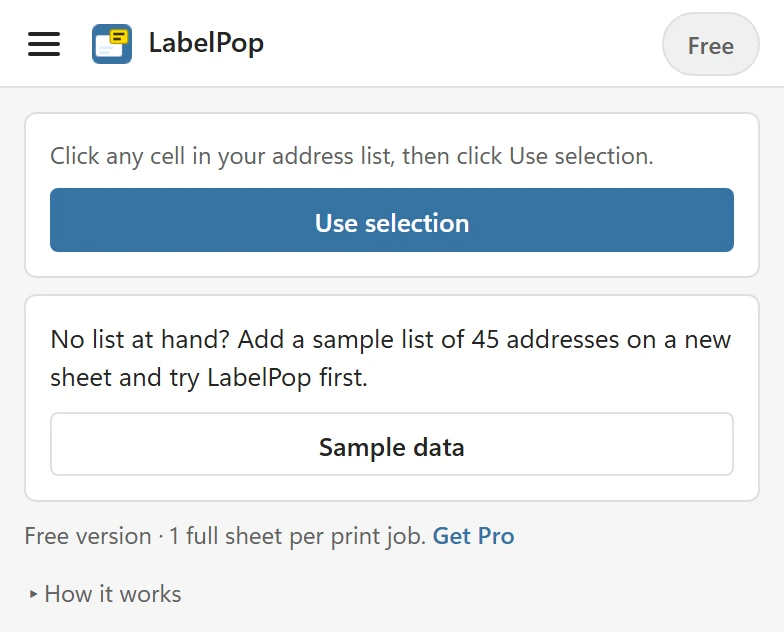
On the Home tab, find the LabelPop group and click LabelPop. The pane opens at the side of the sheet. Below the cards, the How it works help is folded; click it to read the three steps. The menu at the top left has Sample data, Calibration, Settings, Getting started, Docs, Support, About and Reload add-in.
3. Add the sample list #
The second card says No list at hand? Add a sample list of 45 addresses on a new sheet and try LabelPop first. Click Sample data (the menu has the same entry). LabelPop adds a sheet called LabelPop sample with a table of 45 made-up addresses, and loads it as your list in the same click. The status line says Added the sheet LabelPop sample with 45 sample addresses and loaded it as your list. There is no further step: you do not need to click Use selection for the sample.
4. Check the list and the preview #
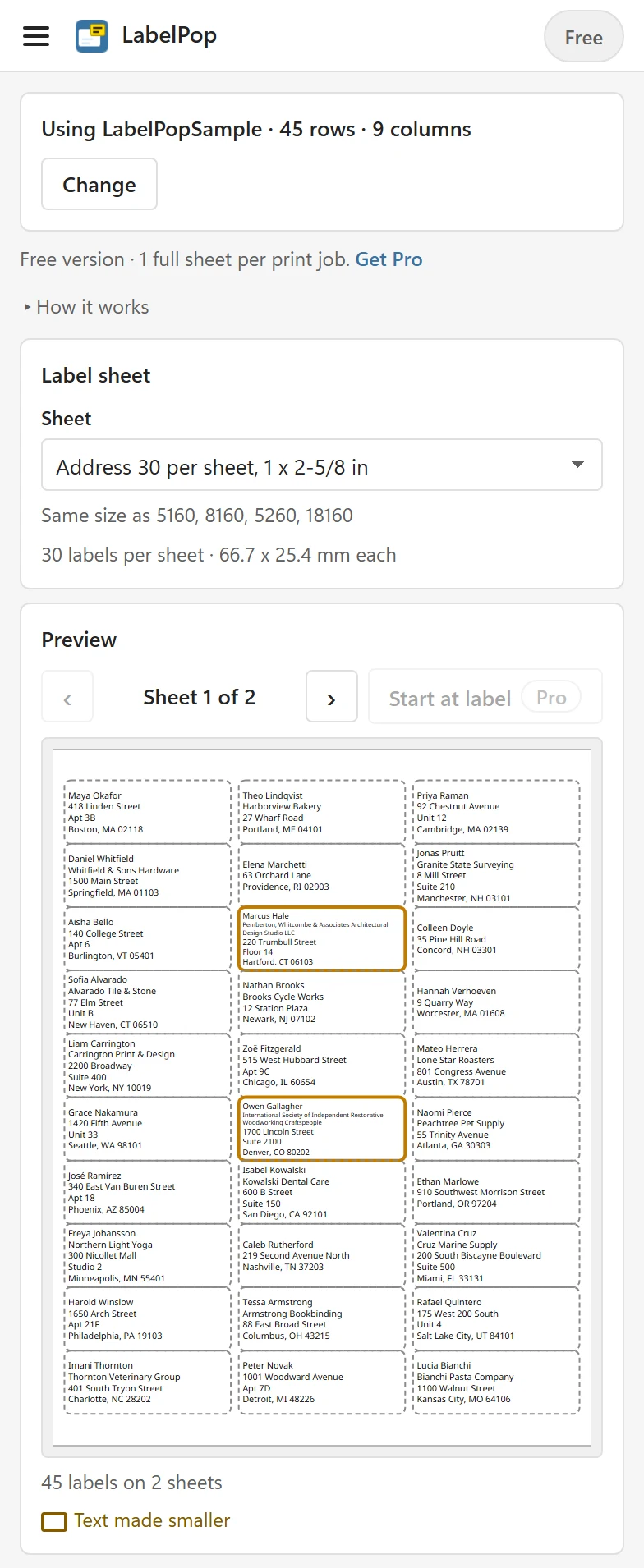
The list card already shows Using LabelPopSample · 45 rows · 9 columns. With your own list you click any cell in the list and then click Use selection, and LabelPop finds the rest. The Label design and Preview cards appear, with a layout LabelPop suggested from your column names.
The Label sheet card starts with the sheet that fits your region: 30 per sheet on US Letter, or 21 per sheet on A4. The preview shows every page at true size, for example 45 labels on 2 sheets. Use the arrows to flip through the sheets.
5. Click Create PDF #
Click Create PDF. On the free version the PDF has the first full sheet; the card above the button says Your list needs 2 sheets. Free prints 1 sheet per job. and offers Print first sheet. On Excel on the web the PDF opens in a new tab. Outside Excel on the web, for example in Excel for Windows and Mac, the first print shows a short notice, then your browser opens the PDF. Print address labels from Excel explains both.
6. Print at Actual size #
Print the PDF on plain paper first. In the print dialog choose Actual size or 100%, turn off Fit to page and use the paper size shown under Before you print. Hold the printout against a real label sheet in front of a window: the text should sit inside the labels. If it does not, see Labels are misaligned.
Where to go next #
- Print address labels from Excel for the full walk-through with your own list.
- Choose the right label size if you are not sure which sheet you have.
- Design your label to change the lines, sizes and alignment.
- Fix alignment with calibration if your printer shifts the page.