
LabelPop can print a barcode or a QR code on every label, made from the text of one column: an ID, a SKU, a tracking number, a web address. The codes are drawn as sharp vector shapes in the PDF. This is a Pro feature. On the free version the controls are shown with a Pro badge, and a PDF made on the free version leaves the codes out.
Add a code #
- Choose your list and your label sheet. Make sure the list has a column with the value for the code.
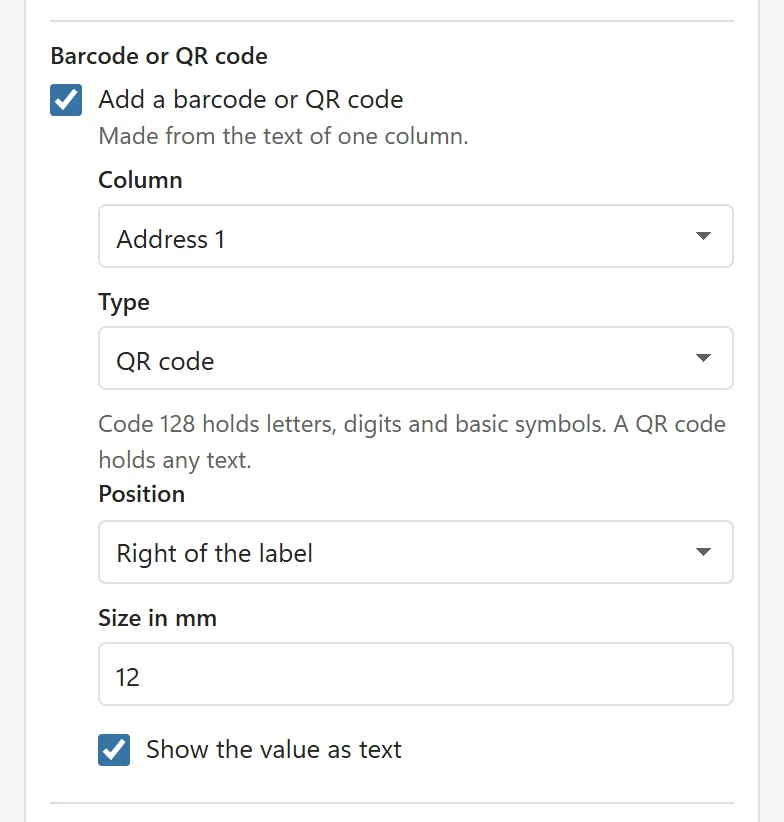
- Under Pro options, find Barcode or QR code and tick Add a barcode or QR code. The hint says Made from the text of one column.
- Choose the Column that holds the value.
- Choose the Type: Code 128 or QR code. Code 128 holds letters, digits and basic symbols. A QR code holds any text, such as a web address.
- Choose the Position: Bottom of the label or Right of the label. The text lines make room for the code.
- Set the Size in mm (6 to 40, start with 12) and tick Show the value as text if you want the value printed next to the code.
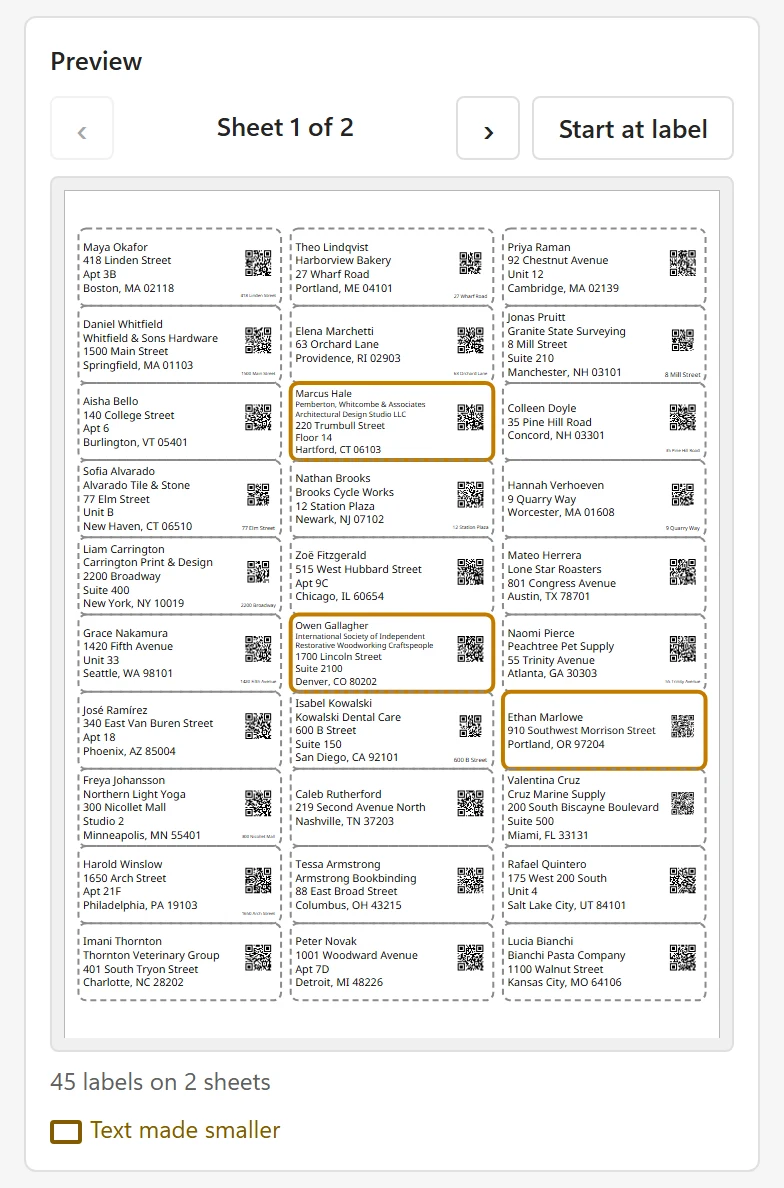
The preview draws the codes at their real size, so you can check that they fit the label.
Messages you may see #
- 2 labels cannot get a barcode. followed by the reason of the first one. A cell may be empty (A barcode needs a value.), or a Code 128 value may hold characters it cannot (Code 128 barcodes can only hold letters, digits and basic symbols. Use a QR code for other text.). The notes under the preview list the rows. Fix the value in Excel, or use a QR code.
- 3 barcodes are small and may not scan. Make the barcode larger. Raise the Size in mm, or choose a sheet with larger labels.
Make the codes scan #
- Print at Actual size. A scaled PDF changes the code size and the bars.
- Print a test page on plain paper and scan it with your scanner or your phone before you print the real labels.
- Use dark ink on a light label. Colored or glossy label stock can be harder to scan.
Good to know #
- Barcodes are in the PDF and, with Pro, in Label sheet in Excel when your Excel can place pictures. Otherwise the sheet says Barcodes were left out because this Excel cannot draw pictures here. Use Create PDF for barcodes.
- On the free version, Pro options in your design (barcode) are left out of the free PDF.