
Printers rarely place a page exactly where the PDF says. The page may sit 1 or 2 mm to one side, and some printers scale it by a fraction of a percent. On a label sheet that is enough to put text on the edge of a label. Calibration measures your printer once and corrects every PDF and Excel label sheet LabelPop makes on this computer. You only measure and type in what you measured; LabelPop works out the correction.
Before you calibrate #
Check the print settings first. If the labels drift more and more towards the right or the bottom, the cause is usually Fit to page or a scale other than 100%, not the printer. Labels are misaligned lists the settings. Calibrate when the text is off by about the same amount on every label.
1. Print the calibration page #
- In the pane, open the menu at the top left and choose Calibration.
- Check Paper: Letter or A4. It follows the sheet you picked; change it if you print on the other paper.
- Click Print a calibration page. It opens the same way as your labels: in a new tab on Excel for the web, or in your default browser through the print page outside Excel on the web (for example Excel for Windows and Mac).
- Print it on plain paper at Actual size or 100%, with Fit to page off, the paper size set to Letter or A4 as chosen, and portrait orientation. Do not use borderless printing.
The page has four crosshairs (A top left, B top right, C bottom left, D bottom right), each 20 mm from the edges of the paper, two rulers of 100 mm and a square of 25.4 mm. It prints without any calibration, so it always shows what your printer does on its own. Its own instructions say: Print at Actual size or 100%. Turn off Fit to page. Measure the distance from the left edge and the top edge of the paper to the centre of crosshair A, and the length of the 100 mm ruler. Enter them in LabelPop, menu (top left) > Calibration.
2. Measure the printout #
Use a ruler marked in millimetres, ideally metal. You need three numbers:
- The distance from the left edge of the paper to the center of crosshair A. It is printed 20 mm from the edge.
- The distance from the top edge of the paper to the center of crosshair A. It is printed 20 mm from the edge.
- The length of the horizontal 100 mm ruler, from its first mark to its last mark. It should be 100 mm.
Measure from the paper edge to the center of the crosshair, to a tenth of a millimetre if you can. The page has a few blanks to write the numbers into.
3. Type in what you measured #
In the Calibration view, fill the three boxes:
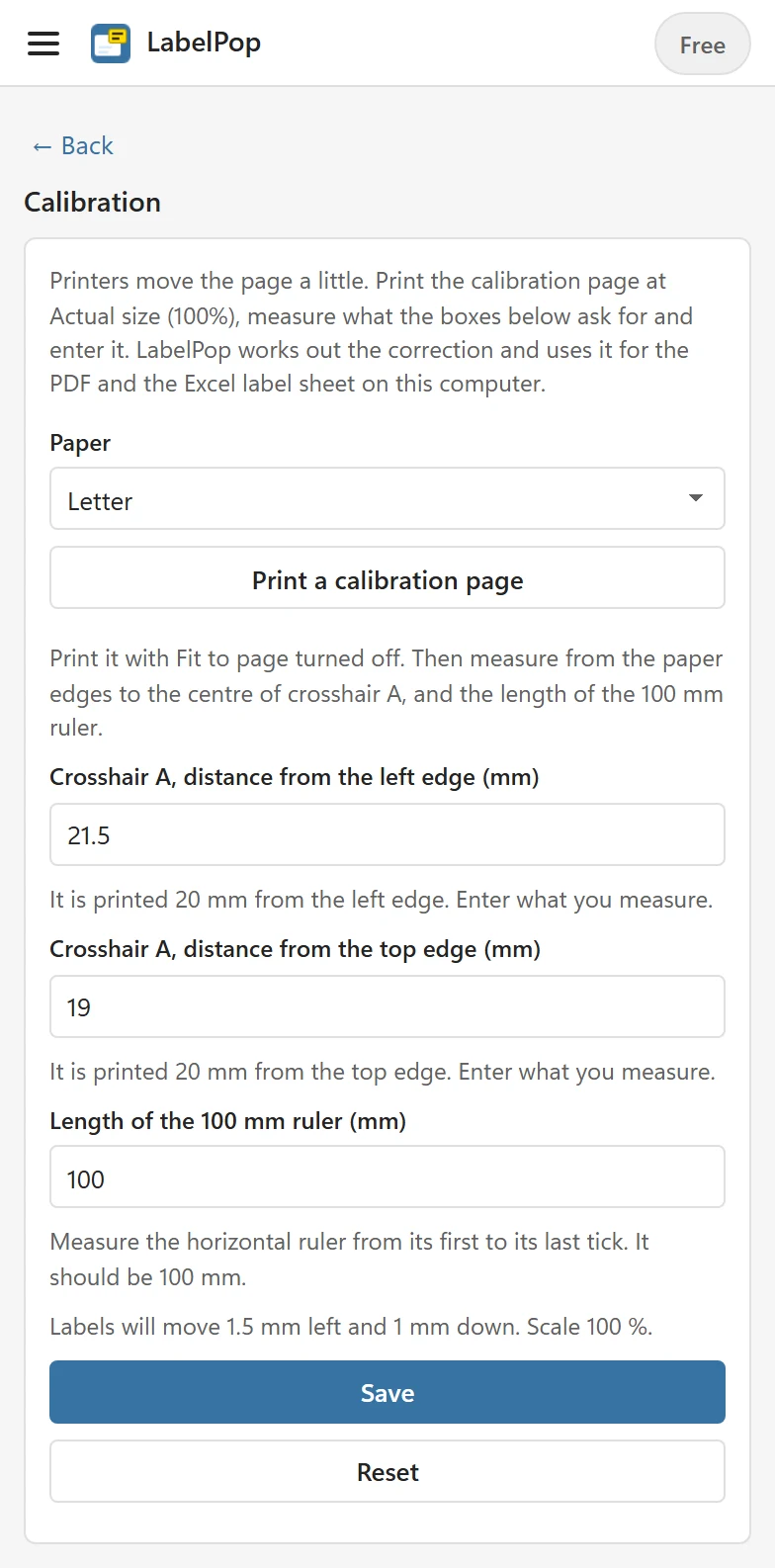
| Box | What to enter |
|---|---|
| Crosshair A, distance from the left edge (mm) | What you measured from the left edge. It is printed 20 mm from the left edge. Enter what you measure. |
| Crosshair A, distance from the top edge (mm) | What you measured from the top edge. It is printed 20 mm from the top edge. Enter what you measure. |
| Length of the 100 mm ruler (mm) | What the horizontal ruler measures. Measure the horizontal ruler from its first to its last tick. It should be 100 mm. |
A decimal comma or a decimal point both work, and a box you leave empty counts as the printed value (20, 20 and 100). While you type, a line under the boxes shows what LabelPop will do, for example Labels will move 1.5 mm left and 1 mm down. Scale 100 %. for a crosshair that landed 21.5 mm from the left edge and 19 mm from the top with an exact ruler. A ruler that measures 99.6 mm gives Scale 100.4 %, because the printer shrinks the page and LabelPop draws a little larger to make up for it. You do not need to calculate anything.
Click Save. The status line says Calibration saved for this computer.
If LabelPop refuses the numbers #
- … must be a number. or … must be more than 0. A box has letters in it, or a 0 or negative number. The message starts with the name of the box.
- The crosshair is more than 10 mm from where it should be, so the page was probably scaled. Print the calibration page again with Fit to page turned off and Actual size or 100% selected. A shift that large is almost never the printer.
- A 100 mm ruler that measures 98.2 mm means the page was scaled. Print the calibration page again with Fit to page turned off and Actual size or 100% selected. LabelPop corrects scale errors up to 1%. Beyond that a print setting is scaling the page; fix it instead of calibrating.
4. Check the result #
Back on the main view, a line reads Calibrated for this computer with a Reset link. Create a PDF of your labels, print one page on plain paper and hold it against a real label sheet. Hold it up in front of a window or a lamp: the text should sit inside the labels, with the same space on the left and the right. If it is still off by a little, measure the label page again against the label sheet and calibrate once more.
The calibration page itself ignores your saved numbers, so printing it again shows the printer’s own behavior, not the corrected result. Check with a label page.
Good to know #
- The numbers are kept on this computer and apply to every label sheet size, the PDF and Label sheet in Excel. They are not stored in the workbook, so a colleague has their own.
- They belong to the computer, not to the printer. If you switch printers, measure again or click Reset (in the Calibration view or next to the line on the main view) to go back to no correction. The status line says Calibration reset.
- If your browser blocks storage, the numbers apply now but are forgotten later: Calibration applies now but could not be kept on this computer.
- Calibration is free.