
Your holiday card list is probably already in Excel. With LabelPop you print labels from Excel straight from that list: click a cell, pick the label sheet and click Create PDF. Holiday card labels for 30 cards take about two minutes, and you do not need Word or a mail merge. This guide also covers the return address labels for the envelope flap.
Get the list ready #
- One row per household, with a header row: for example First Name, Last Name, Address 1, Address 2, City, State, ZIP and Country.
- Add a column called Send card with Yes or No. Use the filter arrows to show only the Yes rows. LabelPop skips filtered rows, so the labels match what you see.
- Check the ZIP column. Codes such as 02118 are fine: LabelPop prints the zero.
Make the address labels #
- Open the pane (Home tab, LabelPop group, LabelPop), click any cell in your list and click Use selection.
- In the Label sheet card, pick the sheet you bought. Common choices are the 30 per sheet address size on US Letter (Address 30 per sheet, 1 x 2-5/8 in) or the 21 per sheet size on A4 (Address 21 per sheet, 63.5 x 38.1 mm).
- Look at the preview. LabelPop built the lines from your column names. Labels that are too long are marked and listed under the preview.
- Click Create PDF, print one page on plain paper at Actual size and hold it against a label sheet. Then print on the labels.
The full walk-through, including how the PDF opens on Windows, Mac and the web, is in Print address labels from Excel.
Address the family #
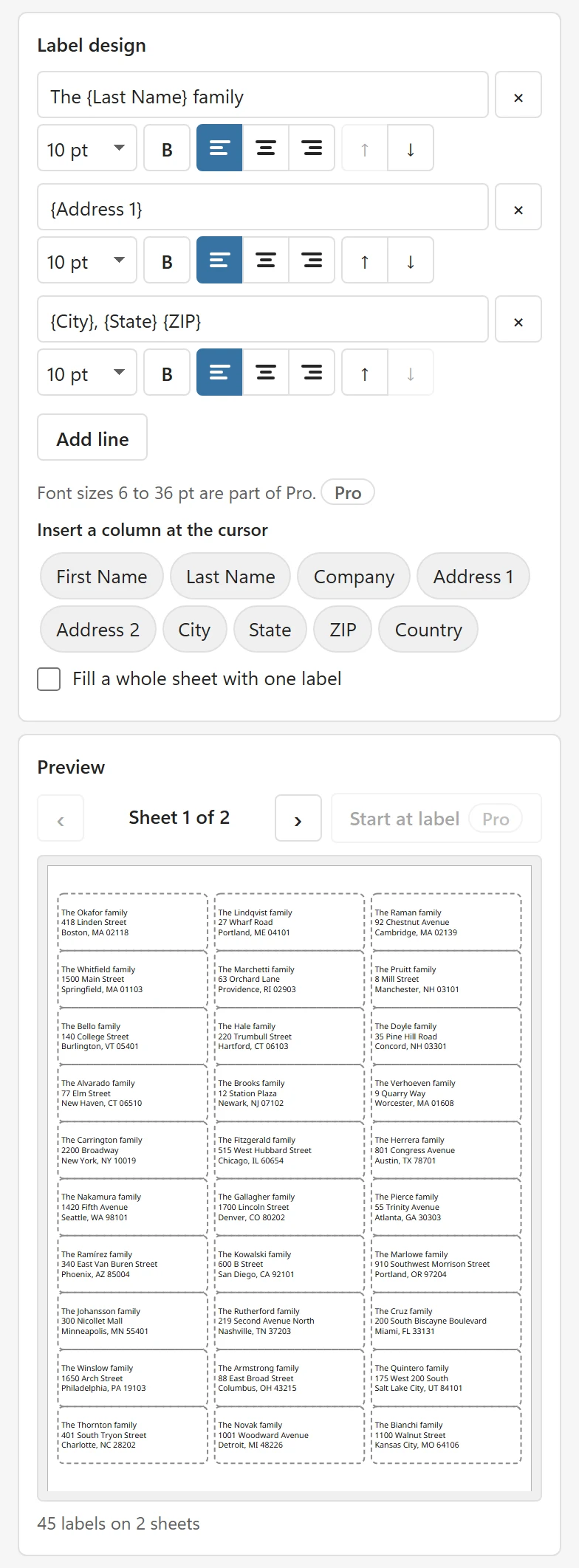
For a greeting such as The Okafor family, click Add line in the Label design card, type the word The, click the Last Name column button and type the word family, so the line reads The {Last Name} family. Use the arrows next to the line to move it to the top and remove the old name line with its × button. More design options are in Design your label.
Print return address labels for the envelope flap #
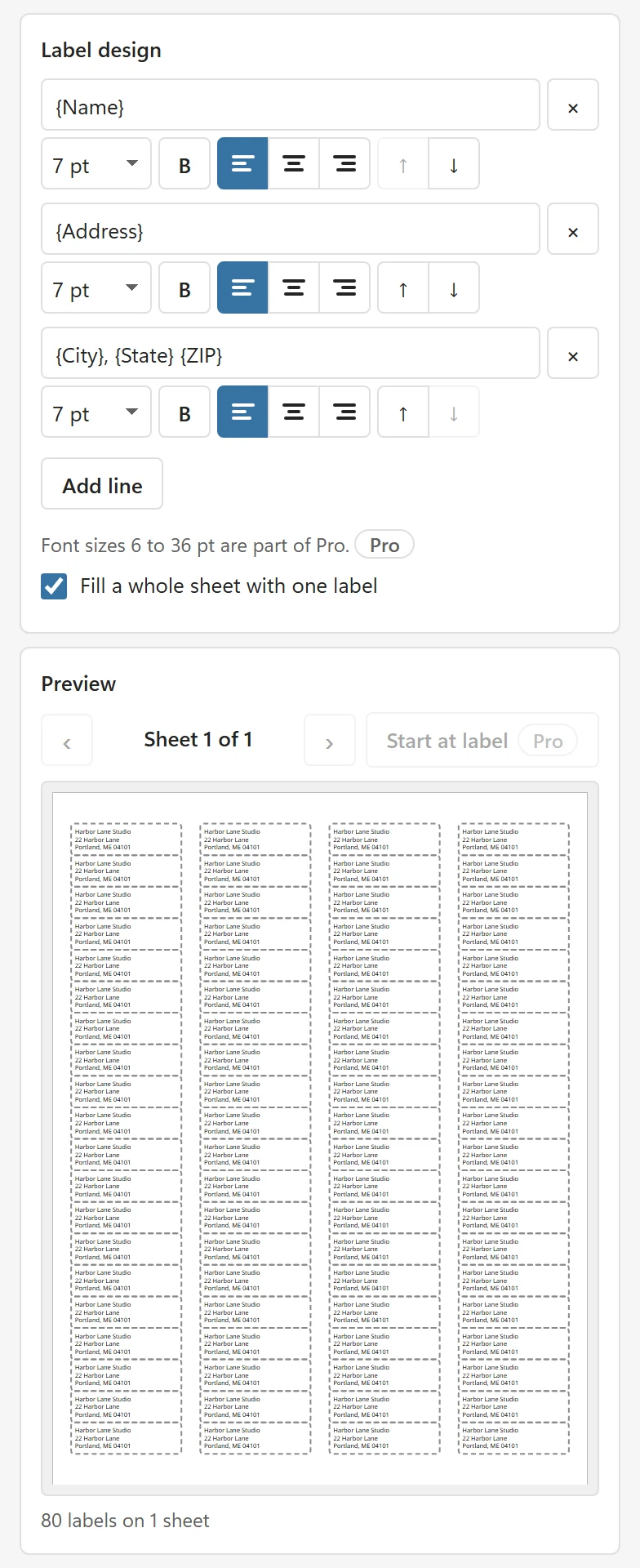
Make a second small list with just your own address: a header row and one row. Click a cell in it, click Use selection, pick a return address sheet (for example Return address 80 per sheet, 1/2 x 1-3/4 in) and tick Fill a whole sheet with one label. The preview repeats your address on every label of the sheet. This is free. See Print return address labels.
If your list has more than one sheet of cards #
The free version prints one full sheet per print job, so 30 cards fit on one sheet of the 30 per sheet size. For a longer list, the card above Create PDF shows how many sheets you need. Pro prints all of them in one job, and it adds options that suit a mailing list:
- Sort the labels by a column such as ZIP.
- One label per unique address so a household listed twice gets one card.
- Copies per row if some households need more than one label.
- Start at label to use the labels left on last year’s partly used sheet. See Start on a used sheet.
Tips for card season #
- Print a test page on plain paper before the real sheet. A sheet of labels cannot be reused.
- If the text is a little off the labels, calibrate once: Fix alignment with calibration.
- Keep the PDF. You can print it again next year with a few changes, or send it to a print shop.