
The PDF from LabelPop has the exact size of the page and every label at its exact position. When the printout is off, the cause is almost always a print setting or the printer’s own paper feed, not the PDF. Work through the checks in this order, and use a sheet of plain paper for each test.
1. Print at Actual size #
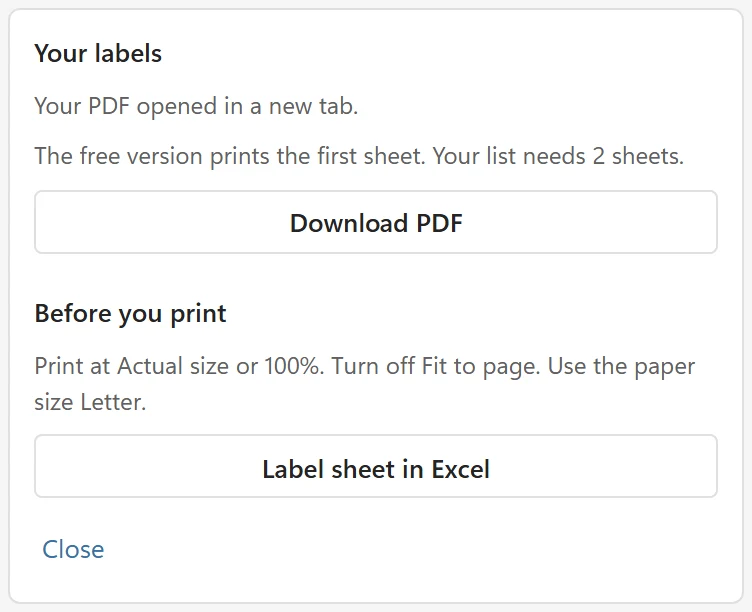
The card under the buttons says Print at Actual size or 100%. Turn off Fit to page. Use the paper size Letter. (or A4). The PDF already has the exact size of the page, so any scaling moves the text.
- In Edge and Chrome, open the print dialog, choose More settings, set the paper size to Letter or A4 as the card says and the scale to 100 (Custom), and make sure Fit to page or Fit to printable area is off.
- In Adobe Acrobat, choose Actual size under Page Sizing and Handling, not Fit or Shrink oversized pages.
- In the system print dialog on Mac, check that Scale to fit paper size is off and the scale is 100%.
- In your printer’s own settings (the driver), turn off any Scale to fit, Fit to page or Resize option and do not use borderless printing.
2. Check the paper size #
Letter and A4 differ in height by almost 18 mm. A Letter PDF printed on A4 paper, or the other way around, either shifts or gets scaled. The paper of the PDF is the paper of the sheet you picked in the Sheet list. If your Excel uses the other paper, LabelPop warns you with This is a US Letter sheet, but your Excel’s region usually prints on A4. If your label sheets are A4, pick an A4 sheet. or This is an A4 sheet, but your Excel’s region usually prints on US Letter. If your label sheets are US Letter, pick a Letter sheet.
3. Check you picked the right sheet #
Several sheets look alike. 20 and 30 per sheet on US Letter differ in label width, and on A4 there are two 24 per sheet sizes, 70 x 36 mm and 70 x 37 mm, and the 14 and 16 per sheet sizes have the same width but different heights. Count the labels on your sheet, measure one label and compare with Choose the right label size.
4. Look at how the text is off #
Print one page on plain paper. Hold the printout against a real label sheet in front of a window or a lamp, so the die-cut lines show through, and compare the first and last column and row.
- Every label is off by the same amount (all too far right, or all too low): the printer shifts the page. Use calibration to correct it once: print the calibration page, measure where crosshair A landed and the length of the 100 mm ruler, and type those three numbers into the Calibration view. LabelPop works out the correction.
- The text is right at the top left and drifts more towards the right or the bottom: the page is being scaled. Go back to step 1. If a scale is still off after that, the 100 mm ruler on the calibration page shows it. Calibration corrects up to 1%; for more, LabelPop says A 100 mm ruler that measures 98.2 mm means the page was scaled. Print the calibration page again with Fit to page turned off and Actual size or 100% selected.
- Only the edges are wrong: printers cannot print to the very edge of the page. On full sheet labels and sizes that reach the paper edge, such as Full sheet 8-1/2 x 11 in or Shipping 2 per sheet, 5-1/2 x 8-1/2 in, keep text away from the edge with Margin inside label (mm) in the Label design card.
5. Printer and paper feed #
- Print the test page from the same tray you will use for the label sheets. A manual feed slot and the main tray can place the page 1 or 2 mm apart.
- If your printer has a paper type setting, choose Labels or the nearest option for the real sheets. The feed can change with it.
- Load the label sheet the way your printer’s manual says. A sheet loaded upside down or face down prints on the wrong side or in the wrong direction.
- Calibration numbers belong to one set of printer settings. If you change a driver setting or the tray later, check again with a test page.
6. Label sheet in Excel #
If you printed with Label sheet in Excel, expect small errors: Excel rounds sizes to whole pixels. Use Create PDF for die-cut sheets. See Print from an Excel sheet instead of a PDF.
Still off? #
Contact support with the sheet you picked, your printer model, the paper size, the program you printed from and a photo of the printout lying on the label sheet.