
When you click Activate in Settings, LabelPop checks the key with the license server. The message under the buttons tells you what went wrong.
A license key has 21 characters #
The message is A license key has 21 characters. Check the key in your purchase email, then try again. The key is too short or too long. Copy it fresh from your purchase email, without spaces before or after. The eye button at the right of the field shows the key so you can check it.
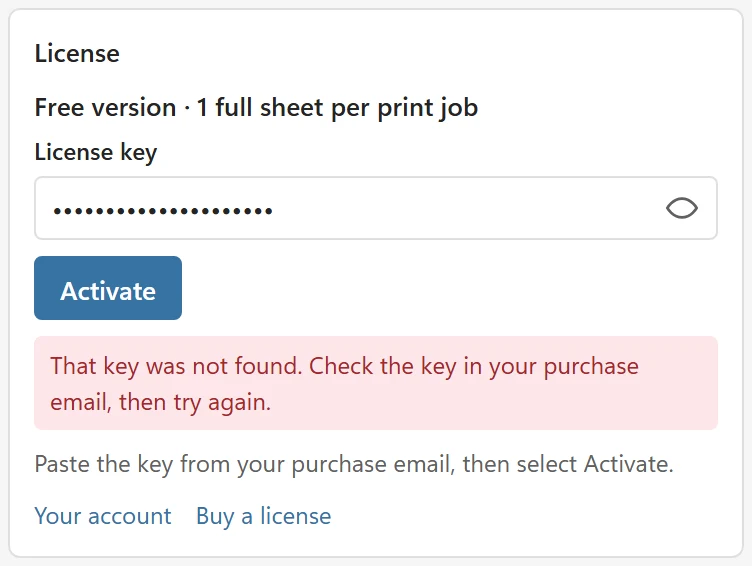
That key was not found #
The message is That key was not found. Check the key in your purchase email, then try again.
- Check for a typo, such as the letter O for the digit 0.
- A key of another product does not work here.
This license is not active, was refunded or has expired #
- This license is not active. If you think this is a mistake, contact support.
- This license was refunded, so it no longer unlocks LabelPop. Contact support if you think this is a mistake.
- This license has expired. Contact support to renew it.
A refunded or deactivated license no longer unlocks Pro. If you think that is a mistake, contact support with the email address you bought with.
The license is already active on its maximum number of devices #
The message is This license is already active on its maximum number of devices. Free a device in your account, or remove the key from a computer you no longer use, then try again. Each license covers a fixed number of devices. Free a device in your account, or open Settings on a computer you no longer use and click Remove key from this computer there. Then activate the key again.
The license server did not answer #
The message is The license server did not answer. Check your internet connection, then try again. A key that was verified recently keeps working, and Settings says so with a line such as The license server did not answer, so every feature stays on until 3 November 2026. Connect to the internet before then. The grace period is up to 7 days. After that, the free version is on until the key is checked again: The license could not be checked for more than 7 days, so the free version is on. Connect to the internet, then go back and open Settings again. LabelPop checks the key again each time Settings opens. If you are online and the check still fails, a firewall may block api.pythonandvba.com; ask IT to allow it.
LabelPop could not check this key right now #
The message is LabelPop could not check this key right now. Try again later. The license server could not answer for this key at the moment. This says nothing about the key itself and your internet connection is not the cause. Wait a little and click Activate again. If it stays, contact support.
Settings says the free version is on #
Without a key that works, the free version is on and the badge in the header says Free. Settings may say one of these:
- Your saved license key was not found, so the free version is on. Check the key in your purchase email and activate it again, or remove the key from this computer.
- This license is active on its maximum number of devices, so it does not work on this one. Free a device in your account, then go back and open Settings again.
- Your license key has not been checked on this device yet. Connect to the internet, then go back and open Settings again.
The free version prints one full sheet per print job on every label size; Pro options show a Pro badge. Add a key, or fix the one you added with the steps above, to turn Pro on.
The key is forgotten when I close the pane #
If Settings says This browser blocks storage for the add-in, so the license is forgotten when the pane closes. Allow site data for this add-in., allow site data for the add-in. In Excel on the web, a private window or strict tracking protection is the usual cause; use a normal window.