
After Create PDF, the PDF should open in a browser tab. The steps depend on where you use Excel, and the card under the buttons, Your labels, says what happened.
Excel on the web: no new tab opened #
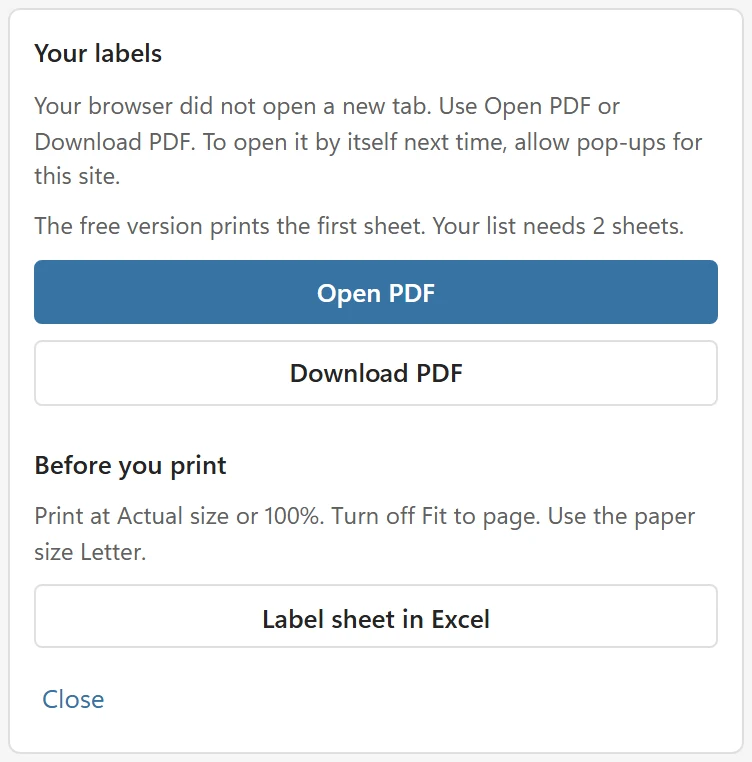
The card says Your browser did not open a new tab. Use Open PDF or Download PDF. To open it by itself next time, allow pop-ups for this site. Your browser blocked the pop-up.
- Open PDF opens it in a tab. Download PDF saves the file, which you can open and print from your downloads.
- To let the PDF open by itself, allow pop-ups for the site you use Excel on, in the address bar or in the browser settings, then click Create PDF again.
- The PDF in the card is kept for 10 minutes. After that the card says This link has expired. Click Create PDF again.
Outside Excel on the web: no browser window appeared #
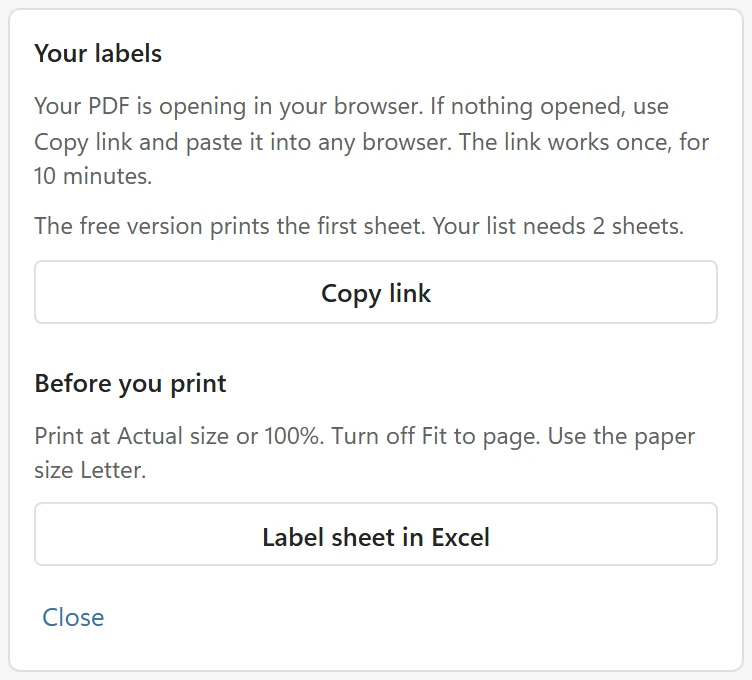
The card says Your PDF is opening in your browser. If nothing opened, use Copy link and paste it into any browser. The link works once, for 10 minutes. or LabelPop could not open your browser. Use Copy link and paste it into any browser. The link works once, for 10 minutes.
- Click Copy link, open any browser, paste the whole link into the address bar and press Enter. The link is long and its end after the # sign unlocks the PDF, so paste all of it.
- If the link was already opened, or 10 minutes passed, the print page says This print link is incomplete or was already used. In Excel, click Create PDF again, or use Copy link and paste the whole link here. or This print link has expired. Click Create PDF in Excel again. Click Create PDF again to get a new link.
- Link copied. It works once, for 10 minutes. confirms the copy. If you see LabelPop could not copy the link. Click Create PDF again., create the PDF again.
- If your default browser is set to open nothing, or a company policy blocks it, copy the link and paste it into a browser that you can open.
The print page shows a message instead of the PDF #
- LabelPop could not reach the print service. Check your internet connection and try again. Click Try again. A company firewall may block api.pythonandvba.com.
- LabelPop could not load its fonts. Check your internet connection and try again. The print page needs addins.pythonandvba.com.
- LabelPop could not build the PDF from this print job. Click Create PDF in Excel again. The job may be damaged. Create it again.
- If the PDF does not show here, use Download PDF. Your browser may not show PDFs inside the page. Click Download PDF and open the file.
The pane shows an error #
- This print job is too large. Print fewer labels at a time or remove the logo. The encrypted job is over what the print service accepts (3 MB). Use a smaller selection or a smaller logo.
- Too many print jobs in a short time. Wait a few minutes and try again. The print service limits how fast jobs can be sent from one connection.
- The print service is busy. Try again in a minute. The service is temporarily full.
- LabelPop could not reach the print service. Check your internet connection, or use Label sheet in Excel.
- The print service sent an answer LabelPop did not expect. Try again in a minute, or use Label sheet in Excel.
- LabelPop could not create the PDF. with a reason after it. Try again; if it repeats, copy the diagnostic info and contact support.
As a work-around #
Label sheet in Excel puts the labels on a worksheet that you print with Excel, with no PDF at all. It is less exact on die-cut sheets; see Print from an Excel sheet instead of a PDF. How the PDF reaches your browser outside Excel on the web (for example Excel for Windows and Mac) is explained in Where is my data?