
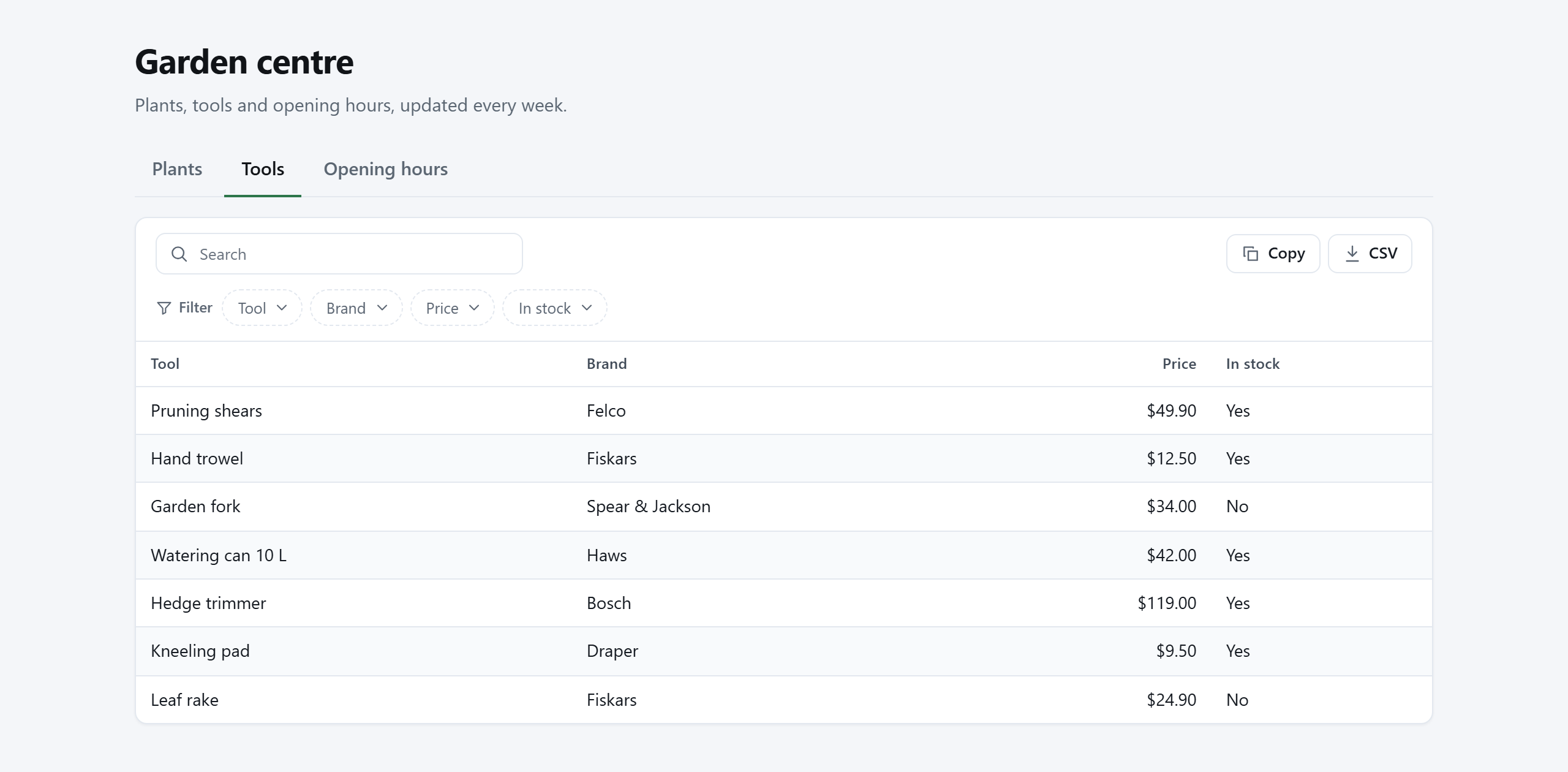
One TablePop page can show several tables, each on its own tab. Readers see a row of tabs above the table and switch between them instantly. A price list with one tab per product range, or a club page with members, fixtures and results, stays at one address instead of three.
A page with one table looks exactly as before, with no tab bar. The tab bar appears as soon as a page has a second tab.
What belongs to the page and what belongs to a tab #
| Shared by every tab (the page) | Set for each tab |
|---|---|
| Address and custom domain, who can see it and the password, title and description, theme, font, accent colour, logo, footer, page background, views and version history | Tab name, tab address, table or cards layout, columns, rows and cell formatting, and the table features such as search, filters, buttons and totals |
So one password unlocks every tab, and a change to the theme changes every tab. A tab can use the cards layout while the next one is a plain table.
Add a tab in Excel #
Tabs are added in the Excel pane, because the data always comes from Excel.
- Open the pane and select the first table as usual. It becomes the first tab, named after the Excel table or the sheet.
- Press Add tab under the source in the Data card.
- In Add a tab, choose what the new tab shows: An Excel table, The cells selected in Excel now, or This range with an address you type. Press Add tab.
- The pane now lists the tabs. Change a tab’s name in its field if you like: it is what readers see on the tab, up to 40 characters. The cross next to an added tab removes it again.
- Press Add another tab for more. The preview shows the tab bar, and the display options apply to the tab selected in the preview. The Look card is shared by every tab.
- Press Publish page, or Update page when the page already exists.
A tab can come from a different sheet than the others. Each tab’s source is remembered in the workbook, so the next update reads every tab again.
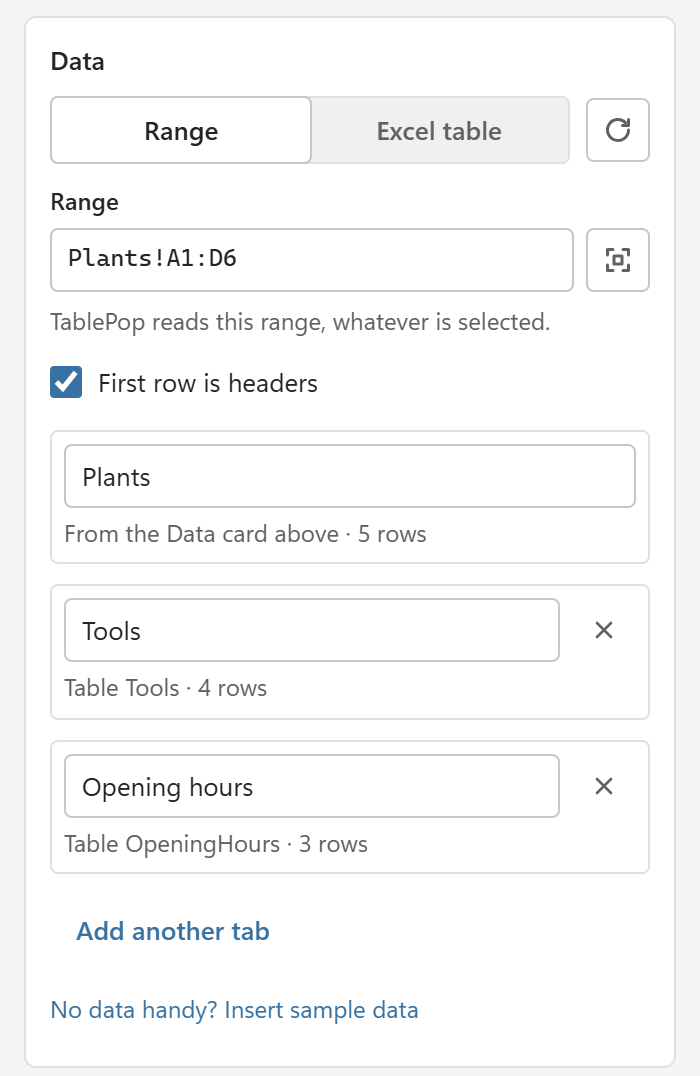
On the Free plan a page has one table, and Add tab says Tabs are available on Starter and Pro. At your plan’s limit it says, for example, Your plan holds up to 3 tabs per page.
Rename, reorder or remove tabs in the dashboard #
Open the page in the dashboard at my.tablepop.app and go to its Settings tab. The Tabs card lists every tab in order.
- Name: the name readers see on the tab, 1 to 40 characters. Each tab needs its own name.
- Address: the last part of the tab’s link, such as
toolsingarden-centre.tablepop.app/tools. Lowercase letters, digits and hyphens. - The up and down arrows change the order. The first tab is the one readers see when they open the page.
- The bin button removes a tab, after you confirm with Remove tab. A page always keeps at least one tab.
Press Save tabs after renaming. The live page follows within about a minute.
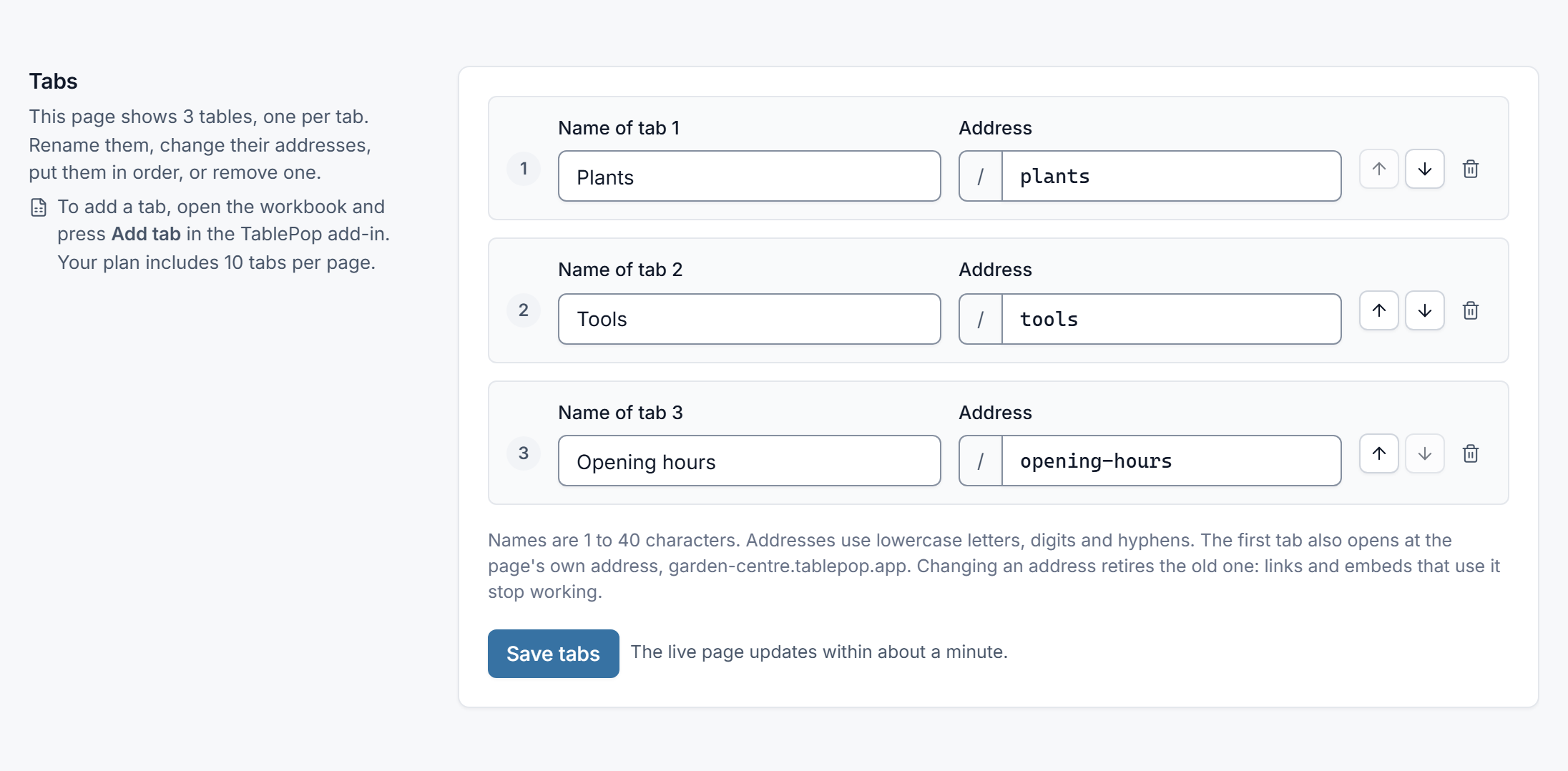
A new tab address retires the old one. Links and embeds that use the old tab address stop working. The page’s main address is not affected.
The dashboard cannot add a tab or change cells. To add a tab, or to bring back one you removed, use Add tab in the pane, or restore an earlier version (see below).
On a page with tabs, the dashboard’s Design tab has a Table options for picker, to choose the tab whose layout, table features and columns you change. The Data tab has a Show the data of picker, to see a tab’s columns and download its data as CSV or JSON.
Every tab has its own link #
The first tab opens at the page’s own address. Every tab also has an address of its own:
garden-centre.tablepop.appopens the page on its first tab.garden-centre.tablepop.app/toolsopens it on the Tools tab.
Send a tab’s link when people need one table in particular. They can still switch to the other tabs. The browser tab shows the tab’s name with the page title, and Back and Forward move between tabs.
Copy a tab’s link in the dashboard: the Overview tab of a page with tabs has an Each tab on its own card with every tab’s link and a copy button. You can also open the tab on the page and copy the address from the browser.
Embed the whole page or one tab #
- The whole page:
garden-centre.tablepop.app/embedshows the tab bar inside the frame, and every tab. - One tab only:
garden-centre.tablepop.app/tools/embedshows that tab’s table, with no tab bar.
The usual iframe code in the Share and embed card embeds the whole page. For one tab, use the Iframe code button next to that tab in the Each tab on its own card. Its Embed link button copies the tab’s embed address, for Notion. The frame grows with the table, also when readers switch tabs.
The script embed always shows the whole page, with its tab bar. To show a single tab on your site, use that tab’s iframe code.
Embed codes you already pasted keep working unchanged. See Sharing and embedding for where to paste them.
Update several tabs at once #
Press Update page as usual. TablePop reads every tab whose source is in this workbook and shows one review for the whole page, tab by tab: which tabs changed, and the rows, columns and cells of each. Tabs without changes are left as they are.
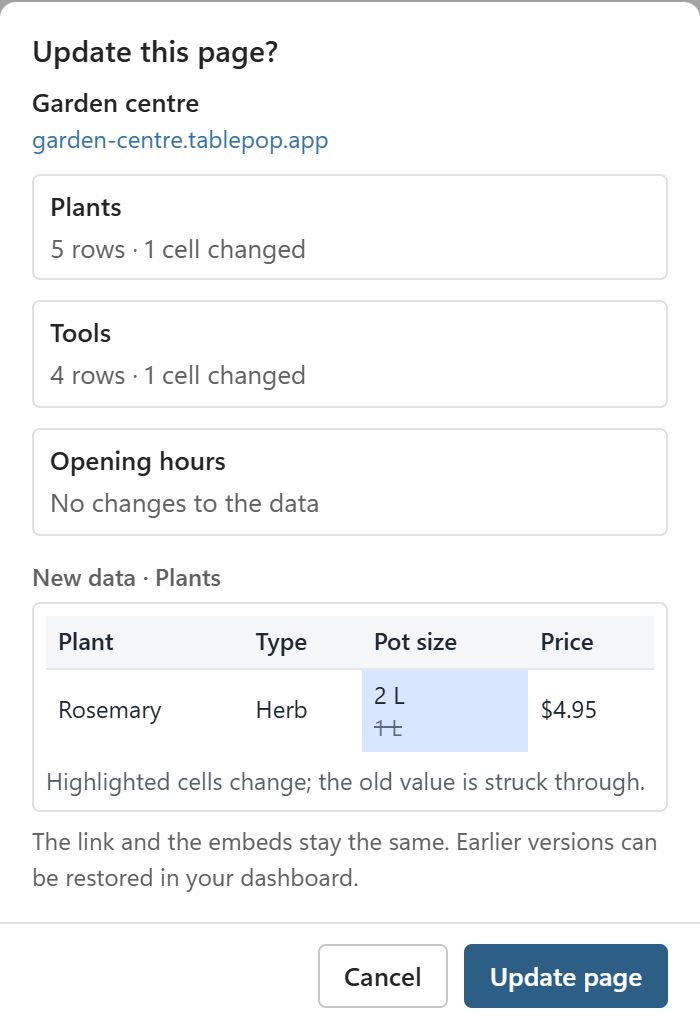
One update makes one new version of the page, and readers never see a page where only some tabs are new.
A tab whose source is not in this workbook, for example because it was added from another workbook, is kept exactly as it is. The review says so.
Auto-update (Starter and Pro) #
Auto-update works for every tab of the page. With Auto-update this page ticked, an edit in any of the page’s sources reaches the live page a moment after you stop typing. Edits in several tabs at the same time go out together, as one update.
As before, auto-update runs while the pane is open, and one page at a time.
Insert a page with tabs into Excel #
In My pages, open More on the page and choose Insert in Excel. TablePop adds one new worksheet for each tab, named after the tab, with that tab’s data as an Excel table.
The pane then asks once whether to keep the new tables connected. Keep connected makes each new table the source of its tab, so the next Update page reads them all.
Download HTML #
On Starter and Pro, Download HTML saves the whole page with all its tabs in one file. The tabs work in the file too.
Version history #
Each version holds every tab. Restore on the dashboard’s Data tab brings back all tables of that version, including tabs that were removed or added since. The current design stays.
Limits per plan #
| Free | Starter | Pro | |
|---|---|---|---|
| Tabs per page | 1 | 3 | 10 |
- Rows: your plan’s row limit applies to each tab on its own. On Pro, each of 10 tabs can have up to 10,000 rows.
- Size: the page size limit is for the whole page, all tabs together.
- Pages: a page with five tabs is still one page. Tabs do not count towards your live or stored pages.
- Views are counted for the page as a whole, not per tab.
After a downgrade #
A plan change never takes tabs away from a published page. If a page has more tabs than your new plan allows, it stays live with all its tabs, and updating its data from Excel keeps working.
What you cannot do is add another tab while the page is over the limit. Remove tabs until the page is under your plan’s limit, or upgrade, to add tabs again. Removing a tab is always possible.
Whether the page itself stays live follows the usual rules for a plan that ends; see Plans, license keys and billing.