
On the Pro plan you can serve a page on a domain you own, so readers see table.yourcompany.com instead of an address on tablepop.app. You add one DNS record; the HTTPS certificate is issued and renewed for you.
Before you start #
- You are on Pro. It includes up to 3 custom domains, one per page. Free and Starter do not include custom domains.
- You can add a DNS record wherever your domain is managed (your registrar, your host, or a service such as Cloudflare).
- You have a subdomain in mind, such as
table.yourcompany.comorprices.yourcompany.com.
Use a subdomain. A bare domain such as yourcompany.com will not work. Put the page on table.yourcompany.com and, if you like, link or redirect to it from your main site.
The page’s tablepop.app address keeps working alongside your domain.
1. Choose a domain #
- In the dashboard at my.tablepop.app, open the page and go to its Domain tab.
- Type the full subdomain into Your domain.
- Press Connect domain.
The tab moves on to the Add a DNS record step.
2. Add a DNS record #
The tab shows the record as a type, a name and a value. Use the copy buttons for the name and the value rather than retyping them.
| Type | Name | Points to |
|---|---|---|
| CNAME | the subdomain part, for example table |
ssl.tablepop.app |
At your DNS provider, add a CNAME record with those values. Leave the TTL at its default.
- Most providers want only the name (
table), not the whole address. A few want the fulltable.yourcompany.com. If your provider shows the final name as you type, check that it readstable.yourcompany.comand not your domain twice. - On Cloudflare, both the proxied (orange cloud) and the DNS-only (grey cloud) setting work.
- Do not add an A record or an IP address. It has to be a CNAME pointing to
ssl.tablepop.app. - The name must be free. A CNAME cannot share its name with other records, so pick a subdomain your website does not already use.
3. Wait for it to go live #
The certificate can only be issued once your DNS record is visible on the internet, so the order is always:
- You add the CNAME record.
- DNS spreads, usually in a few minutes, sometimes up to an hour.
- The certificate is issued, usually a couple of minutes later.
- The domain goes Live.
While the Domain tab is open, it checks by itself every 20 seconds for about five minutes. You can also press Check status at any time. “Still waiting” is normal, not an error.
If you add the record and close the tab, come back later and press Check status once. The domain goes live on that check.
When everything is done the tab shows your domain as Live, with a link. Open it and check that the browser shows no certificate warning.
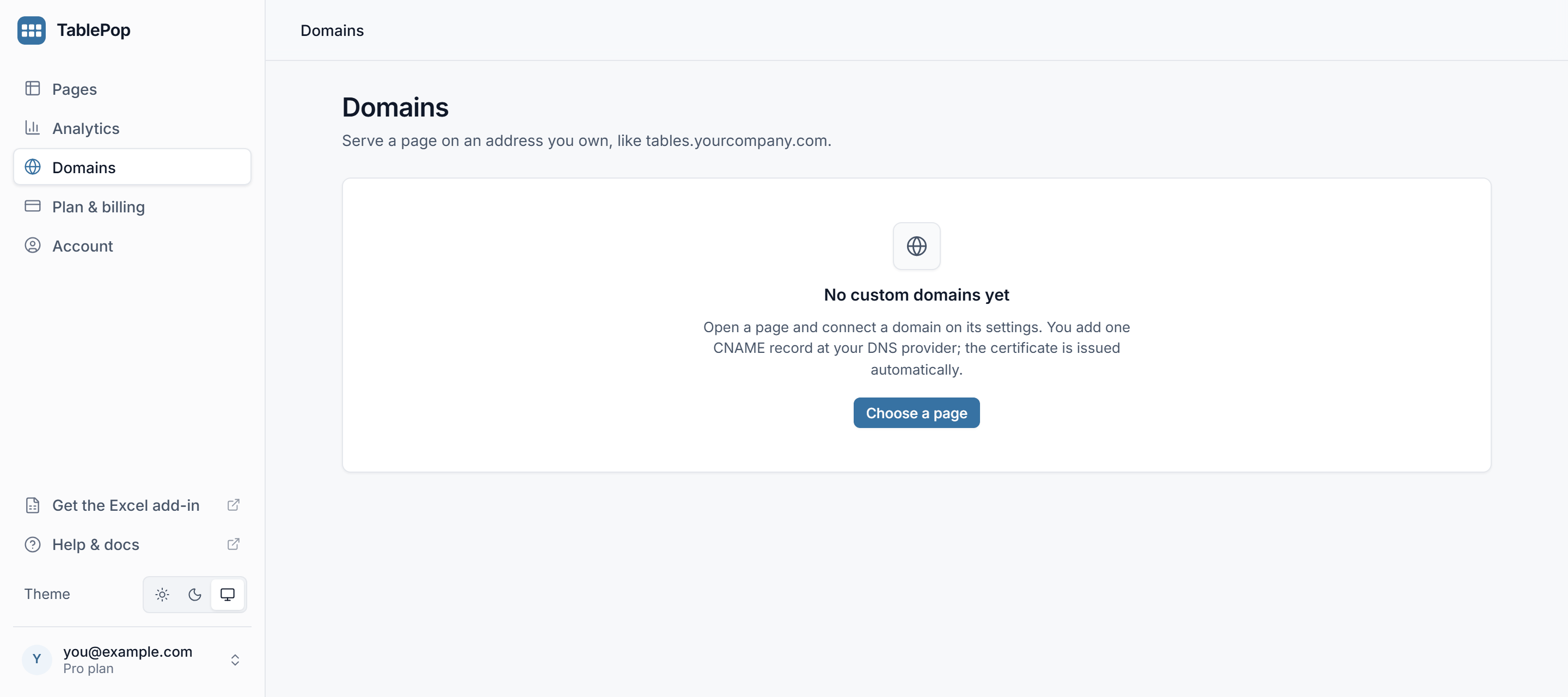
The Domains page in the dashboard sidebar lists all your custom domains with their page and status. Press Manage to open one.
Before you add a domain, the Domains screen says No custom domains yet, with a Choose a page button that takes you to your pages.
If it does not come up #
- Still pending after more than an hour: the record is probably wrong. Use any online DNS lookup tool to check that your subdomain resolves and mentions
ssl.tablepop.app. A common cause is a provider adding your domain to a name you already typed in full. - A message from the provider is shown on the tab as it came back. A CAA error means your domain restricts which certificate authorities may issue for it; allow Cloudflare’s or remove the restriction.
- You used a bare domain: remove it and connect a subdomain instead.
If a domain has been stuck for more than a day, remove it and connect it again. If that does not help, contact support with the exact domain name.
Remove a domain #
On the page’s Domain tab, press Remove and confirm. Your domain stops serving the page at once and its certificate is withdrawn. The page keeps working at its tablepop.app address.
Delete the CNAME record at your DNS provider afterwards, so the name does not point at something that no longer answers for it.
Removing always works, on any plan and in any state.
If your Pro plan ends #
- For 14 days after a Pro subscription ends, everything keeps working as before, custom domains included.
- After that, custom domains fall back to the page’s
tablepop.appaddress. Your domain setup is kept, not deleted. - Subscribe to Pro again and your domains come back at once.
The same applies when you move from Pro to Starter, since Starter has no custom domains. See Plans, license keys and billing for everything else that changes.