
Every TablePop page starts as a table. Switch it to Cards and each row becomes a card instead: a heading, an optional photo, and the other columns as labelled fields. It reads like a catalog, which suits products, team members, listings and menus.
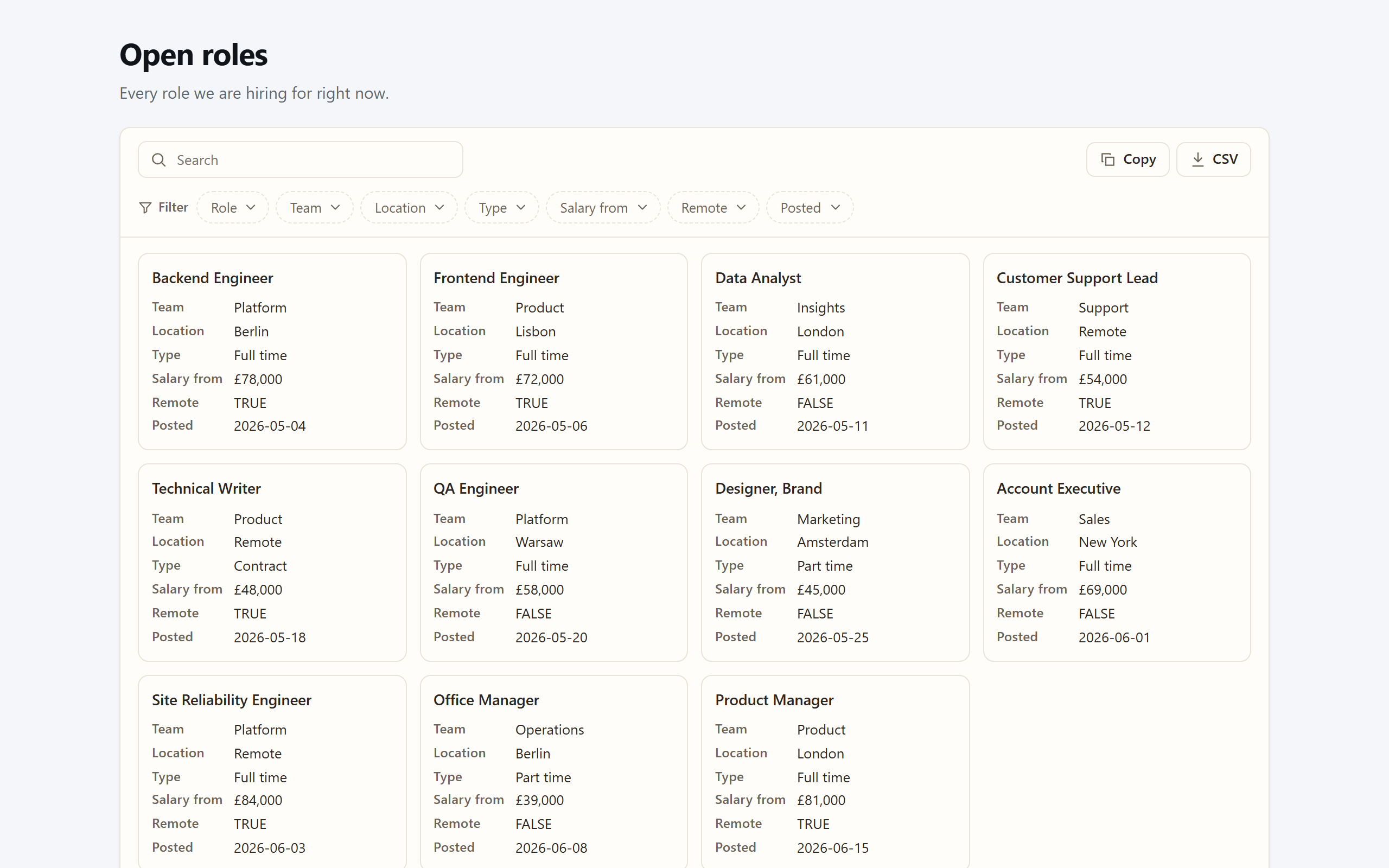
Switch a page to cards #
In the Excel pane: in the Look card, set Layout to Cards. The Preview card shows the first few cards straight away. Then publish, or update the page.
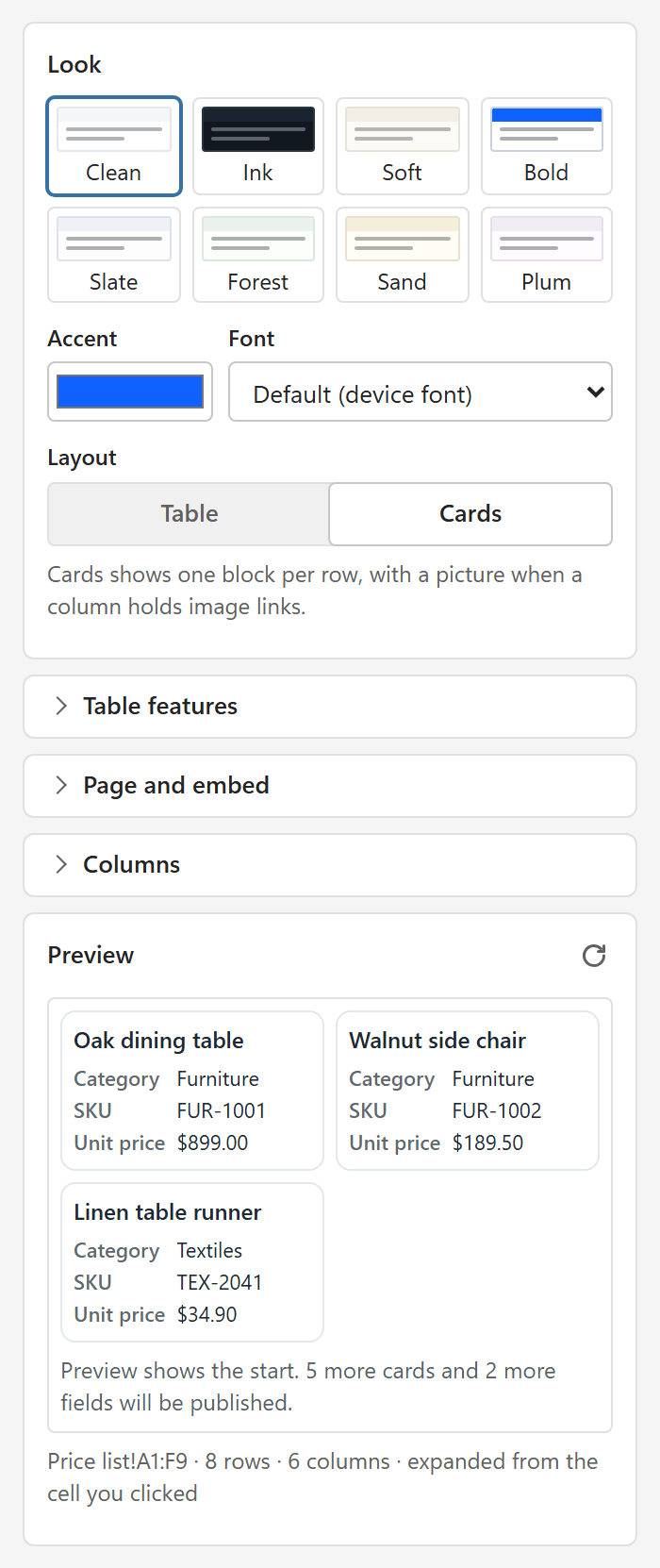
In the dashboard: open the page, go to the Design tab, choose Cards under Layout and press Save changes. The live page follows within about a minute.
The first visible text column becomes each card’s heading. Every other visible column is shown as a labelled field.
Add pictures #
- Put an https:// image link in each cell of one column, for example
https://your-site.com/images/widget.png. A cell can stay empty; that card simply has no photo. - In the pane, open Columns and set Image column to that column. When a column already looks like image links, the pane suggests it.
- Publish, or update the page.
Links must start with https:// and be one unbroken link of at most 2,048 characters. Anything else is refused before publishing, and the pane names the first row that needs fixing.
The image column is set in the pane. The dashboard’s layout switch only chooses between table and cards.
In the Table layout, an image column shows small thumbnails instead of long links, so pictures work without cards too.
Good to know #
- Search, filters and paging work on cards exactly as on tables.
- Order: cards have no column headers to click, so readers cannot re-sort them. They follow the Sort rows by setting in the Design tab, or your Excel order when none is set.
- Copy, CSV and the other exports give the image links as text, so the data round-trips.
- Excel’s pictures placed in cells are not read. TablePop needs the link as the cell’s text.
- Pictures load straight from your image host, only when they scroll into view. TablePop never copies or stores them.
- A picture that fails to load hides itself instead of leaving a broken-image icon on the card.
- The dashboard’s live preview does not show pictures from image columns. The live page does.