
This guide covers what TablePop reads from your workbook, and how a published page stays in step with it.
What gets published #
TablePop publishes the source shown in the Data card of the pane, and nothing else in the workbook.
| You choose | What happens | Best for |
|---|---|---|
| Range | Click a cell inside your data, or type an address such as Sheet1!A1:D50. The Range line shows exactly which cells. The button next to it (Use current selection) follows your selection again. |
A block of cells that keeps its size |
| Excel table | Pick a table from the list. The whole table is published. | Data that grows: new rows come along on every update |
With First row is headers ticked, the top row becomes the column headings. If a page shows a heading like 4500 or 2026-01-14, the selection started one row too low.
What is carried across #
- The text of each cell as Excel shows it, so
1.234,50 EURreads the same on the page. - The real values underneath, so sorting and filtering on the page work on numbers and dates, not on text.
- Bold, italics, underline, text colour and fill colour, automatically.
- Web links in cells, which become clickable on the page.
- The result of each formula, never the formula itself.
Not carried across: borders, merged cells, colours from conditional formatting, and pictures placed inside cells. For pictures, use an image column (see Cards layout and image columns).
Formatting and links make a page larger. Very large tables (over 50,000 cells), or a table that would pass your plan’s size limit with them, are published without bold, italics, colours and without web links, and the pane tells you so. The cell values always go through.
Limits per plan #
Each plan sets how many pages can be live, how many rows a table can have and how large a page can be. A page holds up to 60 columns on every plan, and auto-update comes with Starter and Pro. Your limits are on the Plan & billing page in your dashboard; see Plans, license keys and billing.
The row count does not include the header row. What happens when a table is bigger than that:
- More rows than your plan allows: TablePop reads and publishes only the first rows up to your plan’s limit, and the pane says so, for example “Only the first 500 rows on your plan were published. Your selection has 740 rows.” The same applies to updates and auto-updates. Check the note under the preview before you publish.
- More than 60 columns: only the first 60 columns are published, and the pane says so.
- Larger than your plan’s page size: TablePop first drops formatting and links (see above). If the table is still too large, it is not published, and the pane asks you to publish fewer rows or columns.
To publish every row of a bigger table, filter or split it in Excel first, or see Plans, license keys and billing.
Connected pages and the sync status #
After you publish, the workbook remembers which page its source belongs to. Whenever that source is selected again, the pane shows a banner at the top with the page’s title and address, and a status:
- Live page matches Excel: the page shows exactly what is in your sheet.
- Excel changed since the last update: you edited the data, and the live page still shows the old version. Press Update now to fix that.
- Live · synced 12:04: auto-update is on and the page follows your edits.
- Sync state unknown: TablePop cannot compare right now. The line under it says why, for example because the page was last updated from another computer.
An edit you undo clears itself: if the data goes back to what was published, the status returns to Live page matches Excel.
My pages shows the same status as a coloured dot on every page: In sync with Excel, Changed in Excel · not on the page yet, or Sync state unknown.
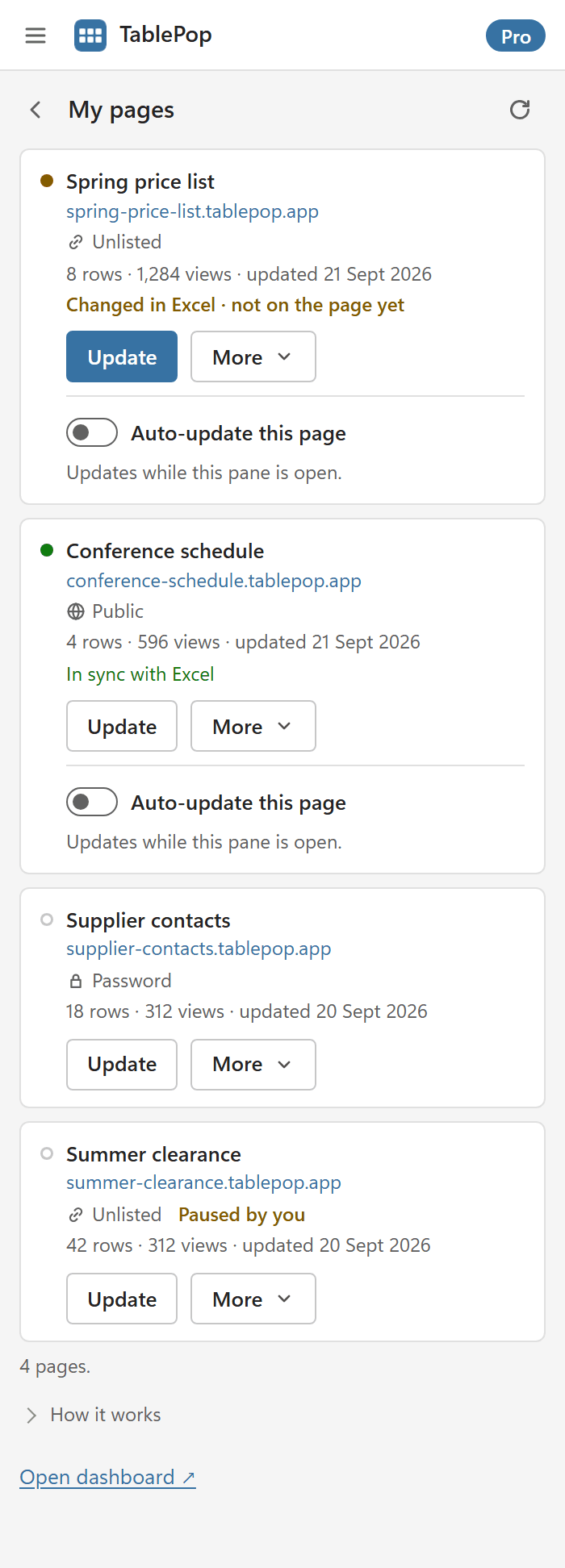
When the source is connected, the button at the bottom of the pane reads Update page, with Publish as new page next to it for when you want a second, separate page instead.
Update a page #
Press Update page (or Update now in the banner, or Update on the page in My pages). Before anything changes, the pane shows Update this page? with what is about to happen:
- Source: the range or table being read, and its size.
- Rows and Columns: before and after, with rows added or removed and renamed columns.
- Cells: how many cell values changed, or No changes to the data. When the comparison was not possible, the line reads Cell changes: not checked.
- Formatting and Look: whether cell formatting is included, and which design settings change. Unchanged means the design stays as it is.
- Who can see it, when that changes.
- New data: a preview of up to three changed or added rows, with the changed cells highlighted.
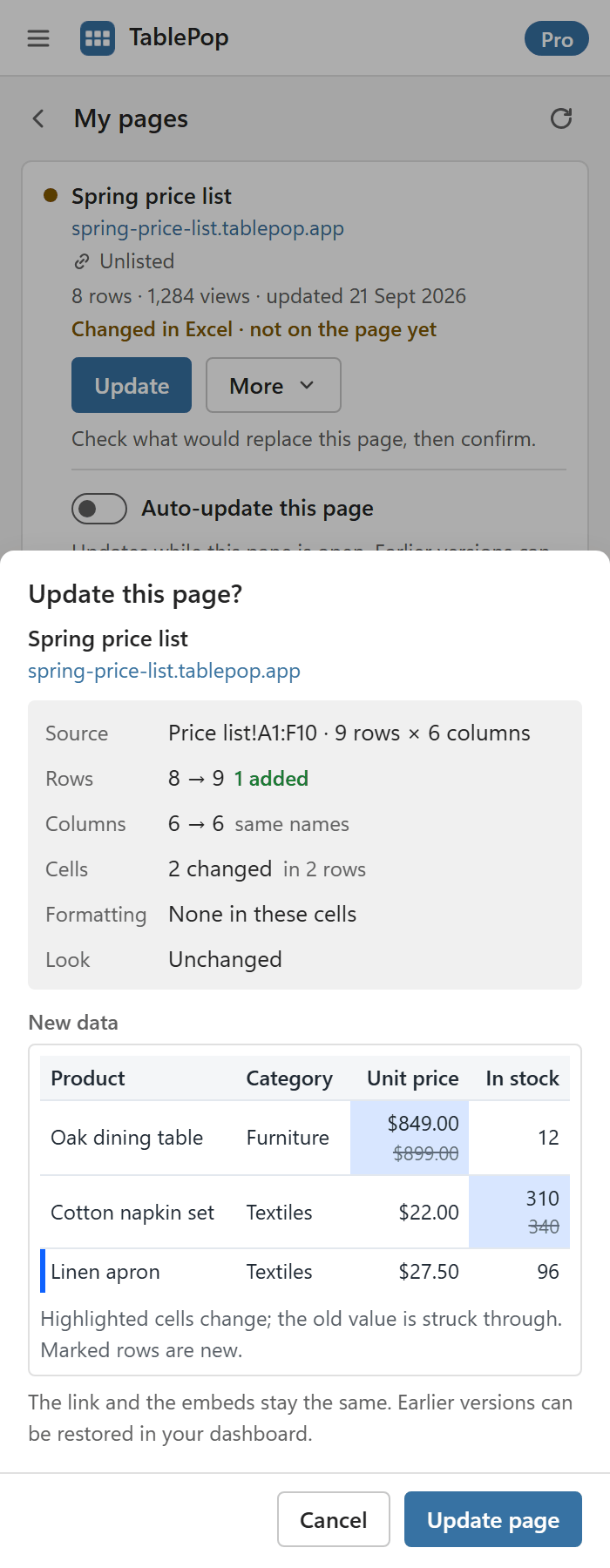
Press Update page to go ahead, or Cancel. Cancelling leaves the page exactly as it was.
If the review says Cell changes: not checked, TablePop could not read the page’s current data to compare it. The update still works; it just cannot count the changes this time.
The link and every embed stay the same after an update. Readers see the new data within about a minute.
Update from My pages sends data only. The page’s title, design and settings stay as they are. Updating from the main view also sends what you set in the Page, Look and option sections, and the review lists exactly which of those change.
Auto-update (Starter and Pro) #
Tick Auto-update this page under the page after publishing, or on the page in My pages. From then on your edits reach the live page on their own, a moment after you stop typing, and the banner reads Live · synced with the time.
- It runs while the pane is open. Auto-update lives inside Excel. Close the workbook or the pane and it pauses; open them again and it switches itself back on.
- It sends data only. Title, design and settings never change from an auto-update.
- It keeps history sparingly. While auto-update runs, the version history saves at most one version every 15 minutes, so a busy editing session does not push out your older versions.
- It stops rather than guesses. Renaming columns, publishing a different selection, or an image column whose cells stop being image links switches it off, with the reason shown under the checkbox.
- It needs a plan that includes it. On Free the checkbox is shown but switched off, with a note on which plan adds it.
Version history #
Every update from Excel keeps what it replaced, so an update can always be undone from the dashboard. A page holds its last 10 versions. Auto-updates add at most one version every 15 minutes.
- Open the page in the dashboard at my.tablepop.app and go to the Data tab.
- Under History, find the version you want and press Restore.
- Confirm with Restore this version.
Restoring brings back that version’s data only. Your current design stays. The version it replaces is kept too, so you can change your mind.
The same tab has Download CSV and Download JSON for the data as it is published now.
Insert a page into Excel #
The pane also works the other way round. In My pages, open More on a page and choose Insert in Excel. TablePop writes the page’s data into a new worksheet as an Excel table, with its number formats, bold, italics and colours.
That is also how you recover when the original workbook is gone: the page still holds the data.
After the insert, the pane asks Keep this table connected to the page?
- Keep connected makes the new table the page’s source. Select it later and the pane offers Update page for that page instead of publishing a new one.
- No thanks leaves an ordinary table, not linked to anything.
More on managing pages #
- To take a page offline for a while, or for good, see Pause, resume or delete a page.
- To change who can open it, see Choose who can see a page.