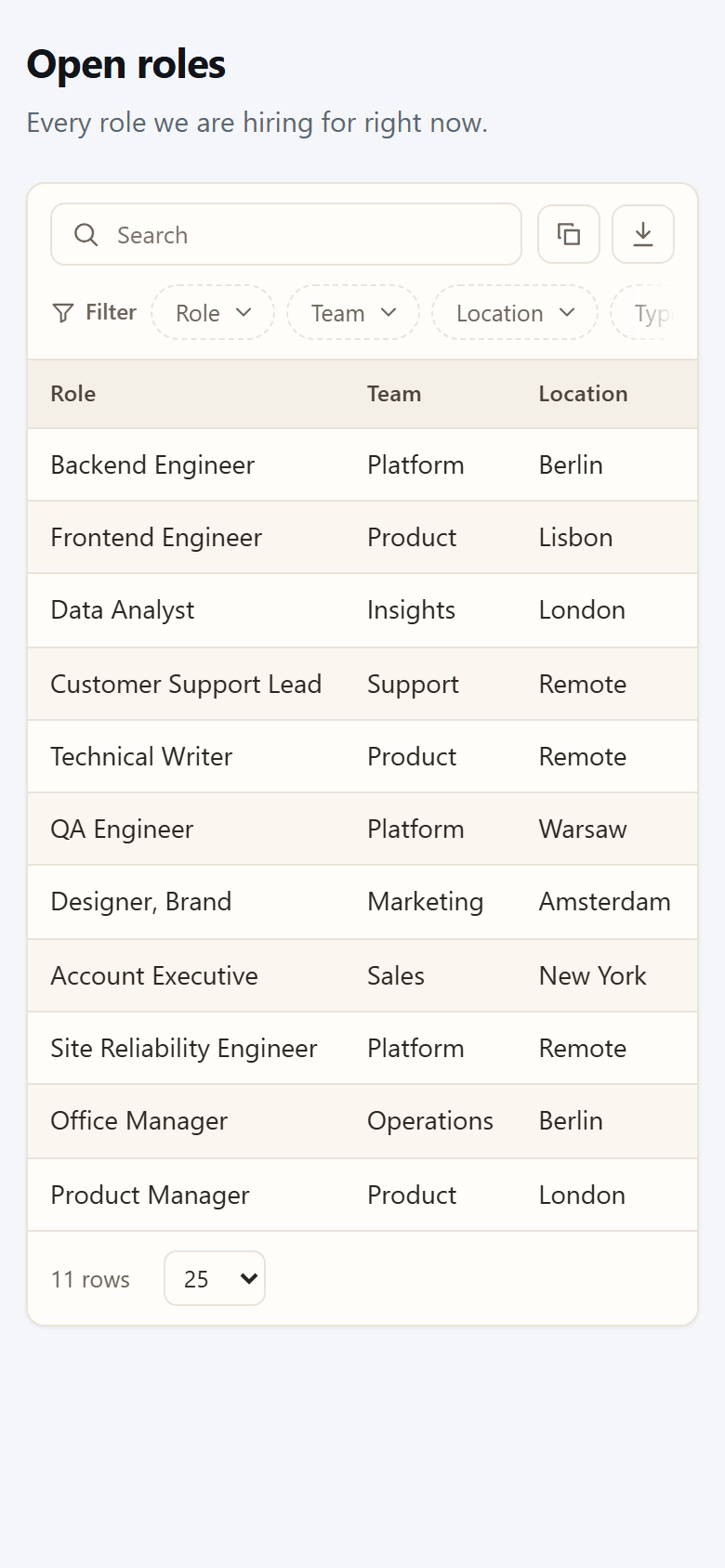
There are three ways to get a published table in front of people. You do not need to know any HTML for any of them: you copy a line, and paste it in the right place.
| What it is | Use it when | |
|---|---|---|
| Link | The page’s own address, like indigo-pantry-4043.tablepop.app |
You send it by email or chat, or link to it from anywhere |
| Iframe | A window onto the table, placed inside your own web page | You want the table on your website. Works almost everywhere. |
| Script | A snippet that draws the table straight into your page | Your site allows custom code and you want the table to blend in completely |
If you are unsure, use the iframe. Whichever you choose, the table always shows the page’s current data: update it from Excel and every link and embed follows within about a minute. You never need to paste the code again.
Where to copy them #
In the Excel pane, straight after publishing: Copy link, Copy embed code (the script) and Copy iframe. Later, find the same under More on the page in My pages (Copy link, Copy embed code).
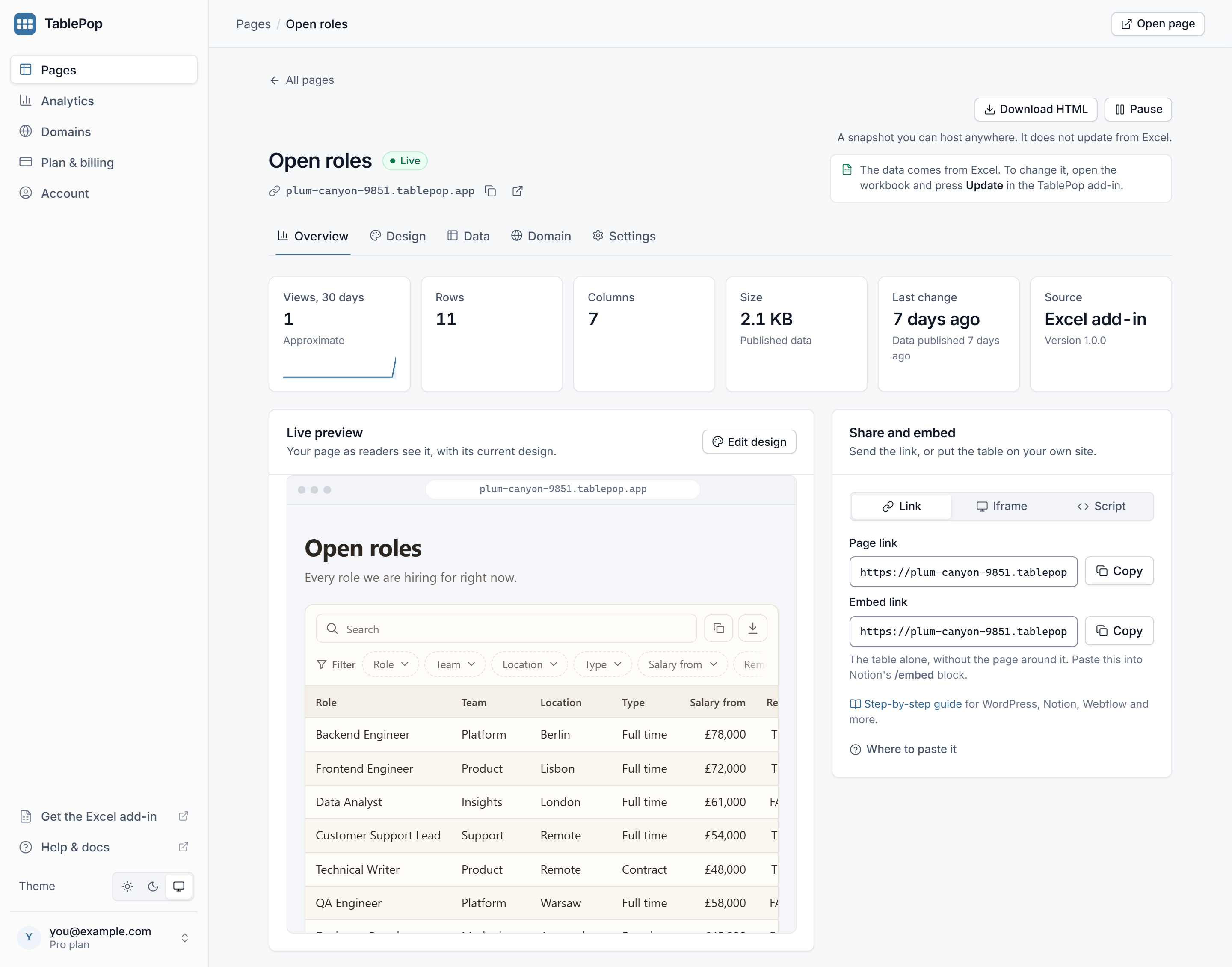
In the dashboard at my.tablepop.app, open a page. Its Overview tab has a Share and embed card with three choices: Link, Iframe and Script, each with a copy button. The Embed code… entry in a page’s menu in the Pages list shows the iframe and the script too.
Where to paste it #
Every website builder has a block for pasting code. Here is what it is called on the popular ones.
WordPress
- Edit the page or post and add a Custom HTML block where the table should go.
- Paste the iframe or the script code.
- Update or publish the page.
Wix
- In the editor, add Embed Code and then Embed HTML.
- Paste the iframe code and apply it.
- Drag the box to the size you want.
Squarespace
- Add a Code block to the section.
- Paste the code and save.
Webflow
- Drag an Embed element onto the page.
- Paste the code, save, and publish the site.
Notion
- In the dashboard’s Share and embed card, choose Link and copy the Embed link (the address ending in
/embed). - In Notion, type /embed, paste that link and confirm.
Notion does not run code from other sites, so it needs the link, not a snippet.
Everywhere else
- Look for a block called Embed, HTML, Custom code or Code. Paste the iframe there.
- Intranets such as Confluence or SharePoint usually allow iframes but not scripts.
- Email newsletters cannot show embeds at all. Email programs strip them. Put the link in your email instead.
Height: let the frame grow with the table #
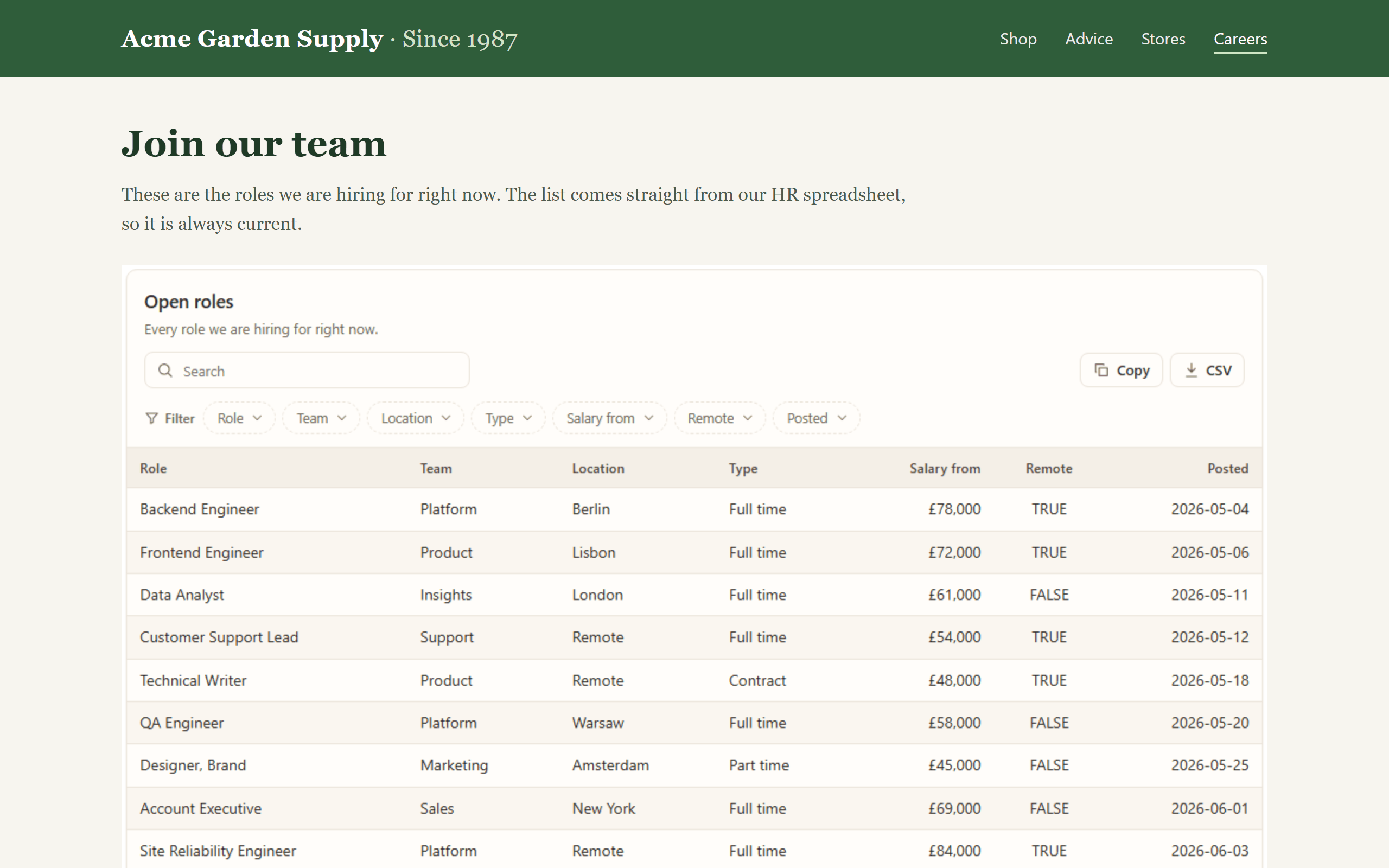
The iframe code from TablePop comes with a small helper script. Where your site keeps it, the frame grows and shrinks with the table, so there is no empty space below it and no second scrollbar inside it.
Some builders strip scripts. Then the frame stays at its fixed height of 480 pixels and the table scrolls inside it. That still works fine. To change the fixed height, open the Iframe choice in the dashboard, switch off Grow with the table, set Height and copy the code again.
The script embed always fits the table, because it draws the table straight into your page.
Make it blend in #
An embed shows the table on its own, without the page title and description around it, so it sits cleanly inside your layout. Two design settings help it match your site. Both are in the page’s Design tab, under Page and embed:
- Frame: Plain removes the border, shadow and background around the table, so it looks like part of your page.
- Colour scheme can force Light or Dark when your site is always one or the other. Auto follows each reader’s device.
The Page background setting only applies to the page on its own address. Embeds keep your site’s own background.
See Themes and page settings for every option.
How visibility affects embeds #
- Unlisted and Public pages embed the same way. Embeds are always hidden from search engines, so an embed never competes with your own page in search results.
- Password pages (Pro) show the lock screen inside an iframe, and readers unlock it there. Safari may ask for the password again on each visit. A script embed of a password page shows This table is password protected. with a link to the page instead of the data.
- Paused pages show This table is not available right now. in every embed until you resume them.
More in Choose who can see a page.
Things to know #
- Changing the page address breaks old embeds. On Starter and Pro you can choose a page’s address. A new address retires the old one, so copy the embed code again and replace it on your site.
- The free badge shows in embeds too. Pages on the Free plan carry a small “Made with TablePop” line. Starter and Pro remove it from every page, embeds included.
- Readers need nothing. No account, no sign-in, no plugin. The table works on phones, with search, sorting and the buttons you switched on.