
Every TablePop page has a visibility setting. It decides who can open the page and whether search engines may list it.
| Setting | Who can open it | Search engines | Plans |
|---|---|---|---|
| Unlisted (the default) | Anyone with the link | Asked not to list it | All |
| Public | Anyone | May list it | All |
| Password | Only readers who know the password | Never see it | Pro |
Unlisted #
New pages start as Unlisted. The page works for everyone you send the link to, and it is marked so that search engines leave it out of their results. It will not turn up in a search for your company or your product.
Unlisted is not a lock. Anyone who gets hold of the link, for example because it was forwarded, can open the page. For data that must stay private, use a password, or do not publish it.
Public #
Public is for pages you want people to find: a price list, a directory, a public dataset. Search engines may list them like any other web page.
Change the setting #
In the pane: the Page card has Who can see it with Unlisted and Public. The choice is sent the next time you publish or update, and the update review lists it under Who can see it. The pane never asks for a page password; that is set in the dashboard.
In the dashboard:
- Open the page at my.tablepop.app and go to the Settings tab.
- Under Who can see this page, choose Unlisted, Public or Password.
- Press Save visibility.
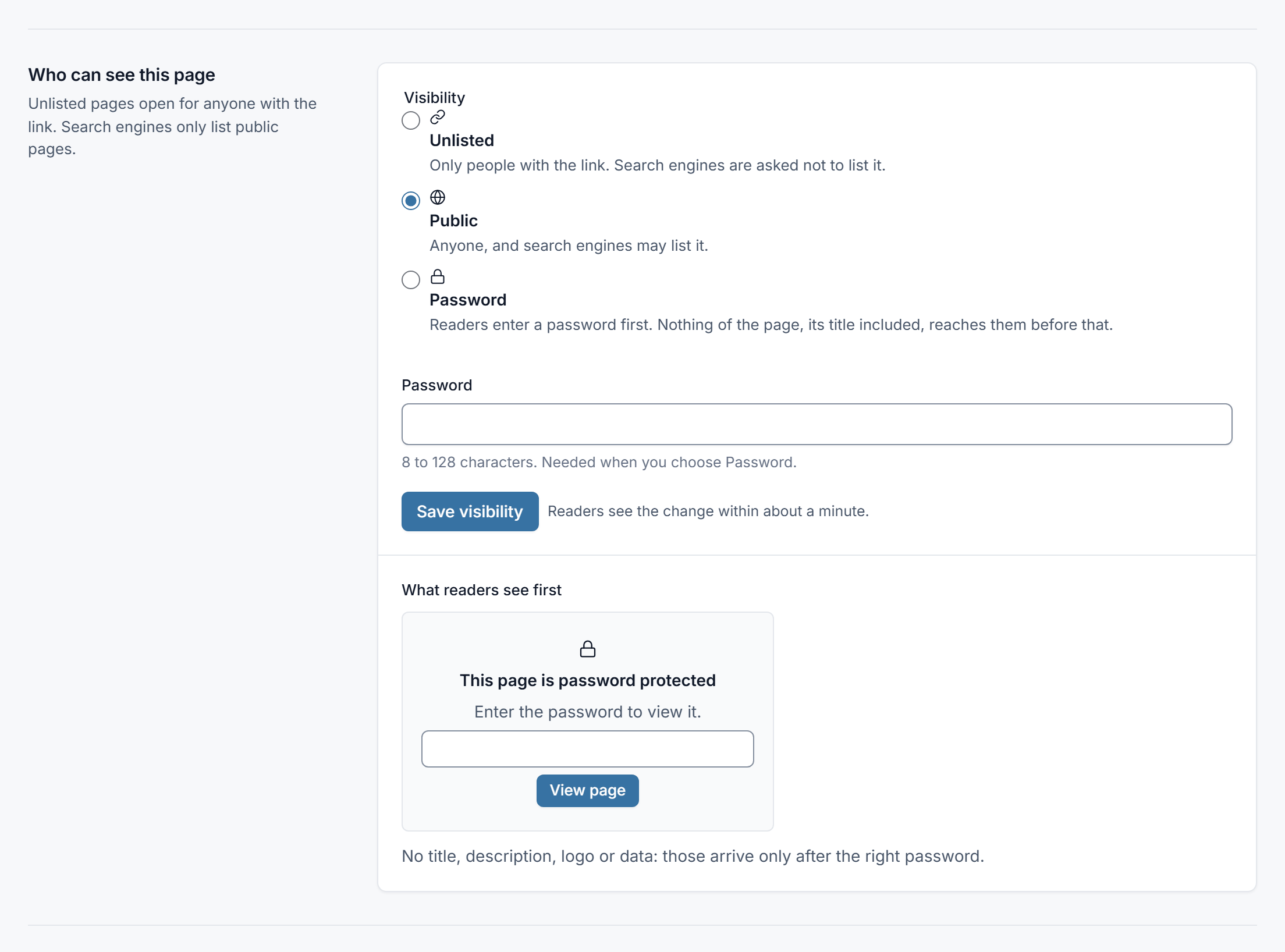
Readers see the change within about a minute. In the Pages list, a link, globe or lock icon next to each address shows its setting.
Password-protected pages (Pro) #
A password page is real protection, not a curtain drawn over data that is already in the reader’s browser. Until someone types the right password, nothing of the page leaves our servers: no rows, no title, no description, no logo. A reader without the password only ever sees a small lock screen.
Two limits to keep in mind. Switching a page that is already live to a password takes up to about a minute to reach every place the page is served; the dashboard shows Protection pending meanwhile. And anything readers already opened, copied or downloaded before that stays with them. When the data is sensitive, set the password before you share the link.
Set a password
- In the page’s Settings tab, choose Password under Who can see this page.
- Type the password into Password. It needs 8 to 128 characters.
- Press Save visibility.
Then share the link and the password with your readers, ideally through different channels, for example the link by email and the password by phone or chat.
If the section shows Protection pending, the password is saved but the live page has not confirmed it yet. TablePop retries every minute. Wait for the badge to disappear before sharing sensitive data.
What readers see
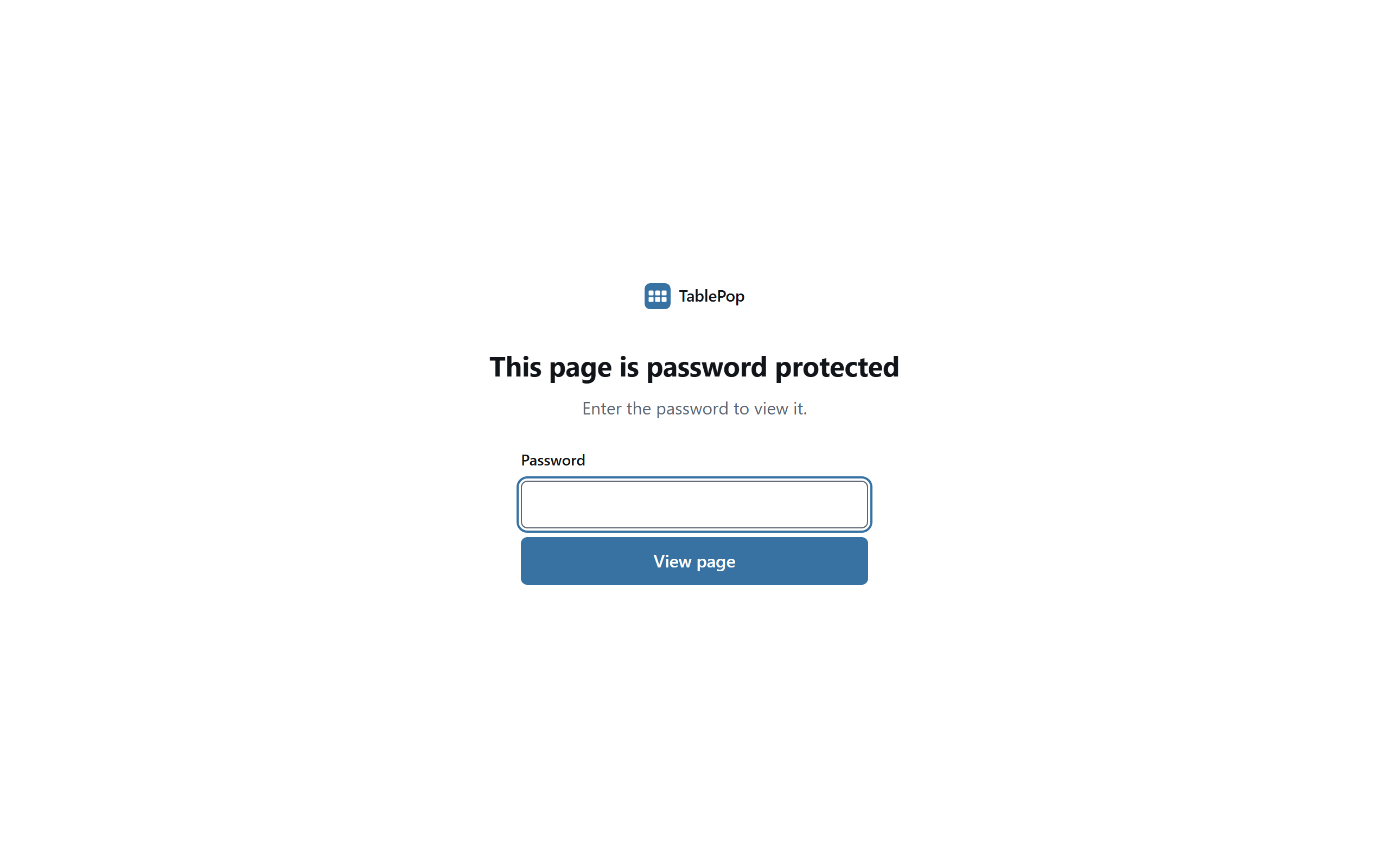
- They open the link and see This page is password protected, with Enter the password to view it.
- They type the password and press View page.
- The page opens as usual. Their browser remembers the unlock for 7 days, so they are not asked again on every visit.
A wrong password shows That password is not right. Try again. After many wrong tries in a short time, the page asks the reader to wait a few minutes. That slows down anyone trying to guess.
Change or remove the password
- Change it: type a new one into New password and press Save visibility. Every reader is signed out of the page and needs the new password.
- Remove it: choose Unlisted or Public and press Save visibility. The page opens for everyone with the link again.
Password pages and embeds
- Iframe embeds show the lock screen inside the frame, and readers unlock it right there.
- Safari may ask again. Safari does not let a page inside an iframe remember the unlock, so readers on Safari may have to enter the password each time they visit your site. Opening the page on its own address avoids that.
- Script embeds never show a protected table. They show This table is password protected. with a link that opens the page, where the reader can enter the password.
Downloads are not protected
On Starter and Pro you can download any page as an HTML file. For a password page, that file contains the data without the password. The dashboard warns you with The downloaded file is not password protected. Treat the file like the data itself.
If your plan changes #
Password protection is part of Pro. If your Pro plan ends, password pages keep working as usual for a 14-day grace period. After that, any password page your new plan cannot protect is paused. It is never switched to unlisted or public, so protected data is never exposed. Subscribe to Pro again and the paused pages come back with their passwords. See Plans, license keys and billing.
Hidden columns are not private #
Hiding a column in the design settings only changes the layout. The data behind the page still contains it. If a column must not be seen, leave it out of the range you publish from Excel.