
This is the everyday way to use SimpleGantt: you already keep your plan in an Excel table, and you want a chart that stays in step with it.
Before you start #
Your table needs at least a task name, a start date, and either an end date or a duration per row. Optional columns such as progress, predecessors, phase and owner add more to the chart. Prepare your plan table lists the columns and formats.
Steps #
- Click one cell inside your plan table. You do not need to select the whole table.
- On the Home tab, open Add-ins and click SimpleGantt. A chart frame appears on the sheet.
- Under Use selected data, click Use selection. The status line names the range the chart is linked to.
- If SimpleGantt recognizes the columns, the chart appears straight away. If not, the step Match your columns shows its guess for each field; correct it and click Draw chart.
- Move and resize the frame where you want it. A wide, short frame suits a long plan; you can scroll the chart inside the frame.
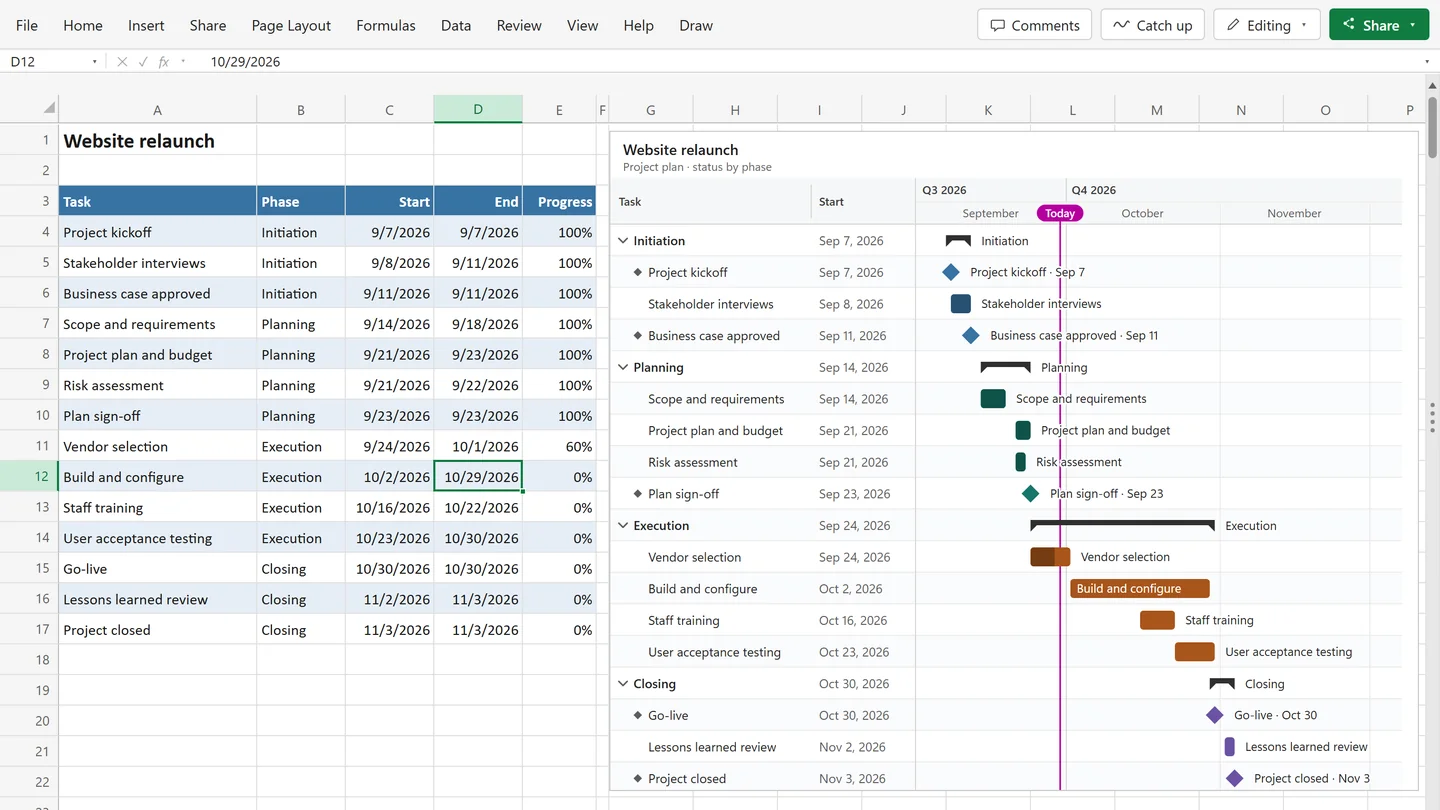
Your data is on another sheet? Select a cell in it there, then come back to the frame and click Use selection.
What stays linked #
- Changed cells, new rows and deleted rows redraw the chart within a moment.
- An Excel table can grow and shrink freely. A plain range covers exactly the cells you linked; turn it into a table (Ctrl+T) so new rows are included.
- Sorting and filtering the table change the chart order and the visible tasks.
- If you move a linked column, SimpleGantt finds it again by its header, and a renamed header in the same place keeps working. When a column is gone, the chart says which one is missing and offers Fix mapping.
Editing the plan #
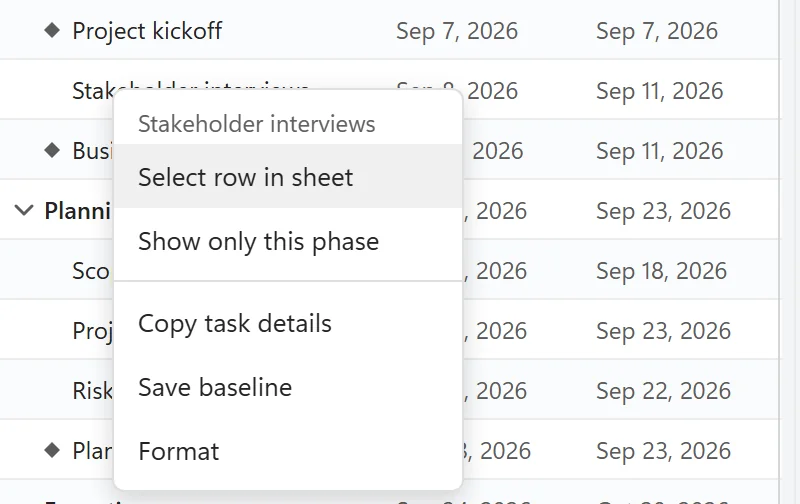
The table is the only place where the plan is edited. Click a bar or a grid row in the chart to select that task’s row in the sheet, then type. Double-click a bar to select its start date. Right-click a bar or a row for more: Select row in sheet, Collapse or Expand (on a summary), Show only this phase, Copy task details, Save baseline and Format.
Several charts #
Insert SimpleGantt again for another chart, for example one per phase or a filtered view for one team. Every chart keeps its own data link and settings. The free version allows one chart per workbook.