
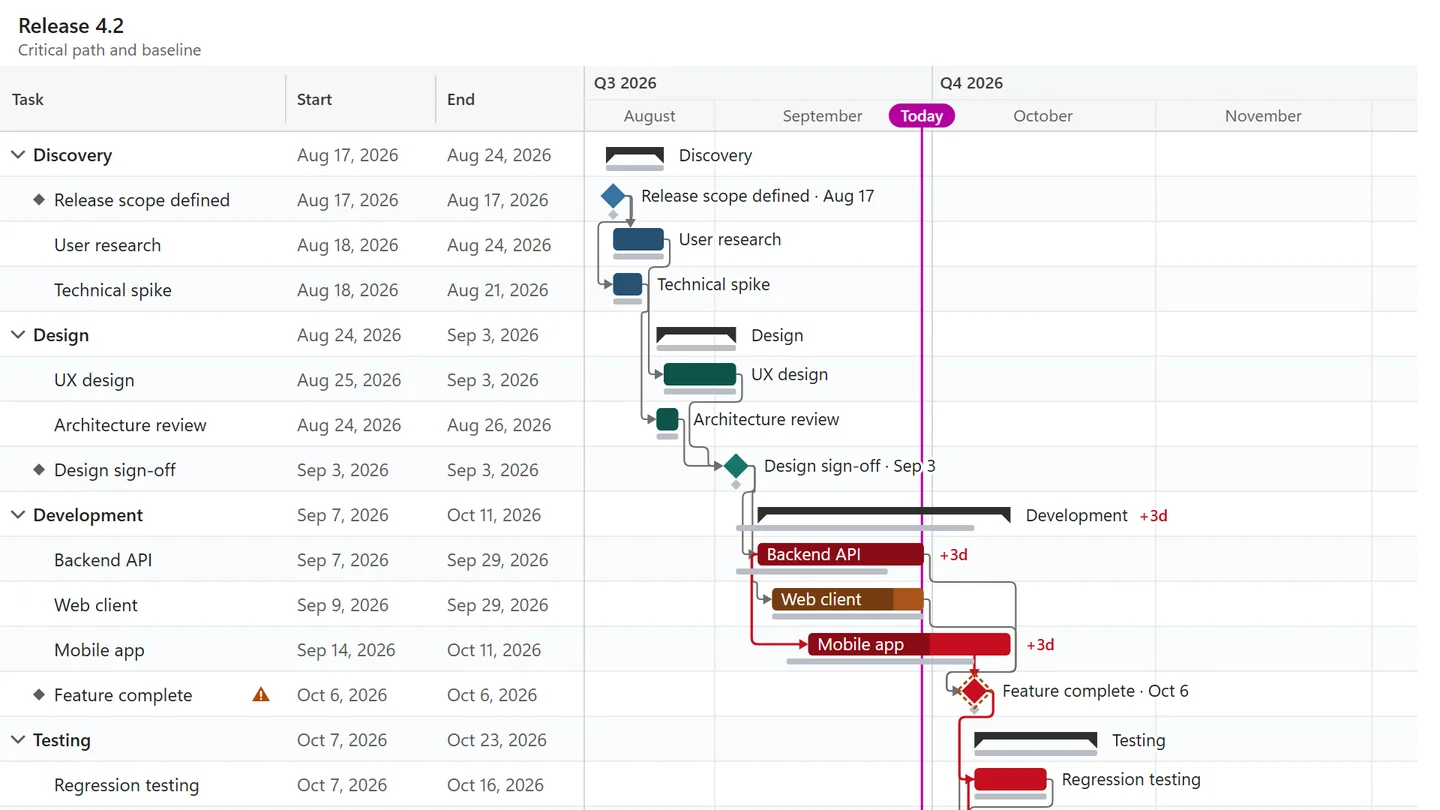
A baseline is a snapshot of the plan as it was agreed. Later, when dates move, the chart shows the original dates under each bar and how many days each task has slipped. Baselines are a Pro feature (included in the trial).
Save a baseline #
- Point at the chart, click Edit and open the Schedule tab.
- Click Save baseline. You can also right-click a bar and choose Save baseline.
The baseline stores the start and end of every task, with the date you saved it. It is kept in the workbook with the chart, so it travels with the file. Each chart holds one baseline: once one is saved, the button reads Replace baseline, and Clear baseline removes it. Both ask before they overwrite anything.
Or use baseline columns #
If your table already has planned dates, name the columns Baseline start and Baseline end (or Planned start and Planned end). Baseline columns take precedence over a saved baseline, and you can edit them like any other cell.
What you see #
- With Show the baseline on (Edit > Schedule), a thin gray bar under each task shows its baseline dates.
- Turn on Show slip in days under Edit > Schedule to print a label such as +3d next to every task that ends later than in the baseline, for example in a PDF for the steering committee.
How tasks are matched #
A saved baseline recognizes tasks by their ID column, otherwise by their WBS number, otherwise by task name. With an ID column, tasks keep their baseline even when you rename or reorder them. A new task has no baseline until you save again.