
The PDF export gives you a sharp, print-ready copy of the whole plan, however long it is. PDF and print are Pro features (included in the trial).
Steps #
- Point at the chart and click Export, then Download PDF.
- Choose the Paper size (A4, A3, Letter or Tabloid; the default follows your region), the Orientation (landscape by default), the Colors (Light, best for printing, or As shown) and whether to add Page numbers.
- Click Download PDF in the options. SimpleGantt fits the plan to the page width and splits the rows over as many pages as needed.
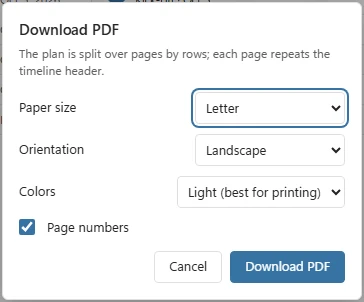
In Excel for Windows and Mac the chart opens as a snapshot page in your browser, where one click on Download PDF makes and saves the file. In Excel on the web the file is made and downloaded right away.
What is in the PDF #
- Vector graphics: text and lines stay sharp at any zoom and on any printer. This covers the characters of English and the Western European languages.
- The timeline header repeats on every page.
- With Page numbers on, every page shows “Page n of m” at the bottom right and the chart title at the bottom left.
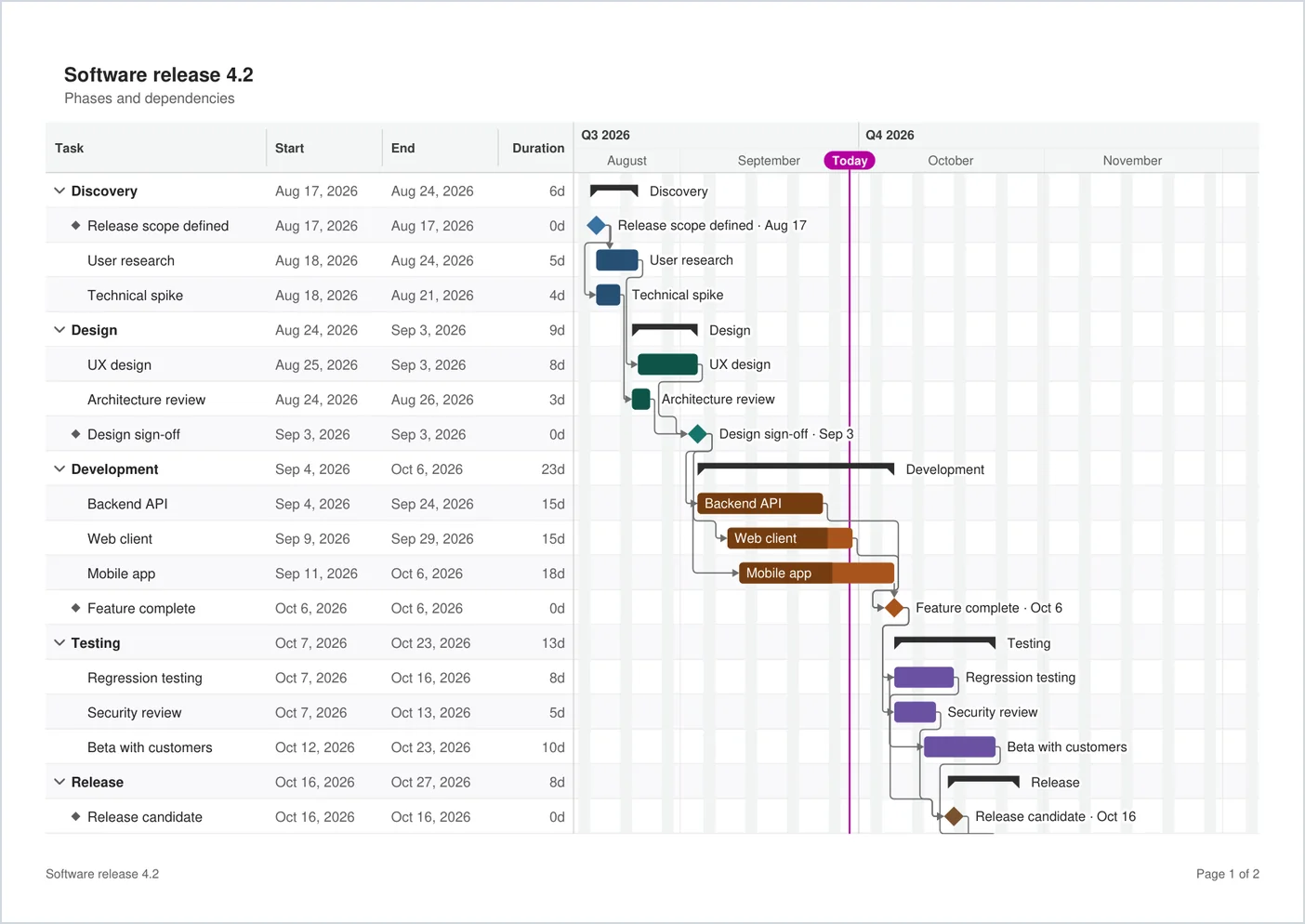
Print #
Export > Print has the same options and makes the same PDF, opened with the print dialog (in Excel for Windows and Mac through the snapshot page, where you click Print), so the printout matches the file exactly. If nothing opens, open the downloaded PDF and print it from there. Excel’s own print command does not include the chart frame on every platform; use this, or place a picture of the chart in the sheet (see Place the chart in the sheet).
Tips #
- A3 or Tabloid landscape suits long timelines on a wall.
- Set a data date under Edit > Timeline so the report says which status it shows.
- Turn on Show slip in days under Edit > Schedule if you print a baseline comparison.