
About a minute from install to your first live Gantt chart. No account and no key: every feature is free for 14 days from first use.
1. Add SimpleGantt to Excel #
You need Excel on Windows or Mac with Microsoft 365 or Excel 2021 and later, or Excel on the web. You add SimpleGantt from inside Excel: on the Home tab, click Add-ins, search for SimpleGantt and click Add. This works with personal and work Microsoft accounts. The steps, including central deployment for a company, are in Install SimpleGantt.
2. Insert a chart #
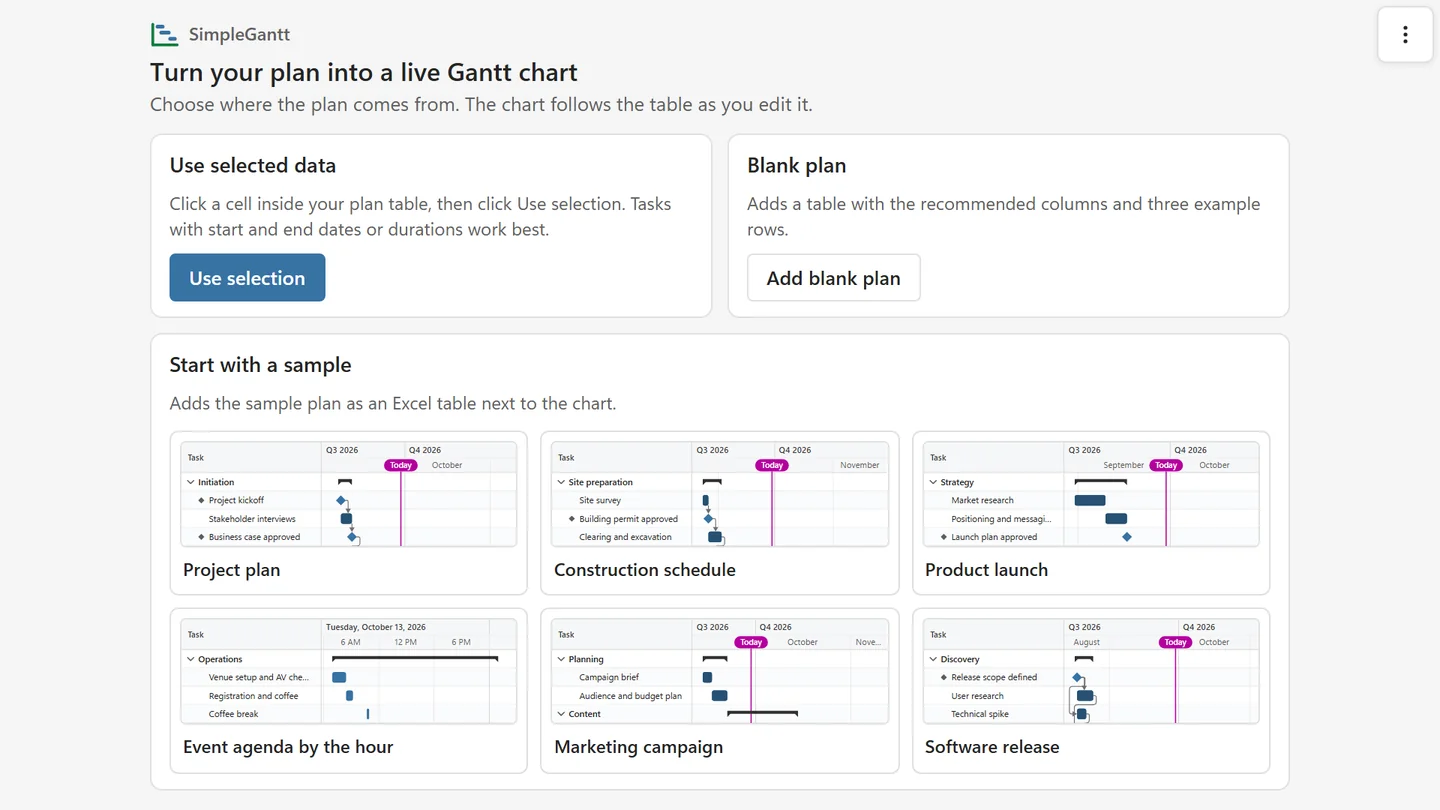
Click the cell where the chart should go, then insert SimpleGantt from the Add-ins menu. A chart frame appears on the sheet. You can move and resize it like any other object. The frame offers three ways to start:
- Use selected data: click one cell inside your plan table, then click Use selection. SimpleGantt reads the headers, finds the task, start, end or duration columns (and optional ones like progress, predecessors, phase and owner) and draws the chart.
- Start with a sample: click one of the six sample plans (Project plan, Construction schedule, Product launch, Event agenda by the hour, Marketing campaign, Software release). SimpleGantt writes it as a formatted Excel table at A1 of the sheet (or next to data already there, never over it) and draws the chart from it.
- Blank plan: click Add blank plan for a table with the recommended columns and three example rows, ready to fill in.
If SimpleGantt is not sure which column is which, the step Match your columns opens with its best guess selected. Check the choices, then click Draw chart. See Prepare your plan table for the columns and formats it understands.
3. Work in the table, not the chart #
- Change a date, a duration or a progress value in the table and the chart redraws.
- Add a row to the table and a new bar appears.
- Click a bar or a row in the chart grid and SimpleGantt selects that task’s row in the sheet. Double-click selects its start date.
4. Use the toolbar #
Point at the chart to show its toolbar in the top right corner. The buttons are icons; point at one to see its name.

- Collapse all folds every phase; the same button then reads Expand all.
- Issues lists data problems, such as a missing date or an unknown predecessor. Click an issue to select the cell.
- Export offers images, PowerPoint, PDF, an HTML file, a snapshot link and a picture in the sheet.
- Format opens a side panel next to the chart for the theme, colors, labels, row height, grid columns and time scale. Changes show on the chart at once.
- Edit opens the chart editor with the tabs Data, Timeline, Look, Schedule and License.
- More options (the three dots) holds Help, License, Diagnostics and Restart add-in.
Double-click the title to rename the chart, or set the title and subtitle under Edit > Look.
5. After the trial #
The free version keeps a live chart of up to 10 tasks, one chart per workbook, with bars, milestones, progress, phases, the today line, weekend shading and every theme, and PNG export. Free charts carry a small “Made with SimpleGantt” badge. Charts you made during the trial keep their look. A license unlocks everything else. To add your key, open More options > License, paste the key from your purchase email and click Add key. Colleagues who only view or update your plan never need a license.
Having trouble? #
If the chart does not follow your table, see The chart does not update. For anything else, contact support.