
After your purchase you receive a license key by email. Add it once per device; there is no account to create and nothing to sign in to.
Steps #
- Point at any SimpleGantt chart and open More options > License. (Or click Edit and open the License tab.)
- Paste the key from your purchase email into License key.
- Click Add key. SimpleGantt checks it and shows the license status.
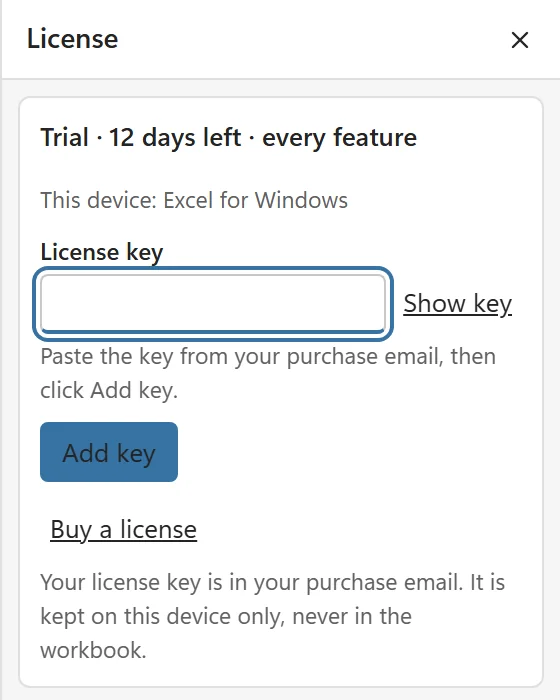
Every Pro feature unlocks at once on this device. Charts you apply from now on show no badge for anyone. A chart you made in the free version keeps the free limits until you click Edit, then Apply on it.
License status #
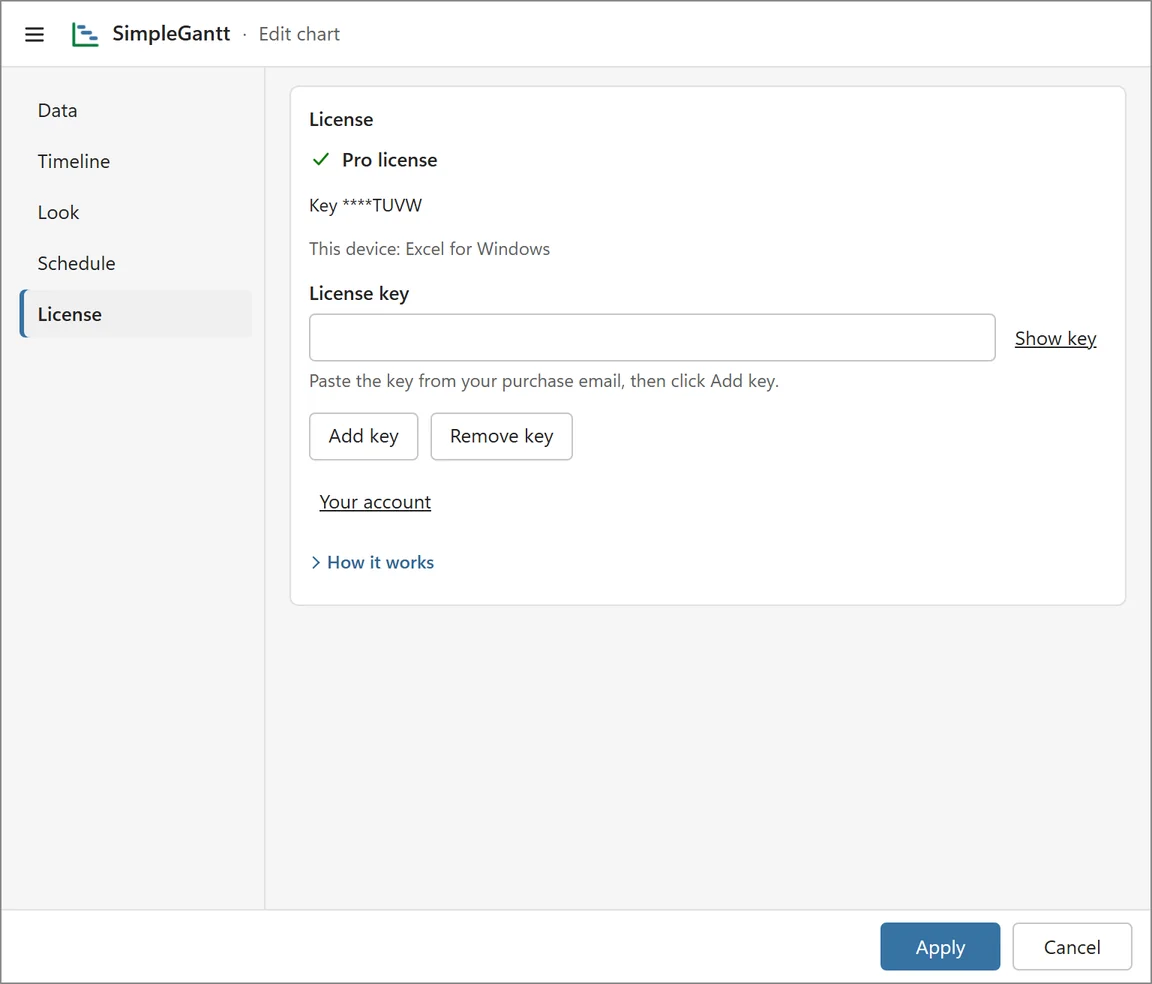
The License panel shows the status of your key, on how many of its devices it is active, and during the trial how many days are left. Remove key takes the key off this device and frees its device slot. If the license server cannot be reached at that moment, SimpleGantt says so and you free the slot in your account instead.
Good to know #
- The key is stored on this device only, never in the workbook. Colleagues who open your file do not get your key.
- Each device you add the key on uses one slot. Manage devices and invoices in your account.
- A key for the SimpleGantt VBA tool works here too.
Key not accepted? See My license key is not accepted.