
No plan yet, or want to see what SimpleGantt can do? Start from a sample. SimpleGantt writes it into the workbook as a normal, formatted Excel table and draws the chart from it. The table is yours to edit: type over the tasks and dates and the chart follows.
Steps #
- Click an empty area of a sheet, then insert SimpleGantt from Home > Add-ins.
- Under Start with a sample, click one of the six samples.
- SimpleGantt writes the table at A1 of the chart’s sheet and links the chart to it. Charts and shapes do not count: the chart frame may sit on top of the table, so drag the frame aside to see it. When A1 is taken by data, the table goes into row 1 right of the data, or else into column A below it. Filled cells are never overwritten: when the sheet is protected or has no free space, the table goes to a new sheet named SimpleGantt sample. The status line says where the table is; Show data takes you there.
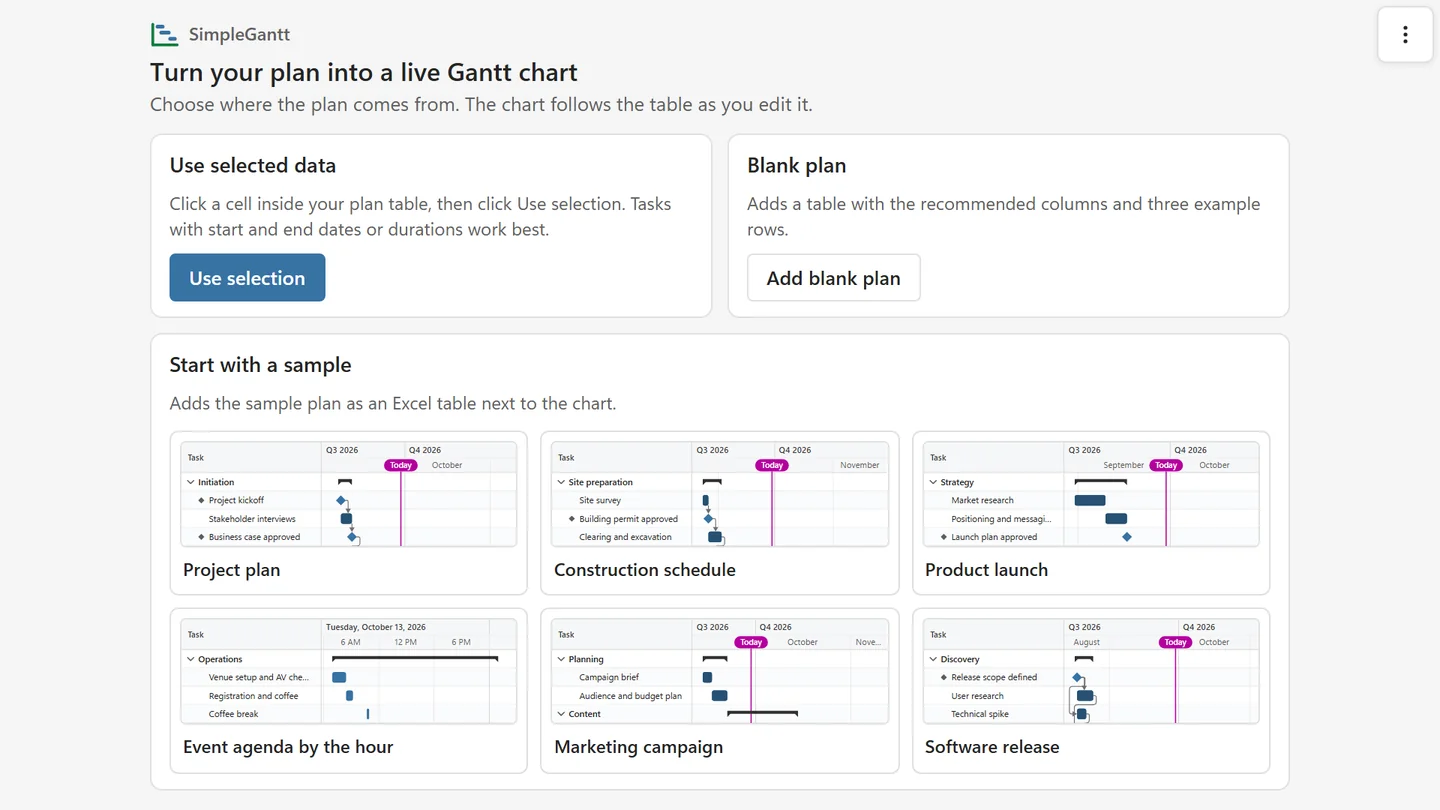
The samples #
Every sample is dated around today, so the today line falls inside the plan, and its progress and status follow the date: finished work is done, current work is partly done.
| Sample | Columns | Shows |
|---|---|---|
| Project plan | ID, Task, Phase, Start, End, Milestone, Progress, Predecessors, Owner, Status | Four phases with tasks, milestones, progress and dependencies |
| Construction schedule | WBS, Activity, Start, Duration, Milestone, Predecessors, Crew, % Complete | Summary tasks from WBS numbers, end dates from durations, long chains of dependent trades |
| Product launch | Task, Phase, Start, End, Milestone, Owner, Status | Phases with a Milestone column and owners |
| Event agenda by the hour | Session, Track, Start, End, Speaker, Room | A one-day plan on an hourly scale, grouped by track |
| Marketing campaign | Task, Channel, Owner, Start, End, Milestone, Status, Progress | Overlapping activities grouped by channel |
| Software release | ID, Task, Phase, Start, End, Milestone, Predecessors, Owner, Progress, Status | Phases with dependencies and lags, ready for the critical path and a baseline |
The Phase, Status and Milestone columns have dropdown lists: click a cell and pick a value from the arrow next to it. Status offers Not started, In progress, Done, On hold and Late; Phase offers the plan’s phases; Milestone offers Yes and No. New rows you add to the table get the same lists. A value that is not in the list (a new phase, for example) is allowed after a warning. Mark a row as a milestone with Yes in the Milestone column, or give it the same start and end date (or a duration of 0). In Excel versions without dropdown support for add-ins the table works the same, just without the lists.
Samples start with the default look: bars colored by phase, no critical path and no baseline. Turn those on under Edit > Schedule, or change the colors under Format.
Blank plan #
Add blank plan writes a table with the recommended columns (ID, Task, Phase, Start, End, Milestone, Progress, Predecessors, Owner, Status) and three example rows, at A1 of the chart’s sheet like a sample. The first example row is a milestone (Yes in the Milestone column). Type your own tasks over the example rows; Phase, Status and Milestone have the same dropdown lists as the samples.
Good to know #
- In Excel on the web the frame may reload once while the table is written; it then finishes the chart by itself.
- Delete columns you do not need. The chart adapts, and Edit > Data shows the current columns.
- Some samples use Pro features such as dependency arrows. In the free version those parts are not drawn, and the chart shows the first 10 tasks.