
In an early plan you often know the order of the work and how long each step takes, but not the dates. Leave the start empty and let SimpleGantt compute it. Starts calculated from predecessors are a Pro feature (included in the trial); an end from a start and a duration works in every version.
How it works #
- A task with predecessors and an empty Start gets its start from its predecessors, including link types and lags.
- A task with a start and a Duration but an empty End gets its end computed (also in the free version).
- The calculation follows your calendar: weekends and holidays are skipped when working days are on.
- Calculated bars are drawn lighter, with stripes, their dates show in italics in the grid, and the tooltip marks them as calculated.
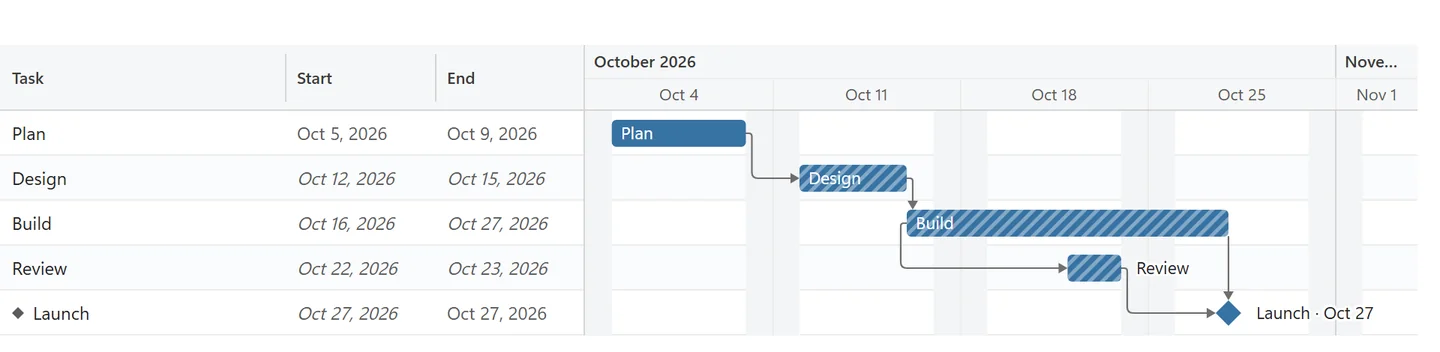
Dates you type always win. SimpleGantt never moves a date that is in the table; it only fills gaps.
Write the dates into the table #
- Click Write calculated dates to the table. The line below the button says how many empty cells can be filled.
- Click Write dates to confirm. SimpleGantt fills only the empty Start and End cells, as values (not formulas), in the column’s date format.
Filled cells are never changed. On a protected sheet nothing is written, and SimpleGantt says so. Use Excel’s Undo if you want to take the dates out again.
Good to know #
- A task without a start and without predecessors cannot be calculated. It appears under Issues.
- Turn calculated dates on or off with Calculate missing dates under Edit > Schedule.