
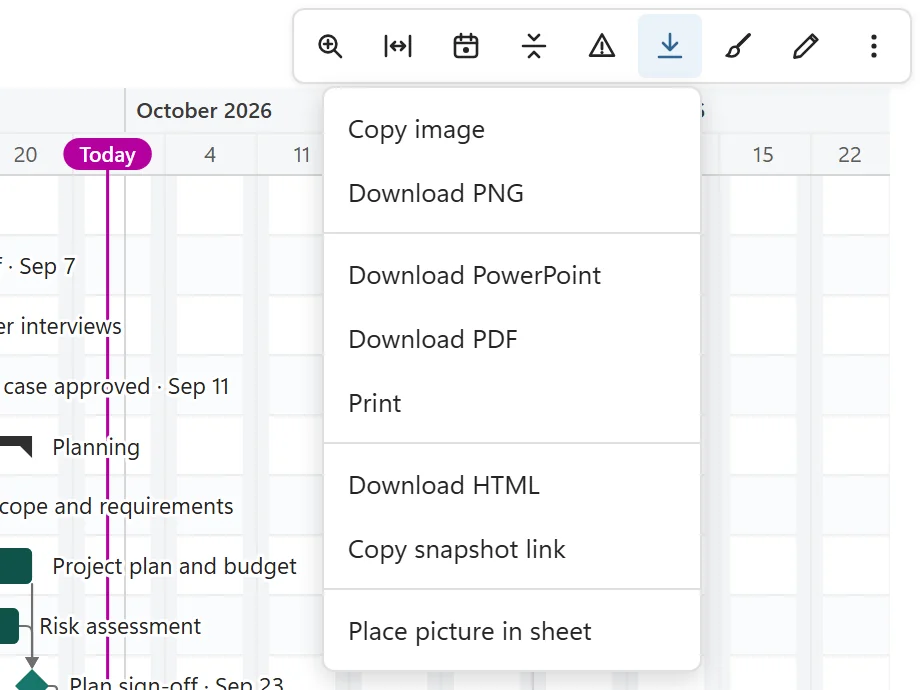
Everything under Export on the chart toolbar is created on your device: in Excel, or in your own browser when Excel for Windows or Mac hands the download over to it. Nothing is uploaded to a server. Every file is named after the chart title, followed by the word Gantt and the date.
Which export for which purpose #
| Export | Best for | Free version |
|---|---|---|
| Copy image | Pasting into an email, Teams or a document | Yes, with badge |
| Download PNG | A sharp image file of the whole plan | Yes, with badge |
| Download PowerPoint | Status meetings: 16:9 slides, long plans split over several slides | Pro |
| Download PDF | Printing and sending: A4, A3, Letter or Tabloid, vector quality | Pro |
| Paper copies, through the PDF | Pro | |
| Download HTML | An interactive chart in one file that opens in any browser, even offline | Pro |
| Copy snapshot link | A quick link to a read-only snapshot of the chart | Pro |
| Place picture in sheet | Printing the Excel sheet with the chart on it | Pro |
The trial includes every export. In the free version, the PNG and the copied image carry a small “Made with SimpleGantt” badge, and the locked items in the menu say “Needs a SimpleGantt license”.
Step by step #
- Export to PowerPoint
- Export to PDF and print
- Copy or download an image
- Share an HTML file or snapshot link
- Place the chart in the sheet
Each has its own guide in this section.
Every export contains the plan it shows: task names, dates, owners and notes in the tooltips. Send it only to people who should see them.