
SimpleGantt turns the chart into a ready PowerPoint file for the status meeting, so you no longer rebuild the timeline by hand every time a date moves. PowerPoint export is a Pro feature (included in the trial).
Steps #
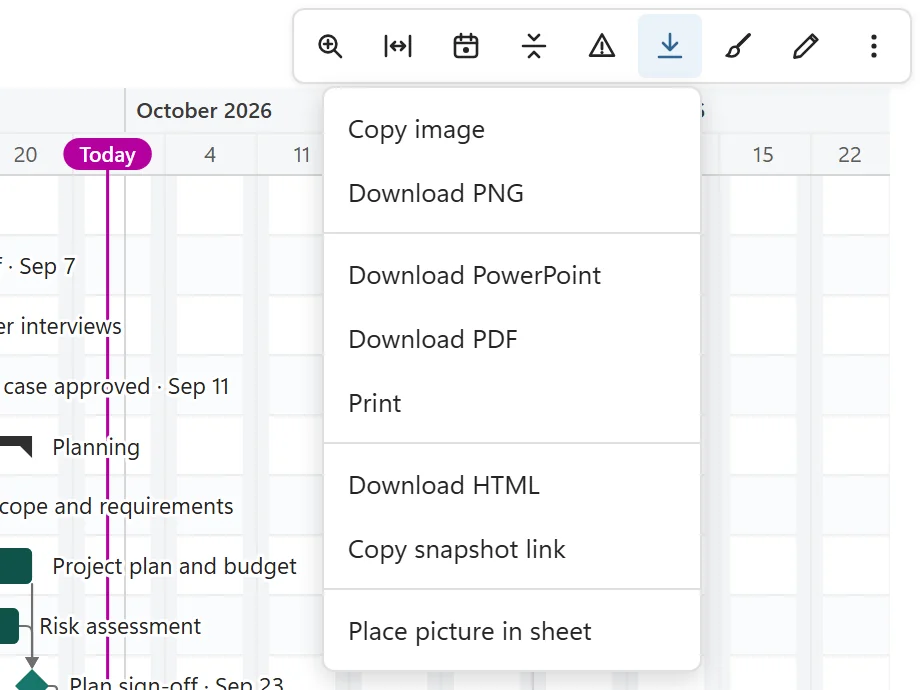
- Point at the chart and click Export, then Download PowerPoint.
- In the options, choose whether the file starts with a Title slide and whether it carries Speaker notes with the data date (both are on by default).
- Click Download PowerPoint in the options. Where the file is made depends on your Excel (see below).
What is in the file #
- 16:9 slides with the chart as a sharp picture (with a PNG copy for older PowerPoint versions), and slide numbers.
- The light, print-friendly colors, whatever theme the chart shows in Excel.
- The optional title slide carries the chart title, the date range and the number of tasks; the speaker notes say the data date and which rows each slide shows.
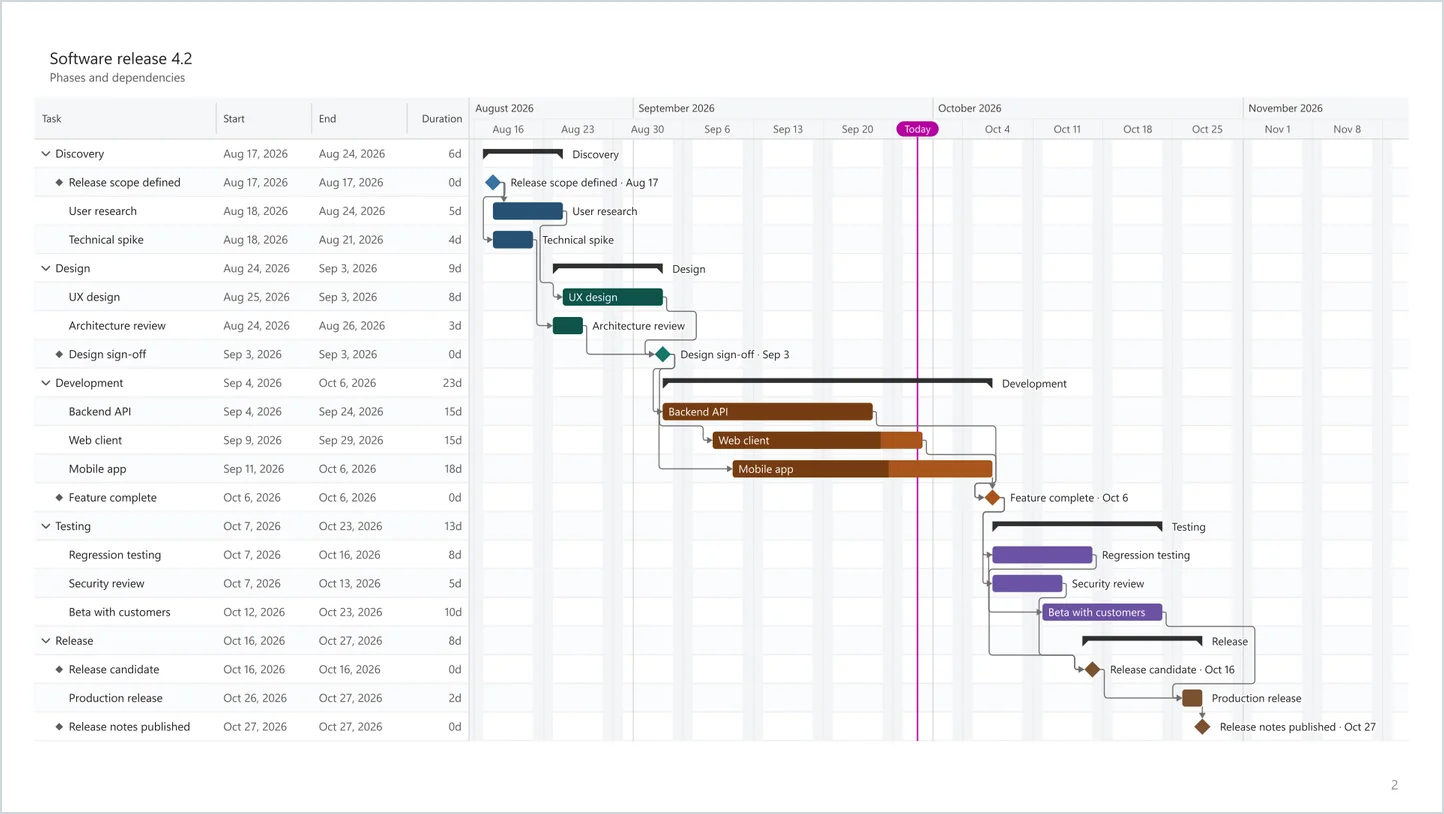
The slides are pictures of the chart, not editable shapes. To change the plan, change the table and export again: it takes a second.
Where the file goes #
- Excel on Windows and Mac: SimpleGantt opens the chart as a snapshot page in your browser, where one click on Download PowerPoint makes and saves the file. For a plan too large to open that way, the file is made in Excel and downloaded.
- Excel on the web: the file is made and downloaded right away.
- If nothing appears, the status line under the chart offers to open it again.
Tips #
- Collapse phases or filter the table before exporting to show exactly the level of detail the audience needs.
- Slides always fit the time scale to the slide width, whatever zoom you use on the sheet.
- The file opens in PowerPoint for Windows, Mac and the web.