
SimpleGantt matches each column of your table to a Gantt field (task, start, end, duration, progress and so on) by its header and by the values in it. You rarely have to do anything. When you do, it is one short step.
When the mapping step opens #
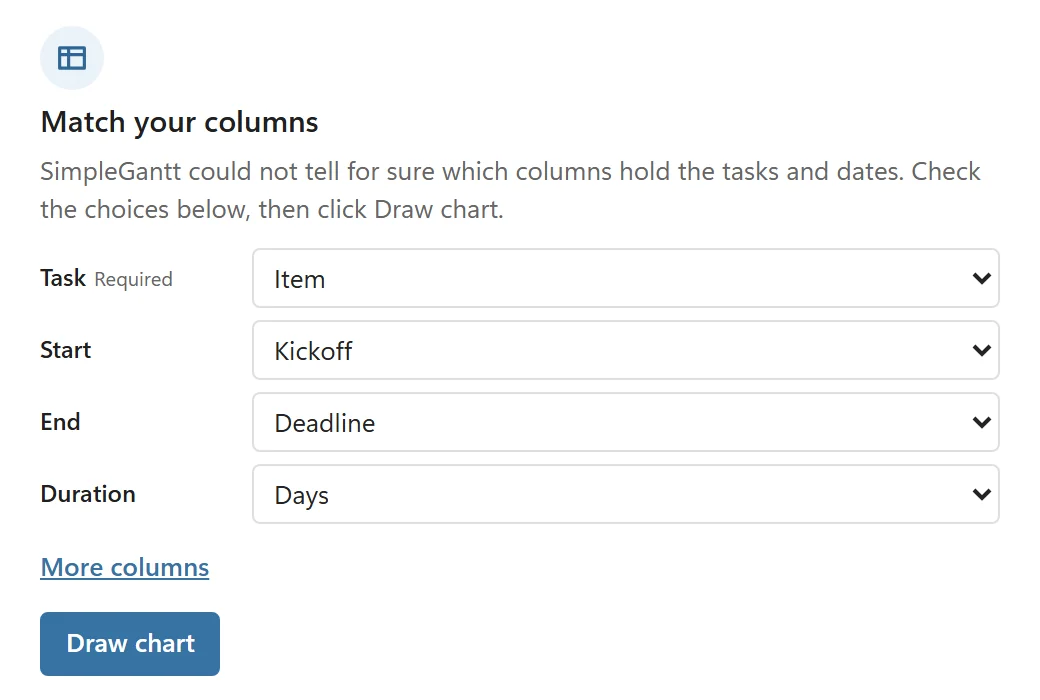
If SimpleGantt is confident, the chart appears straight away. If it is not, for example because two columns both look like dates or a header is unusual, the step Match your columns opens with its guess selected for every field. Check Task, Start, End and Duration, change what is wrong (More columns shows the optional fields) and click Draw chart.
Change the mapping later #
- Point at the chart and click Edit.
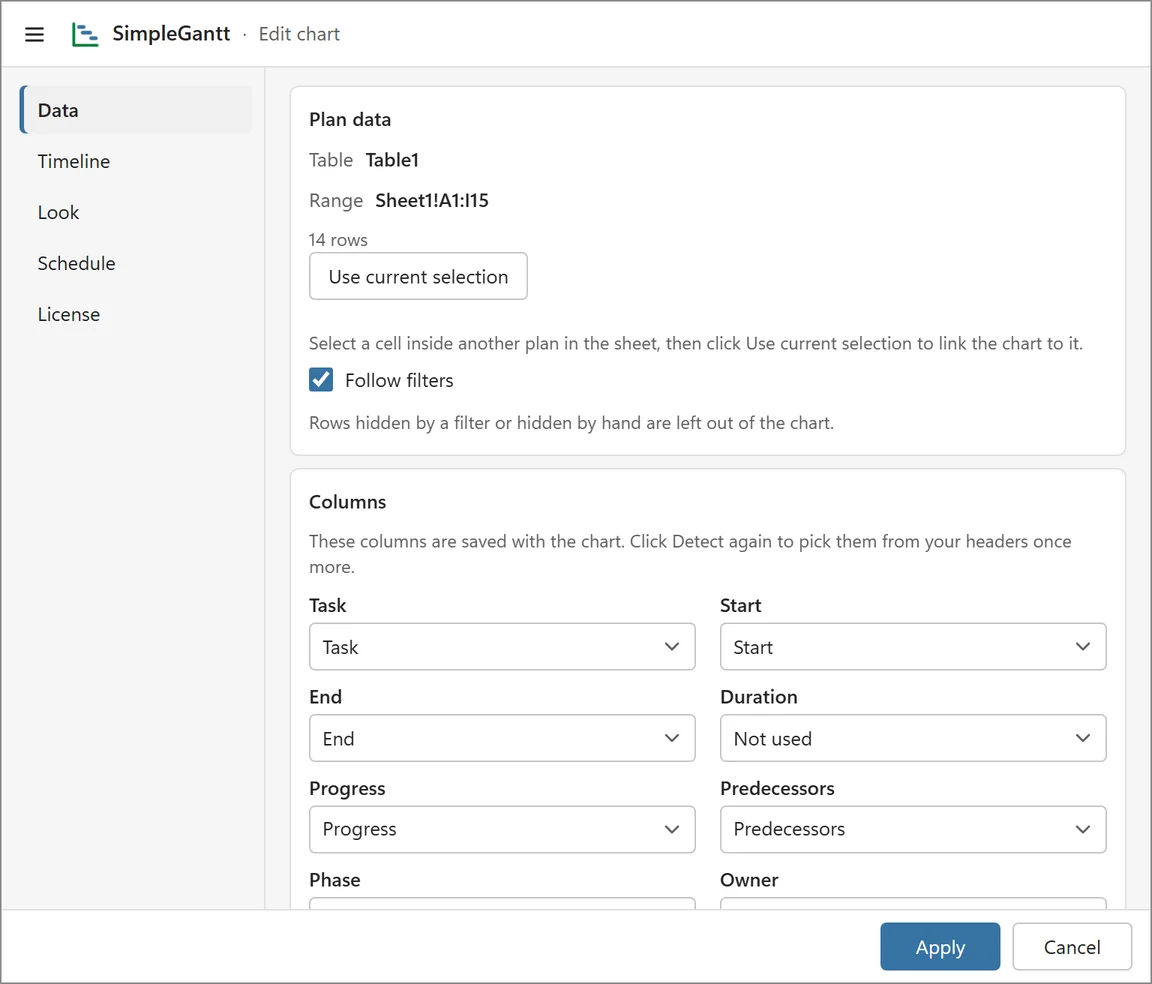
- Open the Data tab. Under Plan data it shows the linked table or range; under Columns the column chosen for each field, and how sure the automatic detection was.
- Pick a different column for a field, or Not used to leave an optional field out. More columns shows the optional fields, Detect again picks every column from your headers once more.
- Click Apply. The chart redraws.
Other options on the Data tab #
- Follow filters (on by default): rows hidden by a filter or hidden by hand are left out of the chart.
- Use current selection: link the chart to another table or range. Select a cell inside it in the sheet first; after Apply the chart uses it.
- Use sample data (under Sample plan): add a sample plan as a table at A1 of the chart’s sheet (or next to data already there) and link the chart to it. Your own data is not changed.
When columns change #
The column choice is saved with the chart and checked every time the table is read. If a mapped column moves, SimpleGantt finds it again by its header. If its header is renamed while the number of columns stays the same, the chart keeps reading that position and the Issues panel notes the new name. If the column was deleted (or renamed and moved at once), the chart shows “A column of your plan is missing” with Fix mapping, where you choose another column.