
Milestones and progress are what stakeholders look at first. SimpleGantt reads both from your table; there is nothing to draw by hand.
Milestones #
Mark a row as a milestone with Yes in the Milestone column, or give it the same start and end date (or a duration of 0). The row is then drawn as a diamond with its date.
- The Milestone column also reads X, TRUE or Milestone as yes, and a Type column that says Milestone works the same way.
- A blank Milestone cell does not stop a row with the same start and end date from being a milestone.
- To draw a one-day task instead, put No in its Milestone cell (or give it a duration of 1).
A milestone needs only one date. If a milestone row has a start and an end that differ, the start date is used.
Progress #
- Add a Progress column (or % complete, Done %). Values from 0 to 1, from 0 to 100, or text such as 45% all work.
- The completed part of each bar is filled in a darker shade. Values above 100% are capped. Placeholders such as n/a, tbd or a lone hyphen count as empty; other text the chart cannot read is listed under Issues.
- With an empty progress cell, a Status of Done, Complete or Erledigt counts as 100%.
- Summary bars show the progress of their tasks, weighted by duration.
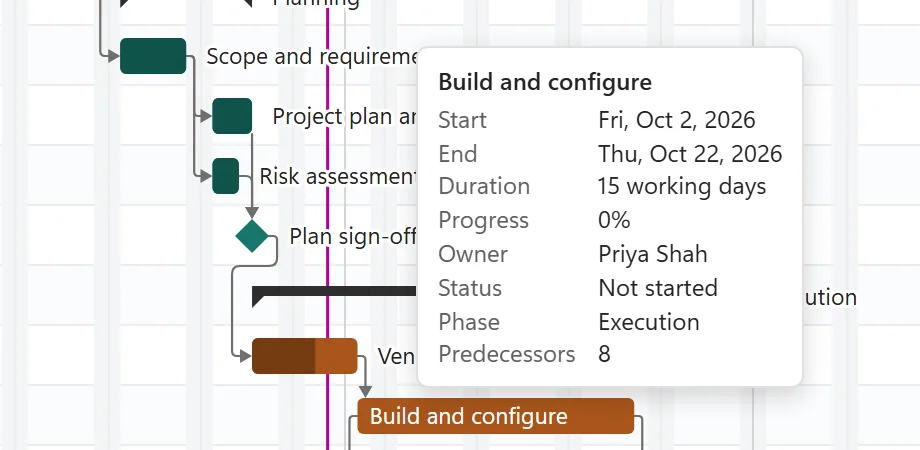
Point at a bar to see its dates, duration, progress, owner, status and predecessors in the tooltip.
Late tasks #
When the table has a Progress or Status column, a task whose end date has passed while it is not done is marked late: a red outline on the bar and a warning icon in the grid. The Today line shows where you are in the plan; Go to today on the toolbar scrolls to it. With a data date set (Edit > Timeline), the line and the late check use that date instead.
Labels #
By default the task name sits inside the bar when it fits, otherwise next to it. Under Format or Edit > Look, Bar labels offers Task name, Task name and owner, Task name and progress, or No labels.