
The timeline settings decide how the chart’s time axis looks and which days count as working days. Most of them are on the Timeline tab of the editor (click Edit); the common ones are also in the Format panel.
Scale and zoom #
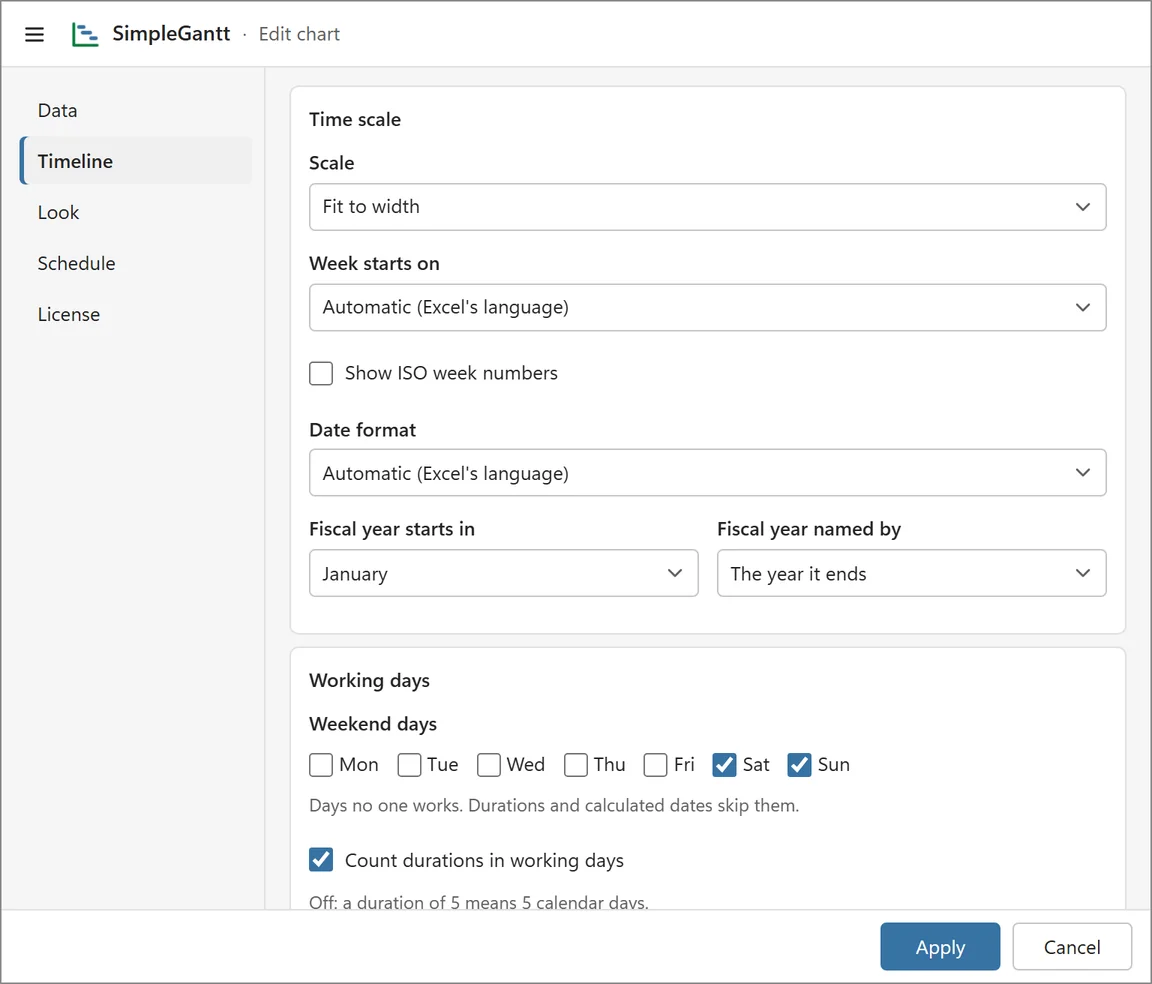
- Fit to width (the default) fits the whole plan to the frame width while keeping labels readable. On the toolbar’s Zoom menu it is called Auto.
- Fixed scales: Hours, Days, Weeks, Months, Quarters or Years. Use Zoom on the toolbar to switch quickly, or Scale on the Timeline tab to save the choice with the chart.
- The header has two tiers, for example months over weeks, or days over hours for a plan of a few hours.
- Fit to width on the toolbar fits the plan into the frame again, Go to today scrolls to today.
Weeks, years and dates #
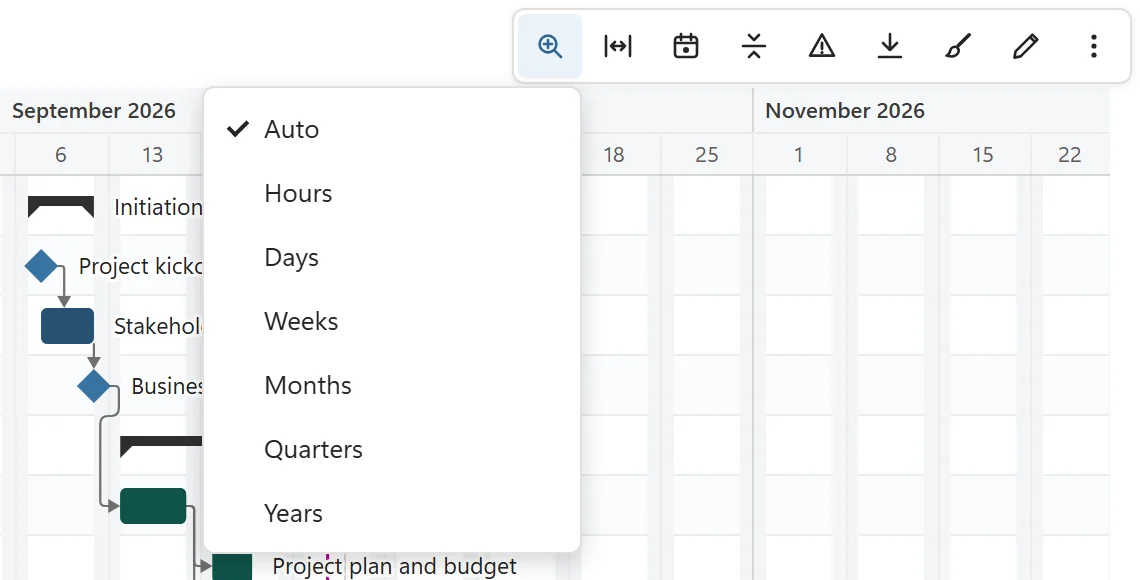
- Week starts on: Automatic (Excel’s language), Monday, Sunday or Saturday.
- Show ISO week numbers adds the week numbers to the header.
- Fiscal year starts in: the month your fiscal year starts in (for example April). Quarters are then labelled by fiscal year, such as Q1 FY2027. Fiscal year named by chooses whether a fiscal year is named after the year it ends (the default) or the year it starts.
- Date format for labels and tooltips: Automatic (Excel’s language), or one of the listed languages, each shown with a sample date.
Working days and weekends #
Weekend days are Saturday and Sunday by default; tick other days, for example Friday and Saturday. With Count durations in working days on (the default), a duration skips weekend days: a 5-day task starting on Monday ends on Friday. Turn it off to count calendar days. Shade weekends and holidays shows them as gray columns in the chart.
Holidays (Pro) #
Holidays are shaded like weekends and skipped when durations and calculated dates are counted. Add them in either of two ways, both on the Timeline tab:
- Holiday dates: type a date and click Add. Remove all clears the list.
- Also use a table or sheet named Holidays: SimpleGantt reads the dates in the first date column of an Excel table named Holidays, or else of a sheet named Holidays. It reads them together with the plan, so a change to the holidays shows the next time the plan changes or the workbook opens.
Today line and data date #
Show the today line is on by default; the line is labelled Today. Set a Data date when your progress figures refer to another day, for example last Friday’s status: the line then shows that date, labelled Data date, and late tasks are judged by it. Use today goes back to today.