
Numbers in a contact list are often old, mistyped or not on WhatsApp at all. A number without WhatsApp cannot receive your message. It still takes its turn in a send and shows up as a failed message in History. Check numbers on WhatsApp finds those numbers first, so you can leave them out or block them and keep your list clean.
You can start a check from Contacts or from Compose. The WhatsApp screen must say Connected. The check never starts by itself.
Check from Contacts #
- Open Contacts. Tick the people you want to check. If you tick nobody, the check covers everyone shown, so you can pick a list first.
- Click Check numbers on WhatsApp.
- Read the question. It says how many numbers will be checked and how many checks are left today. Click Start checking. If all the numbers were already checked in the last 30 days, there is no question and the results window opens at once.
- The results fill in as the answers arrive. You can close the window. The check keeps going.
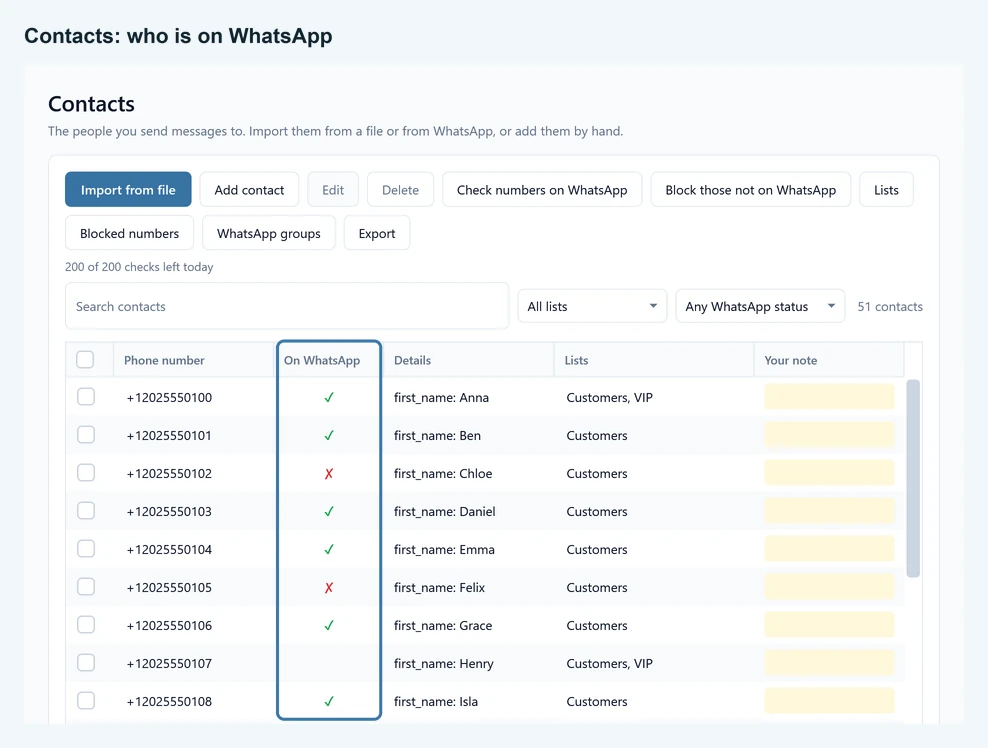
The On WhatsApp column shows what SendCommander knows. A tick means the number has a WhatsApp account. A cross means it has none. An empty cell means the number was not checked yet, or the answer is older than 30 days. Hover over a cell to see the day it was checked.
To work with the answers, pick a choice in the Any WhatsApp status filter: Not on WhatsApp, On WhatsApp or Not checked yet.
Click Block those not on WhatsApp to put the numbers with a cross on your blocked numbers. It uses the ticked contacts, or everyone shown when none is ticked. You are asked first. Confirm with the button that names the count, such as Block 3. The contacts stay in your list, and future sends skip them. You can remove them again under Contacts and Blocked numbers, for example if someone joins WhatsApp later.
Check from Compose #
- On Compose, choose your recipients.
- Under the recipient count, click Check numbers on WhatsApp, then Start checking. The check is not offered when you send to WhatsApp groups.
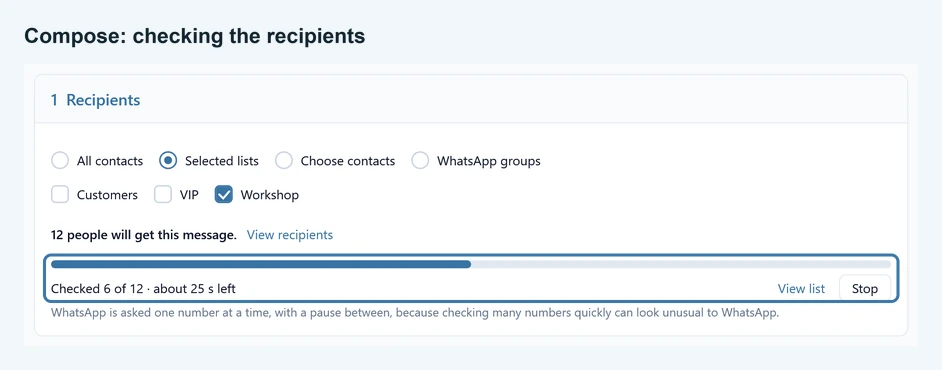
- A progress bar shows how far it is, for example “Checked 6 of 12”, with the time left. Click Stop at any time. You keep the answers found so far. View list opens the results while the check runs.
When the check is done, a line under the recipient count sums it up, such as “12 checked on 20 Oct: 9 on WhatsApp, 3 not”. SendCommander remembers the answers for 30 days, so the line is there again whenever you open Compose with the same people. Without answers it says “Not checked yet”. Click View results to see every number.
If some recipients have no WhatsApp account, two buttons appear under the line:
- Skip them for this send leaves those numbers out of this campaign only. They stay in your contacts and are included again next time.
- Add to blocked numbers keeps them out of every future send.
Review and send and Send myself a test stay off while a check runs. Checking is off while a message is being sent or waits for its start time.
The results window #
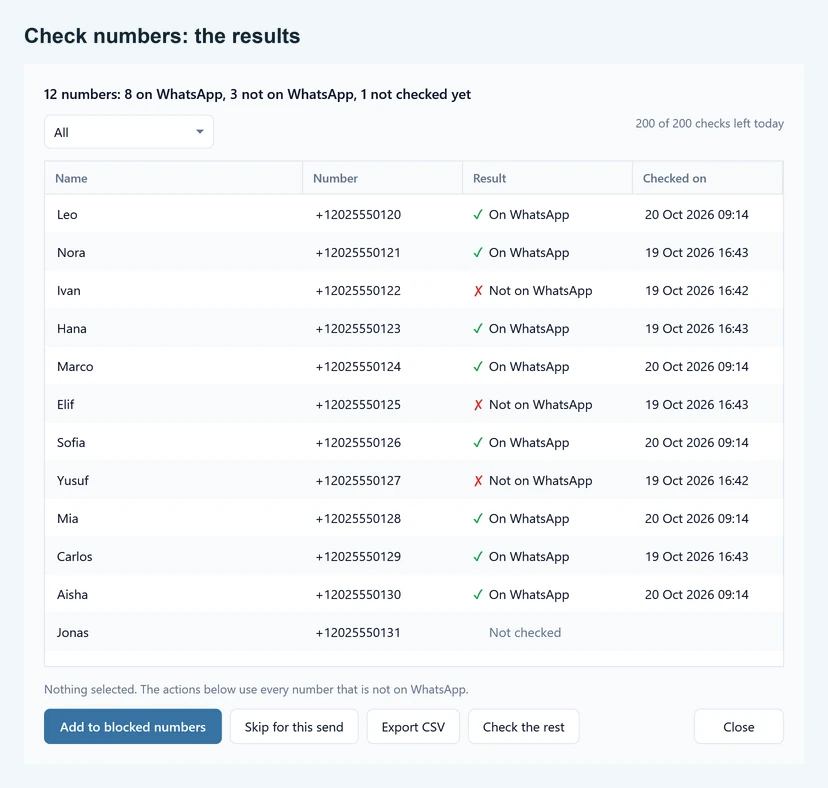
The line at the top counts the answers. The table lists every number with its Name, Number, Result and the day and time it was Checked on. A result reads On WhatsApp, Not on WhatsApp, Waiting (its turn in a running check), Not checked or Error (WhatsApp did not answer for that number).
- The filter above the table shows All, Not on WhatsApp, On WhatsApp or Not checked.
- Add to blocked numbers blocks the numbers that are not on WhatsApp. Select rows first to use only those. With nothing selected, it uses every number that is not on WhatsApp.
- Skip for this send appears only when you opened the window from Compose. It leaves those numbers out of the message you are writing and stores nothing.
- Export CSV saves the rows shown, so filter first if you only want some. Choose an Excel file (.xlsx), which keeps the + of every number, or a CSV file. The columns are Name, Number, Result and Checked on.
- Check the rest checks the numbers that have no answer yet.
- Stop appears with the progress bar while a check runs.
Keep working while it runs #
A check keeps running when you switch pages. A small box at the bottom of the left sidebar shows it on every page, for example “Checking numbers 3 of 7”, with a progress bar. Click it to open the results. It disappears when the check ends.
Pace and limits #
WhatsApp is asked about one number at a time, with a pause of 3 to 5 seconds in between. Asking about many numbers quickly can look unusual to WhatsApp, so the pace is slow on purpose. A list of 100 unknown numbers takes several minutes.
- 200 checks a day for everyone, counted across all your checks. Only numbers that WhatsApp has to look up count. Answers from the last 30 days and numbers WhatsApp already knows on this computer do not. Contacts, Compose and the results window show how many are left, for example “180 of 200 checks left today”. When they are used up, the rest are marked as not checked and you can continue tomorrow.
- Answers from the last 30 days are used again, so checking the same list a second time is quick.
- Numbers WhatsApp already knows on this computer are answered at once. Numbers that cannot be real, such as ones with too many digits, are recognised without asking WhatsApp.
- Nothing is ever sent to anyone. The check only asks whether a number has an account.
Free plan #
The free plan includes 100 checks. They show as “100 free checks left” next to Check numbers on WhatsApp. Each number that WhatsApp answers uses one. Answers from the last 30 days do not use a check. When the 100 are used up, you need a license (Pro) to keep checking. SendCommander tells you and offers Get a license. The numbers you already checked stay on screen.
When a check stops early #
A check stops, and keeps its answers, when you click Stop, when a limit is reached, when a send begins, or when WhatsApp stops answering or looks offline. A short sentence in the results window or on Compose says why. A number that could not be looked up is never reported as “not on WhatsApp” and is never offered for blocking. Run the check again later, or use Check the rest.
The check tells you whether a number has a WhatsApp account. It does not tell you whether the person wants your message. Numbers that turn out to have no WhatsApp account during a send are also offered for your block list on the result screen. See sending safely.