
A picture message (MMS) carries one picture and, if you like, some text. QuickText sends it through your own Android phone, just like a text, so it shows up as a normal picture message from your number.
What you need #
- A recent KDE Connect app on your phone. Pictures need version 1.33 or newer. With an older app, QuickText shows “This phone can’t send pictures yet” and asks you to update the KDE Connect app on your phone. Texts keep working either way.
- Mobile data turned on. Carriers send picture messages over mobile data, so Wi-Fi alone is usually not enough. Keep Wi-Fi on as well: that is how QuickText reaches your phone.
- A plan that includes picture messages. Some carriers have switched MMS off, for example in Germany and Switzerland. Others charge for every picture message, for example in the UK, even on plans with unlimited texts. Check with your carrier before a big send.
- Your own mobile number, for the one-time test picture described below.
Add a picture to your message #
- On the Compose page, click Add picture above the message box and choose a picture. You can also drag a picture onto the message box, or copy one and paste it in.
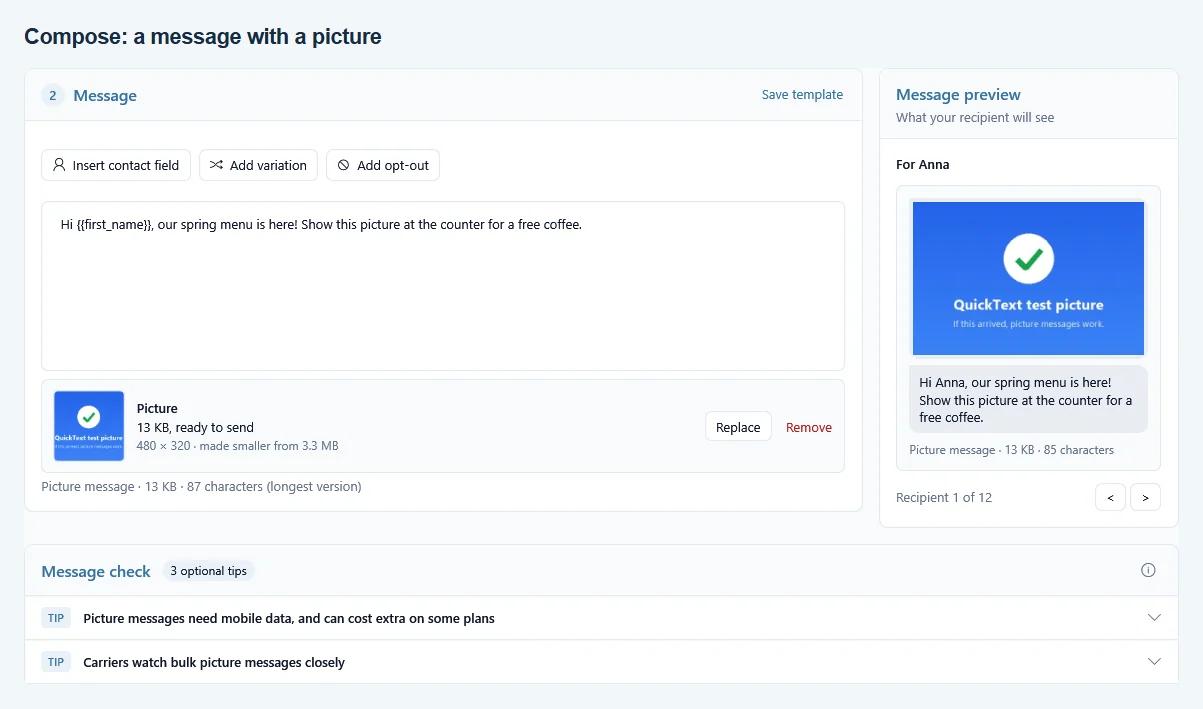
- The card under the box shows the picture and its final size, for example “13 KB, ready to send”. Use Replace to pick another one, or Remove to take it off (you can undo that).
- Write your text as usual. Contact fields and variations work as always, and a picture on its own is a message too.
Each message takes one picture. JPG, PNG, GIF, BMP, HEIC and WebP files work. HEIC and WebP need the matching picture extension in Windows; if a picture won’t open, QuickText says “This picture can’t be opened. Save it as a JPG and try again.”
The preview shows the picture above the text, and the counter changes to “Picture message · 13 KB · 87 characters”. The Message check adds tips for pictures: mobile data and cost, and for bigger sends a reminder that carriers watch bulk picture messages closely.
Picture size and photo details #
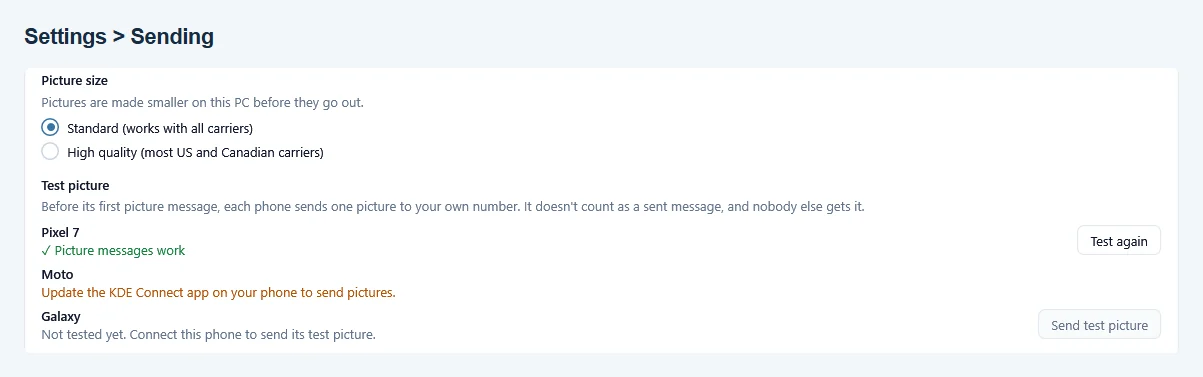
QuickText makes every picture smaller on your PC before it goes out, so it fits a picture message. You never need to resize it yourself. Choose the size under Settings > Sending > Picture size:
- Standard (works with all carriers): the whole message stays under about 280 KB. This is the default.
- High quality (most US and Canadian carriers): up to about 950 KB, for sharper pictures. If pictures don’t arrive, switch back to Standard.
Location and other photo details, such as the camera model and the time a photo was taken, are removed, because QuickText writes a fresh picture from the pixels. Your original file is not changed.
Animated GIFs
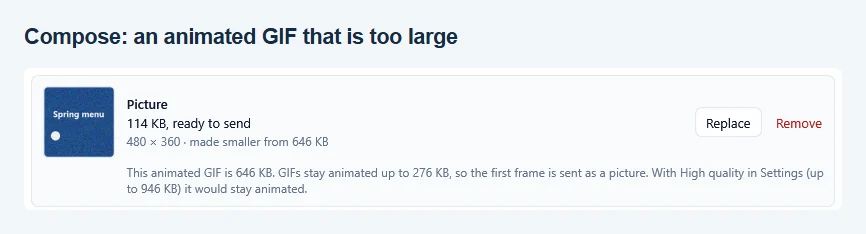
An animated GIF stays animated when it fits the picture size: up to 276 KB on Standard, up to 946 KB on High quality (the size after its hidden details are removed). It is then sent as it is. A larger GIF is sent as a still picture of its first frame, because carriers drop picture messages that are too big. The picture card under the message box says which:
- “Animated GIF, sent as it is. The preview shows the first frame.” QuickText’s own preview never moves, but the person gets the animation.
- A GIF that is too large names its size and the limit, for example “This animated GIF is 646 KB. GIFs stay animated up to 276 KB, so the first frame is sent as a picture.” When High quality would keep it animated, the card adds “With High quality in Settings (up to 946 KB) it would stay animated.” When even High quality is not enough, it says “A shorter or smaller GIF stays animated.”
- “This animated GIF has too many frames to stay animated, so the first frame is sent as a picture.” for a GIF that is small enough but has more frames than QuickText can check.
- “Part of this animated GIF can’t be read, so the first frame is sent as a picture.”
To keep a big GIF animated, make it shorter (fewer frames) or smaller (fewer pixels) in a GIF editor, then add it again. Hover over the note to see both limits.
Switched to High quality after adding the GIF? The card then says “The picture size is High now. Replace it with the same GIF to send it animated.” Click Replace and pick the same file again.
The one-time test picture #
Before a phone sends its first picture message to other people, it sends one test picture to your own number. QuickText cannot see whether mobile data is on or whether your carrier accepts picture messages, so the test proves it before anybody else gets one. It doesn’t count as a sent message, and nobody else gets it. Your carrier may charge for it like any picture message.
- When a phone has not been tested yet, Compose shows Send a test picture to yourself first. Click Send test picture.
- Confirm your own mobile number. It is filled in if you saved it under Settings > Phone numbers.
- Wait for “Your phone sent the test picture. Picture messages work on this phone.” This can take up to 3 minutes.
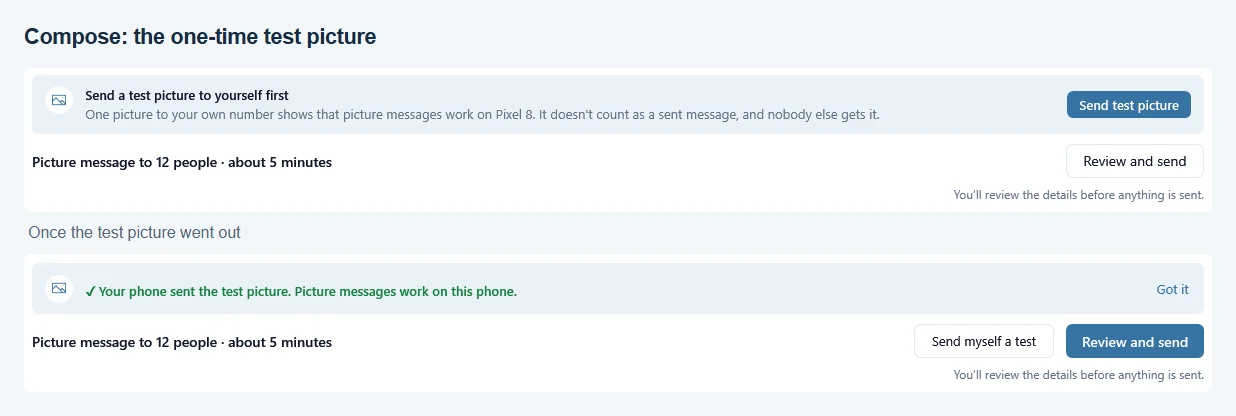
You do this once per phone. The same test is in the Messages reply box, under Settings > Sending > Test picture (one row per phone), and on the Your phone page, which shows Pictures: not tested yet until it has passed. After that, Send myself a test sends you the real message with its picture.
If the test is not confirmed, QuickText says what to check: turn on mobile data on the phone, check that your plan includes picture messages (MMS), then try again. If pictures later stop going out on that phone, QuickText asks for a fresh test. In test mode nothing is sent, so no test picture is needed.
How a picture campaign goes out #
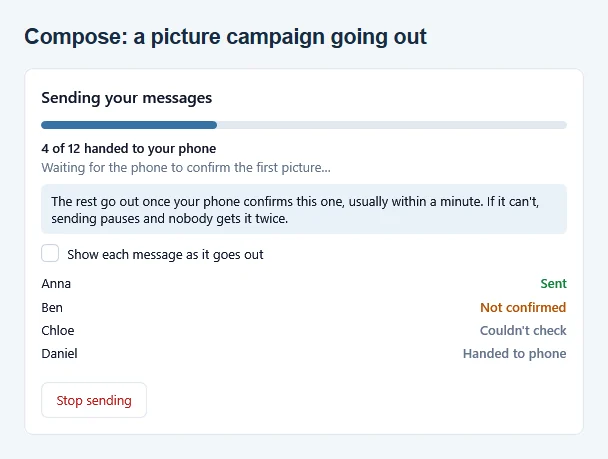
- The first picture goes first. QuickText sends it and waits until your phone confirms it went out: “Waiting for the phone to confirm the first picture…”. The rest follow once it is confirmed, usually within a minute. If it can’t be confirmed, sending pauses and nobody gets it twice.
- Slower than texts. Picture messages need a longer pause. If your pause is under 15 seconds, a picture send waits 20 seconds instead, plus the random pause if you use one. A pause of 15 seconds or more is kept. Change timing in Sending options says so: “Picture messages need a longer pause, so this send waits 20 seconds plus the random pause.” The time estimate at the bottom of Compose includes this.
- A safety stop. If pictures stop going out during a send, sending pauses with “Pictures aren’t going out. Check that mobile data is on, then click Continue sending.”
- Several phones. In a rotation, every ticked phone needs its own test picture, and only phones that can send pictures take turns. See Send from more than one phone.
- Free messages. A picture message counts as one. If your phone reports that it did not go out, you get it back.
How QuickText knows a picture went out #
Your phone does not report back on picture messages the way it does for texts. So for a few minutes after each picture, QuickText checks your phone’s message list to see whether it went out. That is why a picture can take a few minutes to show as Sent. Keep QuickText open and the phone connected until the last pictures are confirmed.
| Status | What it means | What to do |
|---|---|---|
| Handed to phone | Your phone has the picture. QuickText is still checking. | Wait. It updates by itself. |
| Sent | Your phone confirmed that it sent the picture message. | Nothing. From here, the person’s carrier and phone deliver it. |
| Failed | Your phone could not send it, for example because the carrier refused it. | Check mobile data, the number and your plan, then use Retry failed. |
| Not confirmed | Your phone never showed the picture as sent, so it most likely did not go out. | Turn on mobile data, then use Continue sending or Retry failed. |
| Couldn’t check | The phone was offline, so QuickText could not find out. It may still have gone out. | Look in your phone’s messaging app. If it is not there, pick that person and send again. |
Retry failed is under Results > Follow up and includes Not confirmed pictures, but not Couldn’t check ones. A Not confirmed picture may still show up late, so it is held back for about 10 minutes before it is offered again; QuickText shows “1 picture is still being checked. It’s offered again if it didn’t go out.” A late confirmation still turns it into Sent.
Pictures not arriving at all? Work through Picture message did not arrive.
Pictures in replies, templates and History #
- Messages. Your sent pictures show in your bubble. A picture someone sends you shows as a small preview; click it for a larger view. Full-size pictures stay on your phone. A picture without text reads “Picture” in the list.
- Reply with a picture. Click Add picture in the reply box, or drop or paste one into it. The note above the box then says “Your reply goes out as a picture message from the phone chosen here.” See Read and answer messages.
- Templates. A template can carry a picture: use Add picture on the Templates page. The list marks it with a picture icon. Use in Compose brings the picture along, and Use template in a reply adds its text and picture.
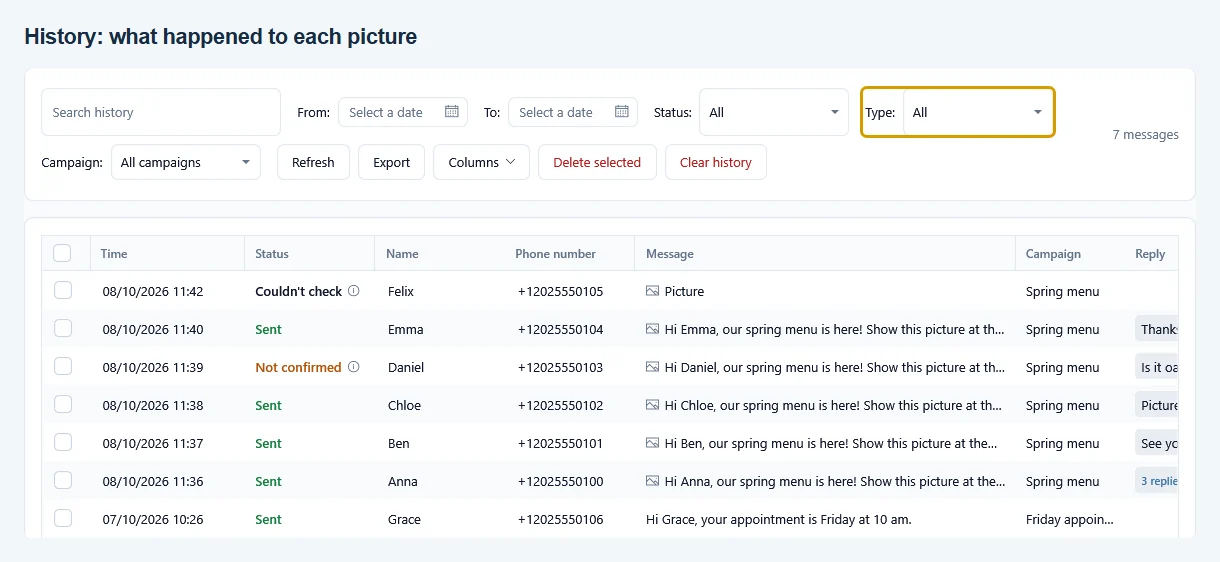
- History. Picture messages carry a picture mark in the Message column. To see only them, set the Type filter to Picture messages (or Texts for the rest). The Status filter has Not confirmed. Export follows the filters you set. Double-click a row to see the picture and its size.
- Results and exports. Results marks a campaign that sent pictures with Picture. Exports have a Picture column that says Yes or No; they never contain the picture itself.
The pictures you send stay on your PC and your phone. QuickText keeps one smaller copy of each, so History, Messages and Templates can show it. See Privacy and your phone.