
From QuickText 1.7, the AI assistant you already use on your PC can do the list work for you. Claude (the Claude desktop app) or ChatGPT (the ChatGPT desktop app) can look up and organize your contacts and lists, add people, save templates, check a message, read your campaign results and prepare a campaign as a saved draft. You open the draft in Compose, check it and press Send yourself.
What an assistant can and cannot do #
- Look: your contacts and their details, your lists, templates, saved drafts and campaign results.
- Change (when you allow changes): add contacts you paste in or import a contact file from your PC, edit contacts, put people on lists or take them off, rename or remove a list (the contacts stay), save templates, check a message for problems, prepare drafts and block a number.
- Only if you tick it: delete contacts, and read the replies people sent you.
An assistant can never send a message, unblock a number, change your settings or your license. This is on purpose, not a setting. Carriers watch for automated sending, the people you text agreed to hear from you, not from a program, and a reply written by a stranger must never be able to tell an assistant to send something. So the assistant prepares and you send.
What you need #
- QuickText 1.7 or newer on Windows 10 or 11. It works on the free plan too. To update, see Update QuickText.
- The Claude desktop app or the ChatGPT desktop app on the same PC, signed in with your own account. The web and phone versions of Claude and ChatGPT cannot reach a program on your PC, so they cannot use QuickText.
- For ChatGPT: Work or Codex mode. On Windows, plain chat may not show QuickText yet.
Turn it on #
- Open AI assistant in the left sidebar.
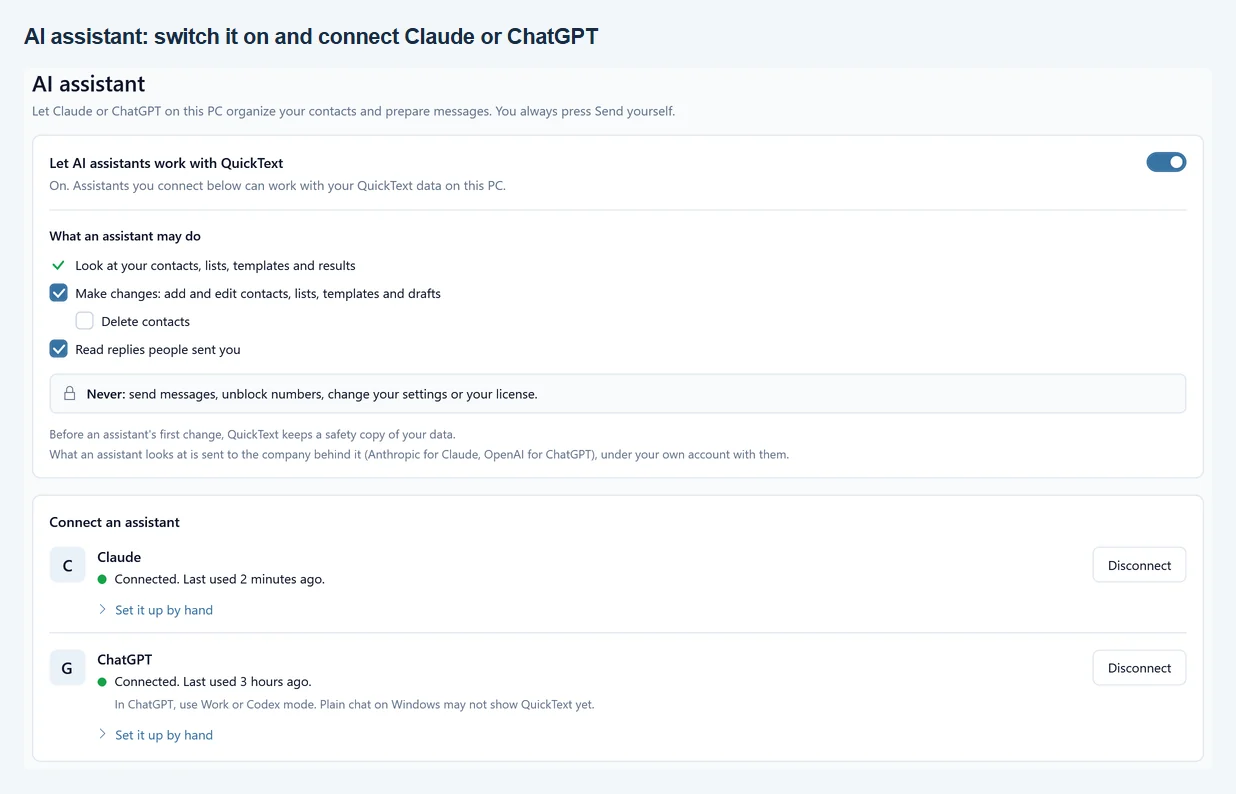
- Switch on Let AI assistants work with QuickText. The line under it changes to “On. Assistants you connect below can work with your QuickText data on this PC.”
- Under What an assistant may do, choose what to allow. See Choose what the assistant may do below.
Access is off until you switch it on. While it is off, no assistant can see or change anything in QuickText.
Connect Claude #
- Click Connect Claude.
- If Claude is open, the row says “Waiting for you to quit Claude…”. Quit Claude from its icon near the clock. QuickText waits and finishes connecting by itself as soon as Claude is closed. Cancel connecting Claude stops the wait.
- The row now says “Added to Claude. Two steps left:”. Open Claude, then ask it something about QuickText (see Your first question).
The row turns to Connected by itself the first time Claude uses QuickText.
Why Claude has to be closed: while it runs, Claude keeps its settings in memory and writes them back to its settings file, which would remove QuickText again.
Connect ChatGPT #
- Click Connect ChatGPT. ChatGPT can stay open.
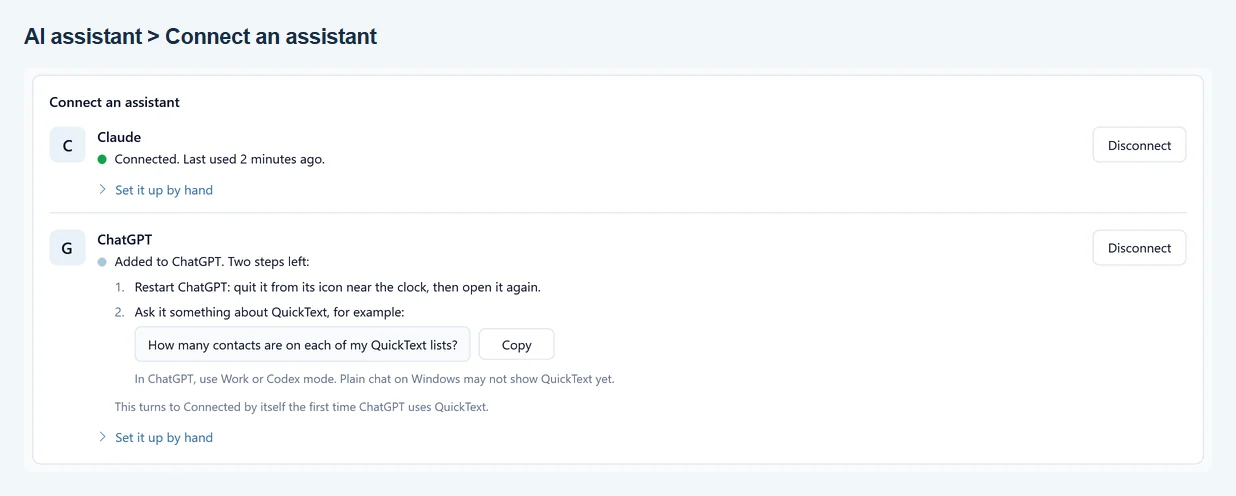
- The row says “Added to ChatGPT. Two steps left:”. Restart ChatGPT: quit it from its icon near the clock, then open it again.
- In ChatGPT, use Work or Codex mode, then ask it something about QuickText.
The row turns to Connected by itself the first time ChatGPT uses QuickText. Plain chat on Windows may not show QuickText yet, so stay in Work or Codex mode for QuickText tasks.
Not installed yet? The row says so and offers Get Claude or Get ChatGPT, which opens the download page in your browser.
Your first question #
A good first question, which the row offers to copy while it waits:
- “How many contacts are on each of my QuickText lists?”
Once access is on, Things to ask your assistant on the AI assistant page has five examples, each with a Copy button:
- “How many contacts are on each of my QuickText lists?”
- “Which of my QuickText contacts have no first name?”
- “I’m going to paste a list of names and phone numbers. Add them to QuickText on a new list called Newsletter.”
- “Write a friendly reminder about Saturday’s sale for my QuickText contacts and save it as a draft for me to review.” (The page puts the name of your biggest list in here.)
- “Look at the results of my last QuickText campaign and make a list of the people it failed for.”
Each example names QuickText, so your assistant knows where to look. Ask in your own words too: “Put everyone from Portland on a list called Portland” or “Save this message as a template”.
Choose what the assistant may do #
These options sit under What an assistant may do and apply to every assistant you connect. Each one takes effect at once, on the assistant’s very next step.
| Option | Starts as | What it allows |
|---|---|---|
| Look at your contacts, lists, templates and results | Always on while access is on | Reading your contacts, lists, templates, drafts and campaign results. |
| Make changes: add and edit contacts, lists, templates and drafts | Ticked | Adding, importing and editing contacts, organizing lists, saving templates, preparing drafts and blocking a number. Untick it and the assistant can only look. |
| Delete contacts | Off | Deleting contacts. Needs Make changes. |
| Read replies people sent you | Off | Reading the replies on your Messages page. Replies are written by other people, and your assistant is told never to follow instructions found in them. |
Before an assistant’s first change, QuickText keeps a safety copy of your data. It stays on your PC, in the backups folder inside the QuickText SMS folder, and QuickText keeps the newest five.
When a setting says no, the assistant gets a plain sentence to pass on to you, for example “QuickText is set to let assistants look but not change anything. The person can allow changes in QuickText under AI assistant.”
Saved drafts: review and send #
Saved drafts work with or without an assistant. On the Compose page, Save as draft keeps your message together with its recipients so you can finish it later; give it a name and the page stays as it is. Drafts opens Saved drafts, the drafts you and your assistant saved.
When an assistant saves a draft, QuickText shows a notice such as “Claude saved a draft: Spring sale.” and a count on Compose in the sidebar. To review and send it:
- Open Compose and click Drafts. Each draft shows its name, who made it and when (“By Claude · 5 minutes ago”), the start of the message, who it is for and any note from the assistant. New ones carry a New badge.
- Click Open. Compose fills in the message, the recipients and the campaign name. If you were working on a different message, QuickText asks first, and you can undo it.
- Check the recipient count, the Message preview and the Message check. A draft never adds people: anyone or any list that no longer exists drops out, and QuickText tells you.
- Click Review and send, and send as usual.
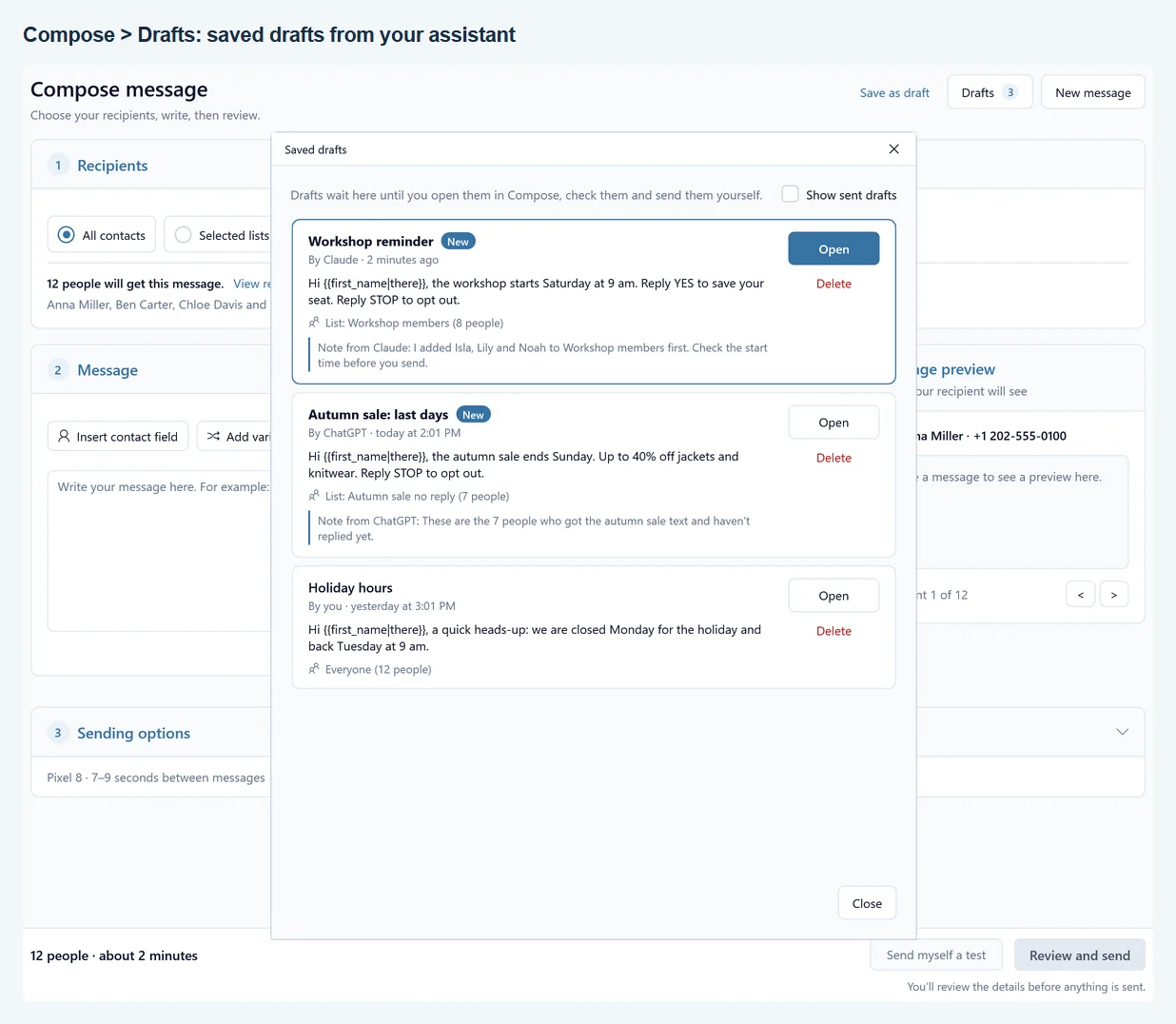
After a real send, the draft counts as sent and leaves the list; tick Show sent drafts to see it again and Open as a copy to reuse it. Test mode and Send myself a test do not mark a draft as sent. Delete removes a draft for good. An assistant can change or delete only the drafts it made, never yours.
What your assistant did #
The What your assistant did card on the AI assistant page lists what assistants did in QuickText, newest first: when, which assistant, and one plain sentence. Changes stand out; lines where an assistant only looked are shown in gray. Show more shows 20 more. Until an assistant does something, it reads “Nothing yet. Whatever an assistant changes shows up here.”
Disconnect an assistant #
Click Disconnect in the assistant’s row. It works at once, with no restart: the row says “Disconnected. Claude can no longer use QuickText.” and QuickText refuses everything that assistant asks from then on.
QuickText also takes itself out of the assistant’s settings: right away for ChatGPT, and for Claude the next time Claude is closed (the row says so while it waits). To let the assistant back in, click Connect again.
To stop every assistant at once, switch off Let AI assistants work with QuickText. Connected assistants then read “Connected, but access is off”, and nothing reaches QuickText until you switch it on again.
Set it up by hand #
If Connect cannot change the assistant’s settings, the row says why and opens Set Claude up by hand or Set ChatGPT up by hand. You can open it yourself at any time. It shows the exact values for your PC, each with a Copy button, so there is nothing to type.
Claude:
- Quit Claude from its icon near the clock.
- Open Claude’s settings file (the Settings file box shows where it is) and add QuickText to the mcpServers section: copy the text from the box below it.
- Open Claude again.
To take it out later, press Disconnect in QuickText, or delete the quicktext entry from that file while Claude is closed.
ChatGPT:
- In ChatGPT, open Plugins, go to MCPs, choose Add, and connect to a custom MCP.
- Name it QuickText and keep the type STDIO.
- Copy the Command to launch and Arguments boxes from QuickText into ChatGPT’s boxes of the same name. Each argument goes into its own box (Add argument makes another one).
- Save, quit ChatGPT from its icon near the clock, then open it again.
To take it out later, remove QuickText from that same MCPs list in ChatGPT.
Troubleshooting #
The row keeps saying “Two steps left”
The assistant has not used QuickText yet. Quit it completely from its icon near the clock and open it again, then ask the example question. For ChatGPT, ask in Work or Codex mode. The row turns to Connected the first time the assistant uses QuickText.
ChatGPT does not show QuickText in plain chat
This is a current limit of ChatGPT on Windows, not of your setup. Switch ChatGPT to Work or Codex mode and ask there.
Claude lost the QuickText entry
The row says “Claude was open and put its old settings back, so QuickText is not connected yet.” Quit Claude completely from its icon near the clock, then click Connect Claude again and open Claude only once the row says “Added to Claude”.
Nothing happens after Connect Claude
Claude is still running, so the row says “Waiting for you to quit Claude…”. Quit Claude from its icon near the clock; closing its window may leave it running. QuickText finishes connecting by itself once Claude is closed.
The assistant says access is switched off or QuickText was disconnected
- “AI assistant access is switched off in QuickText”: open AI assistant in QuickText and switch on Let AI assistants work with QuickText.
- “QuickText was disconnected from Claude” (or ChatGPT): you pressed Disconnect for it. Click Connect Claude or Connect ChatGPT to let it back in.
- It says it can only look, cannot delete contacts or cannot read replies: tick the matching option under What an assistant may do.
“QuickText has moved since you connected”
The entry in the assistant’s settings no longer matches where QuickText starts from on this PC. Click Reconnect in the row, then restart the assistant.
Privacy #
Everything runs on your PC and QuickText sends nothing to us for this feature; what your assistant looks at goes to the company behind it (Anthropic for Claude, OpenAI for ChatGPT) under your own account with them. Details are in the QuickText SMS Privacy Policy.
Claude is a trademark of Anthropic. ChatGPT is a trademark of OpenAI. QuickText is an independent product by Bosau Digital LLC and is not affiliated with or endorsed by either company.