
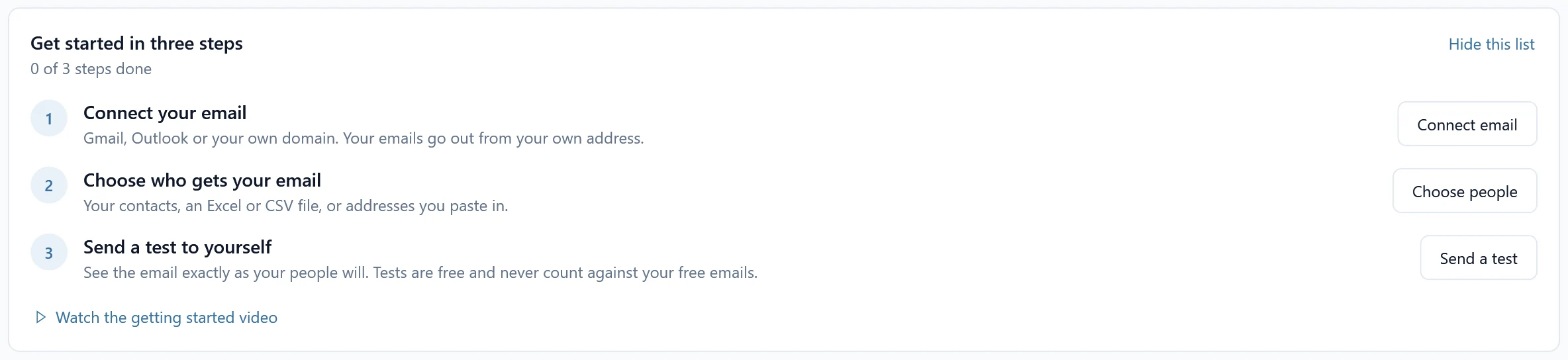
When you open SheetCourier for the first time, the Mailings page shows a short list called Get started in three steps. Each step has its own button, and a tick appears when it is done.
Install the app #
Get SheetCourier from the Microsoft Store and open it. You need Windows 10 or 11. No account and no sign-up are needed.
1. Connect your email #
Click Connect email (or open Email accounts in the sidebar and click Add an email account). Pick the email you send from:
- Gmail or Google Workspace: a gmail.com address, or Gmail with your company’s own domain. You create an app password, a special password Google gives you for apps. See Connect Gmail.
- Microsoft 365 / Outlook.com: an outlook.com or hotmail.com address, or a work or school account on Microsoft 365. You sign in with Microsoft, no password is stored. See Connect Microsoft 365 or Outlook.com.
- Outlook on this PC: sends through classic Outlook on your computer, no password needed. See Connect Outlook on this PC.
- Yahoo, iCloud or Other (Zoho, AOL, GMX, WEB.DE, Fastmail, your own domain or a sending service). See Connect Yahoo, iCloud, Zoho or another provider.
Follow the steps on screen, then click Test connection. SheetCourier signs in to check it works. No email is sent. Click Save when it works.
2. Choose who gets your email #
Click Choose people, or New mailing at the top of the Mailings page. SheetCourier asks Who should get this email? and offers three ways:
- My contacts: one or more of your contact lists. Best for newsletters, announcements and invitations. See Your contacts.
- An Excel or CSV file: each row is a person (.xlsx, .xlsm, .xls, .xlsb, .csv or .txt). Best for monthly reports and giving each person their own table. SheetCourier finds the email column for you.
- Type or paste addresses: from an email, a document or a spreadsheet. See Type or paste addresses.
You can change this later in step 1. SheetCourier shows how many people get the email. Then write your subject and message. Send your first mailing walks through every step.
3. Send a test to yourself #
In the last step, Send, use Send a test to yourself. The test goes to your own address, the subject starts with [TEST], and nobody on your list gets anything. Tests are free and never count against your free emails. Look at the test in your inbox, and when it looks right, click Send to your people.
Not sure which one? Look at the end of your email address: @gmail.com is Gmail, @outlook.com or @hotmail.com is Microsoft 365 / Outlook.com (a work address on Microsoft 365 too), @yahoo.com is Yahoo, @icloud.com is iCloud. If your company uses classic Outlook on this computer, you can also pick Outlook on this PC.