
A mailing is a list of people plus one email. On the Mailings page, click New mailing (Ctrl+N). SheetCourier first asks Who should get this email?: My contacts, An Excel or CSV file or Type or paste addresses. Pick one; you can change it later in step 1.

The editor has four steps in a strip at the top: Your list, Your message, Check and Send. Click Save (Ctrl+S) any time. SheetCourier also saves before a test or a send, and asks “Save your changes?” if you leave with unsaved changes. Give the mailing a name in the box at the top, for example “Monthly sales reports”.
1. Your list #
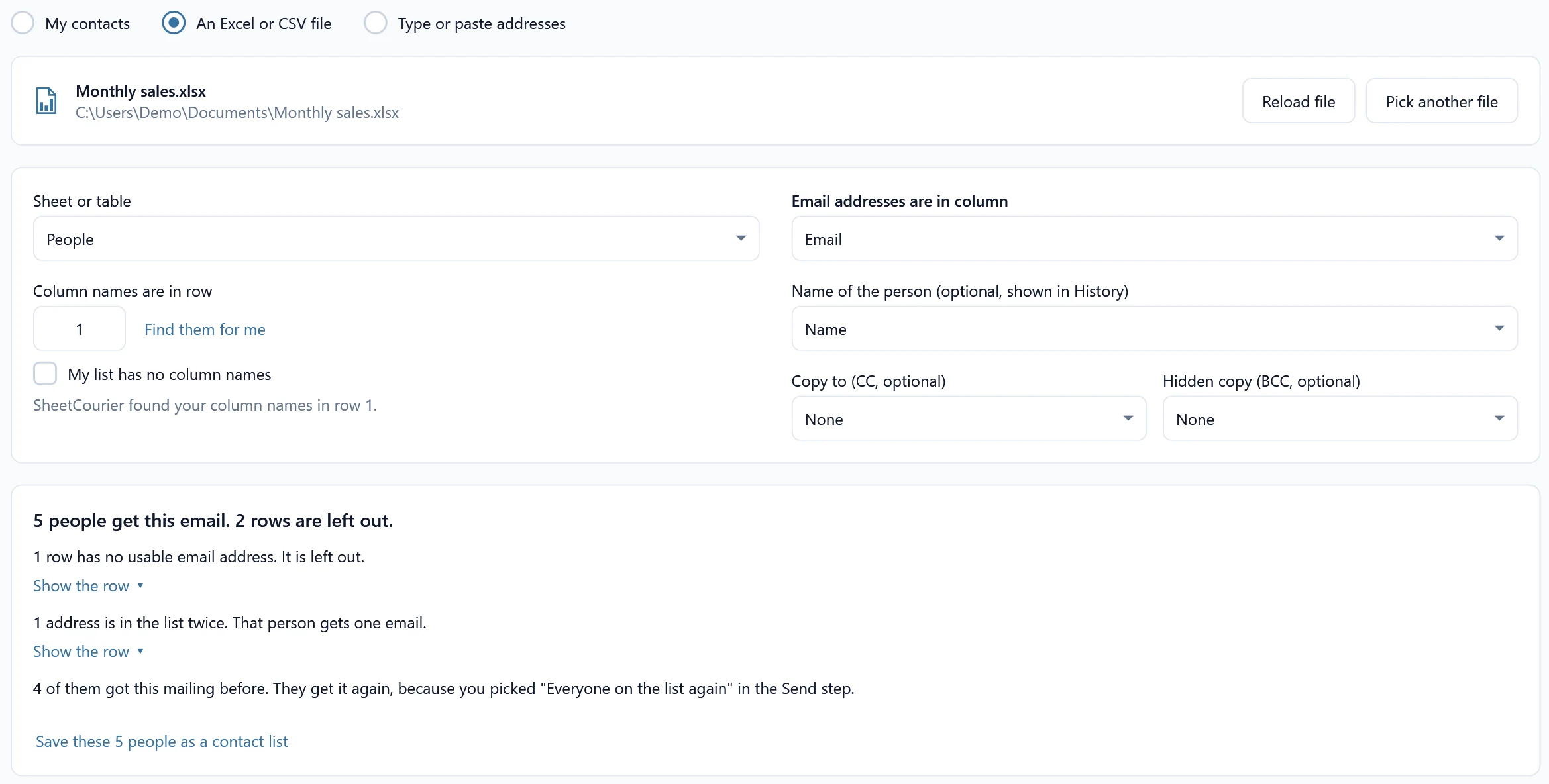
At the top of step 1 you pick where the people come from: My contacts, An Excel or CSV file or Type or paste addresses.
- My contacts: tick one or more lists under Which contacts?. Copies go under Copies, and the filter is called Only send to some people. See Send to a contact list.
- Type or paste addresses: paste rows from Excel or type one person per line. See Type or paste addresses.
With An Excel or CSV file, drop your file on the window, or click Pick a file. SheetCourier reads .xlsx, .xlsm, .xls, .xlsb, .csv and .txt files. Excel does not need to be installed for this.
- Sheet or table: the sheet or Excel table with your list.
- Column names are in row: SheetCourier finds the row with your column names; click Find them for me if it picked the wrong one, or tick My list has no column names.
- Email addresses are in column: found for you. Check it.
- Optional: Name of the person (optional, shown in History), Copy to (CC, optional) and Hidden copy (BCC, optional).
- Optional: tick Only send to some rows and set Only rows where a column is, is not, contains, is empty or is not empty a value.
Step 1 also says how many people get the email and why rows are left out, for example “1 row has no usable email address. It is left out.” or “1 address is in the list twice. That person gets one email.” If an address looks mistyped (jon@gmial.com), it asks whether to leave that person out or send to the address as written.
Want to keep the people of a file or a pasted list in SheetCourier? Click Save these 5 people as a contact list (with your number) under the summary. See Save a mailing’s people as contacts.
2. Your message #
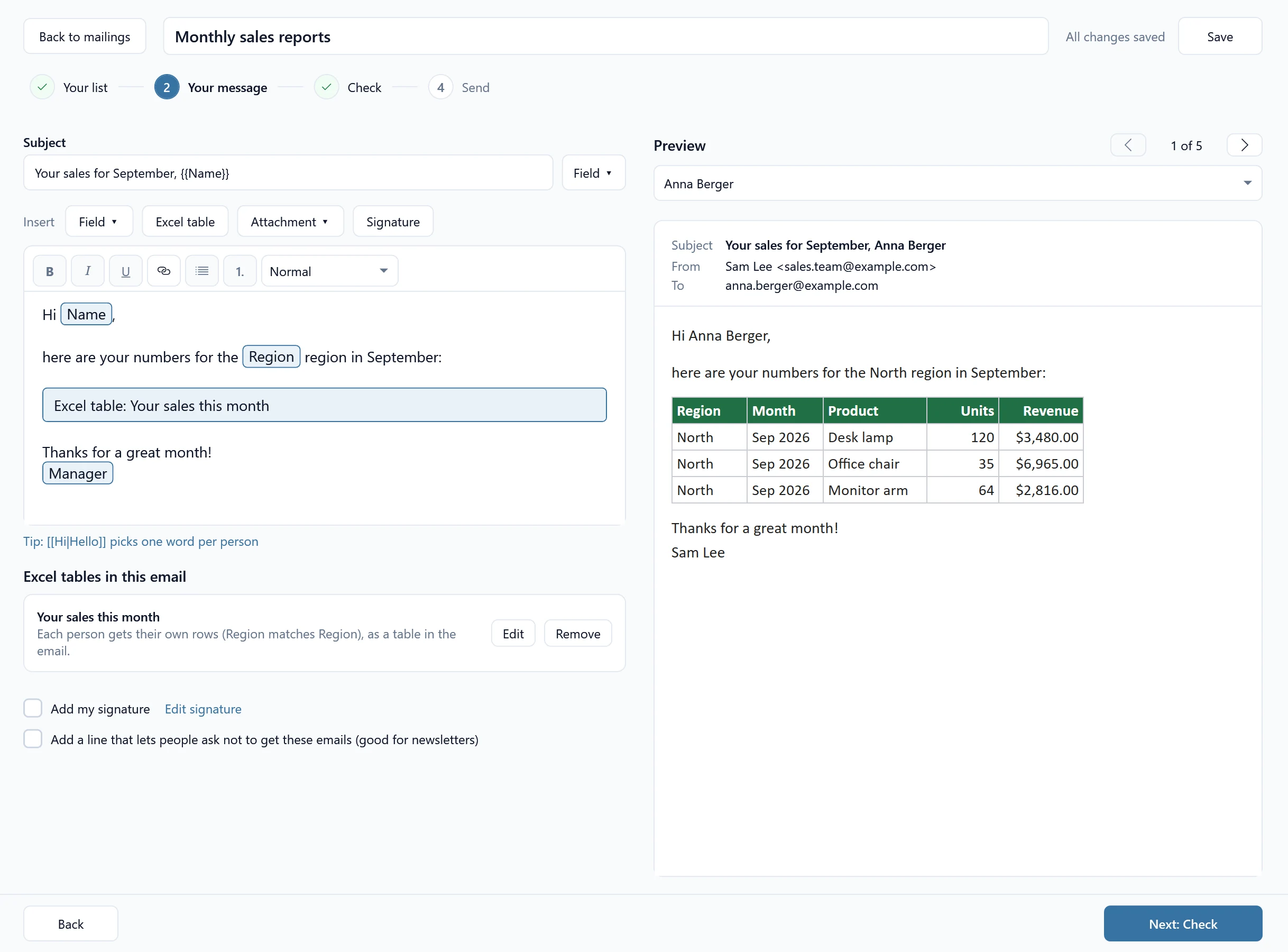
Write the Subject and the email. The Insert bar above the email adds:
- Field: a column of your list or a detail of your contacts, like
{{Name}}or{{First name}}, filled in for each person. See Personalize with fields. - Excel table: a table from a workbook, the same for everyone or each person’s own rows. See Add an Excel table to every email.
- Attachment: The same file for everyone… or A different file for each person…. See Attach a different file for each person.
- Signature: your signature under every email. Tick Add my signature below the email to use it.
The Preview on the right shows the email for a real person from your list. Use the arrows to flip through people.
3. Check #
SheetCourier reads your list and makes every email, without sending anything. The headline says how many people get it, for example “4 people get this email. 3 are skipped.” Then it lists what needs you:
- Fix these first: problems that stop the mailing.
- Questions for you: for example a person with no rows in their table (“Skip this person”, “Send without the table” or “Send with the headings only”). Answer for each person, or for all of them at once. A person without an answer is skipped.
- Good to check and Good to know: empty fields, large emails, how many free emails the mailing uses, and today’s limit.
On the right, Each person’s email shows every email exactly as it will be sent. Tick Only show people with problems to see just those.
4. Send #
- Send from: pick the email account. Optional: Replies go to (optional).
- How fast: leave Normal: 1 email every 4 to 8 seconds (safest) unless you have a reason. Gmail may pause your account for a day when emails go out too fast.
- Send a test to yourself: click Send the test. It is free and unlimited. See Send a test to yourself.
- Who should get it this time?: only shown when the mailing went out before. Pick Everyone on the list again or Only people who haven’t got it yet. See Send a mailing again every month.
- Send the mailing: click Send to (it shows the number of people, for example Send to 24 people). SheetCourier checks everything once more and asks you to confirm.
While it sends, you see the progress and can Pause or Stop. You can use the rest of SheetCourier meanwhile; keep it open until the mailing is done. At the end you see how many were sent, skipped and not sent, with the reason for each person who didn’t get it. See Emails failed or the send is stuck if something went wrong.