
An Excel table is a part of a workbook that goes into the email or is attached to it. In step 2, Your message, put the cursor where the table should go and click Excel table on the Insert bar. The Add an Excel table window has four parts.
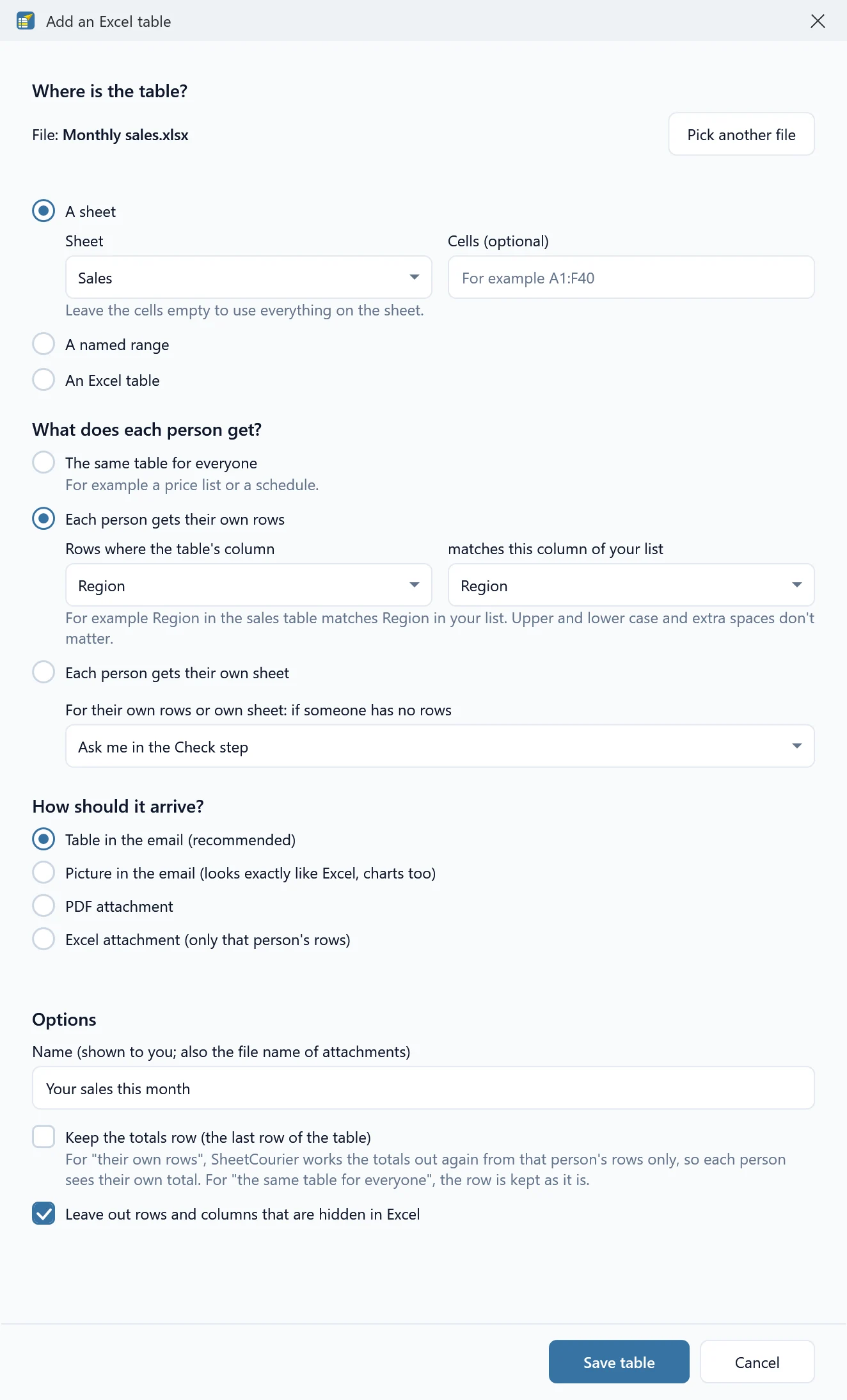
Where is the table? #
The table comes from your list’s workbook unless you click Pick another file. Then choose:
- A sheet: pick the Sheet, and optionally the Cells (optional), for example A1:F40. Leave the cells empty to use everything on the sheet.
- A named range, or An Excel table (a range formatted as a table in Excel).
What does each person get? #
- The same table for everyone: for example a price list or a schedule.
- Each person gets their own rows: only the rows that belong to that person. See Send each person their own rows.
- Each person gets their own sheet: a column of your list names each person’s sheet. See Send each person their own sheet.
How should it arrive? #
| Choice | What people get | Needs Excel on your PC |
|---|---|---|
| Table in the email (recommended) | A real table inside the email that keeps fonts, bold and italic, fill colors, borders, alignment, number formats and column widths | No |
| Picture in the email (looks exactly like Excel, charts too) | An image of the range, including charts and conditional formatting | Yes |
| PDF attachment | A PDF of the range | Yes |
| Excel attachment (only that person’s rows) | An Excel file with only their part, formatting kept | No |
For attachments, set the File name; fields work here too, for example “Sales {{Name}}”. See Attach a range as PDF or Excel.
Options #
- Name: shown to you, and the file name of attachments that have none.
- Keep the totals row (the last row of the table): for “their own rows”, SheetCourier works the totals out again from that person’s rows only, so each person sees their own total. For “the same table for everyone”, the row is kept as it is.
- Leave out rows and columns that are hidden in Excel.
Click Save table. The table appears in the email as a block, and under Excel tables in this email with Edit and Remove. The Preview shows each person’s table.
Good to know #
- SheetCourier reads the workbook fresh at send time. If the workbook is open in Excel, save it first to include your latest changes.
- Up to 500 rows fit well in the email itself. For longer tables, choose a PDF or Excel attachment.
- Very large or very wide tables can be cut off by Gmail or need sideways scrolling on a phone; SheetCourier warns you and suggests an attachment.
- A CSV file has no formatting or sheets, so it can only go into the email as a table or be sent as an Excel attachment.
- A table in the email and an Excel attachment work without Excel from an .xlsx, .xlsm or CSV file. For tables from an older .xls or .xlsb workbook, save it as .xlsx first.
- Outlook draws tables a little differently from other email programs. See The table looks different in Outlook.