
People on the “Don’t email” list never get an email from SheetCourier, from any mailing, whether they come from your contacts, an Excel file or a pasted list. Use it for people who asked not to get your emails, and for addresses that don’t exist.
Open the list #
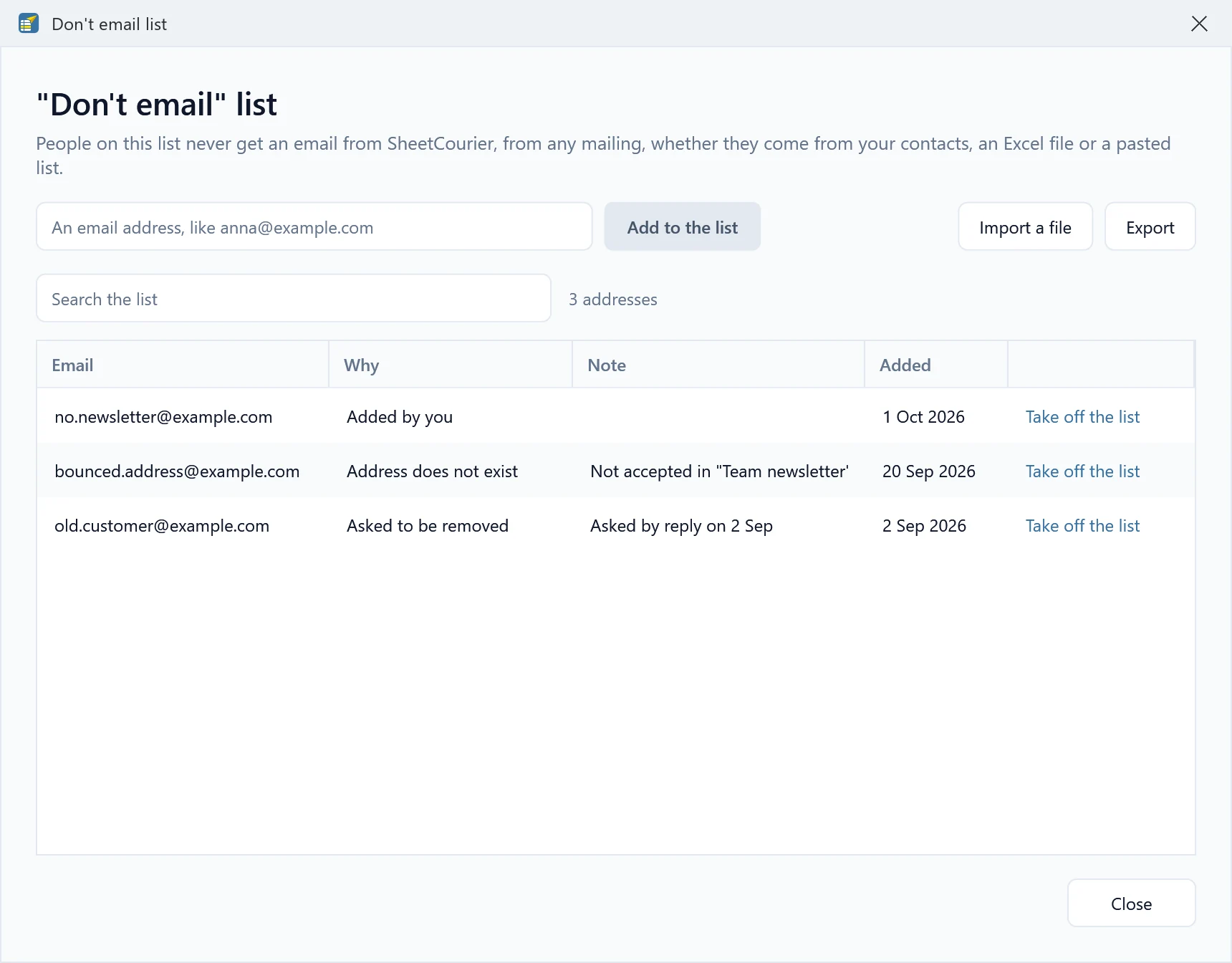
Click Don’t email list at the top of the Contacts page, or open Settings, go to “Don’t email” list and click Open the list. It shows every address with Why it is there (Asked to be removed, Address does not exist, Added by you), a Note and when it was Added.
Add people #
- On the Contacts page, select people and click Mark as unsubscribed. See Unsubscribes and bounces.
- Type an address into An email address, like anna@example.com and click Add to the list (or press Enter). You can paste several addresses at once, separated by commas or semicolons.
- Click Import a file to add many at once from a CSV or text file.
- After a mailing, click Add to Don’t email next to a person who didn’t get it, for example when their address does not exist. SheetCourier suggests this when the receiving server says an address is unknown.
- In History, open a mailing with See results and click Add the 3 addresses the server rejected to Don’t email (with your number) to add every address the servers rejected as unknown at once.
What happens in a mailing #
Step 1, Your list, says how many people of this mailing’s list are on your “Don’t email” list, for example “2 people are on your “Don’t email” list. They are left out.” for a file or a pasted list, or “35 people get this email. 2 are unsubscribed or on your “Don’t email” list and are skipped.” for contacts. A copy (CC) or hidden copy (BCC) address on the list is left out of the copy too. SheetCourier also checks the list again right before each email, so an address you add while a mailing is sending is skipped from the next email on.
Your contacts and this list #
This list is the one place that decides who must not get your emails. Your contacts only show it: a contact on the list has the badge Unsubscribed, Bounced or Don’t email, and the Unsubscribed entry on the Contacts page shows all of them. Deleting a contact never takes their address off this list, and importing them again does not either.
Remove or export #
Click Take off the list in the address’s row and confirm with Take it off the list (for a contact you can also open the person and click Allow emails again). Only do this if the person asked to get your emails again. Use Search the list to find an address. Click Export to save the whole list as a CSV file, for example to use it in another program.
An unsubscribe line for newsletters #
In step 2, tick Add a line that lets people ask not to get these emails (good for newsletters). Every email then ends with “Don’t want these emails? Reply with “unsubscribe” and you won’t get them again.” Add people who reply that way to the list.