
SheetCourier sends through Gmail with an app password: a special 16-letter password Google gives you for apps. You use it instead of your normal Gmail password. This works for normal Gmail and for Google Workspace (Gmail with your company’s own domain).
Open Email accounts, click Add an email account and pick Gmail or Google Workspace. The Connect Gmail screen shows the same three steps as below.
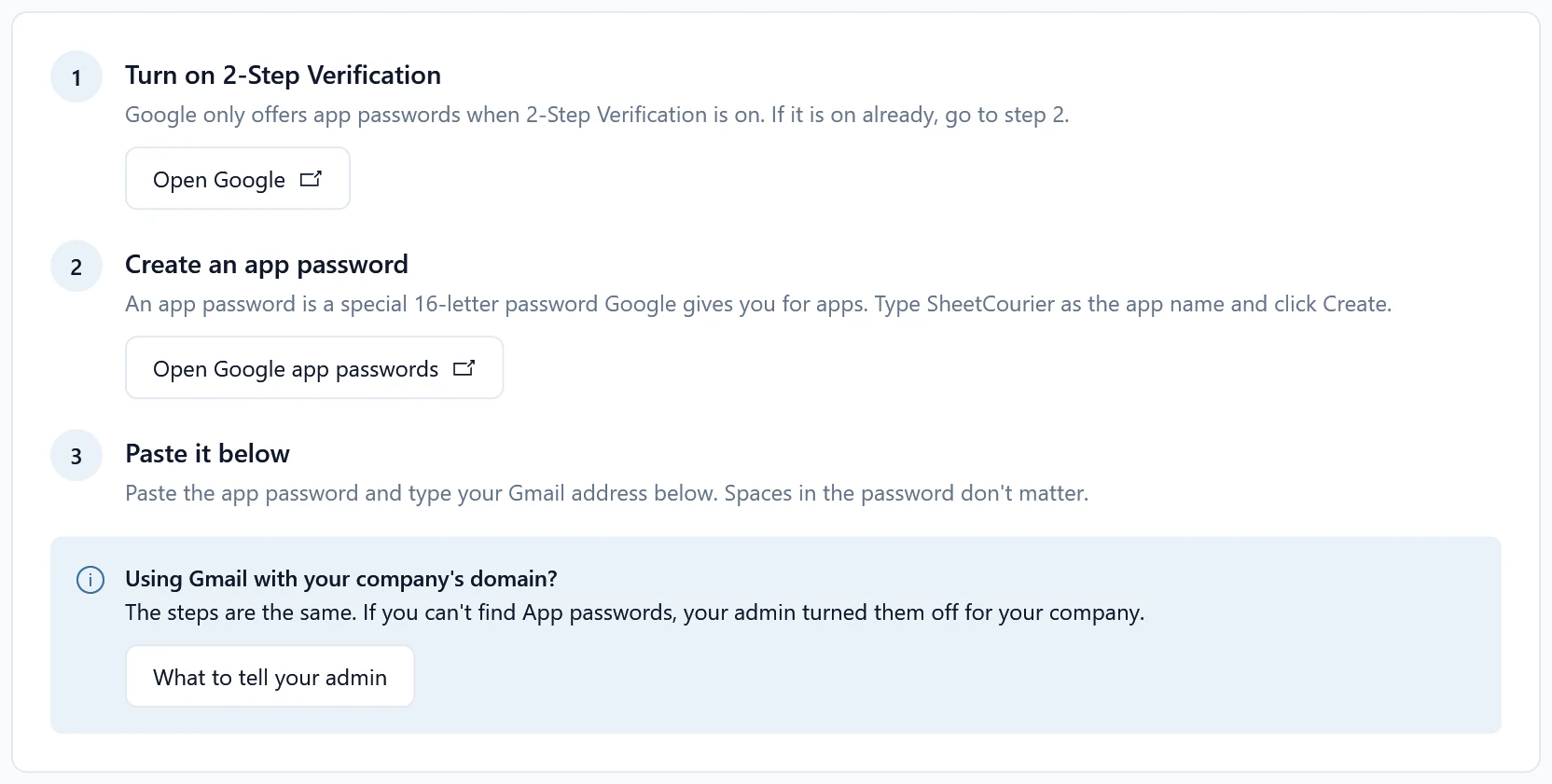
1. Turn on 2-Step Verification #
Google only offers app passwords when 2-Step Verification is on. Click Open Google in SheetCourier (it opens 2-Step Verification in your Google Account), sign in and follow Google’s steps to turn it on. If it is on already, go to step 2.
2. Create an app password #
- Click Open Google app passwords. It opens the App passwords page of your Google Account. Google may ask you to sign in again.
- Under App name, type SheetCourier and click Create.
- Google shows a 16-letter password in a yellow box. Copy it. Google shows it only once; if you lose it, delete it and create a new one.
Google says “The setting you are looking for is not available for your account”? See App passwords option is missing.
3. Paste it into SheetCourier #
- Under Your account, type your Gmail address in Your email address.
- Paste the app password into App password. Spaces in the password don’t matter.
- Optional: change Name people see, add a Reply-to address, or change the Daily limit (450 emails a day for Gmail, 1,800 for Google Workspace; see Daily sending limits explained).
- Click Test connection. SheetCourier signs in to check it works. No email is sent.
- When it says the account works, click Save.
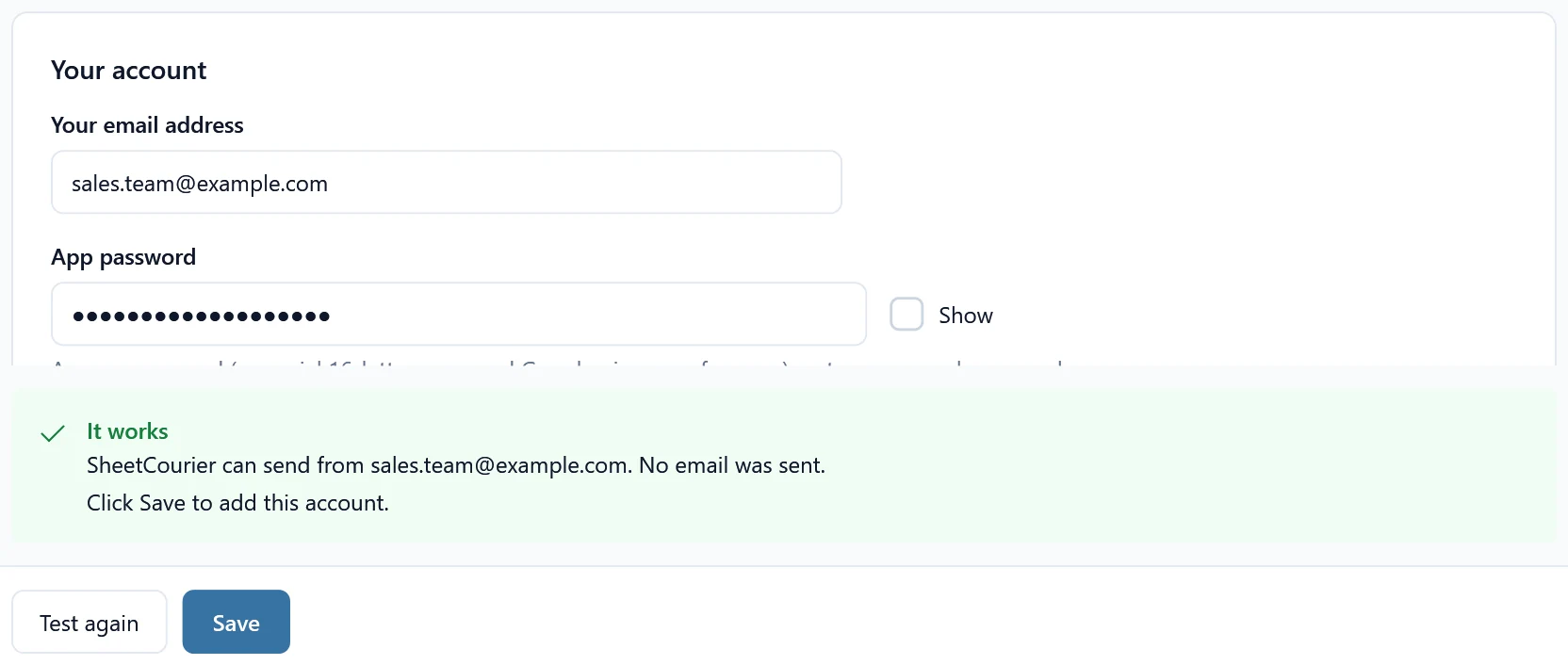
SheetCourier keeps the app password encrypted on this PC, readable only by your Windows account. It is never sent anywhere except to Google.
Using Gmail with your company’s domain? #
The steps are the same for Google Workspace. If you can’t find App passwords, your Google admin turned them off for your company. Click What to tell your admin on the Connect Gmail screen, or see App passwords option is missing.
If the test fails #
- “Google refused the password”: you used your normal password, or the app password was mistyped. See Google refused my password.
- “Google blocked this sign-in”: 2-Step Verification is off. Do step 1, then create a new app password.