
History shows every mailing you sent: when, from which account, and what happened to each email.
Find a mailing #
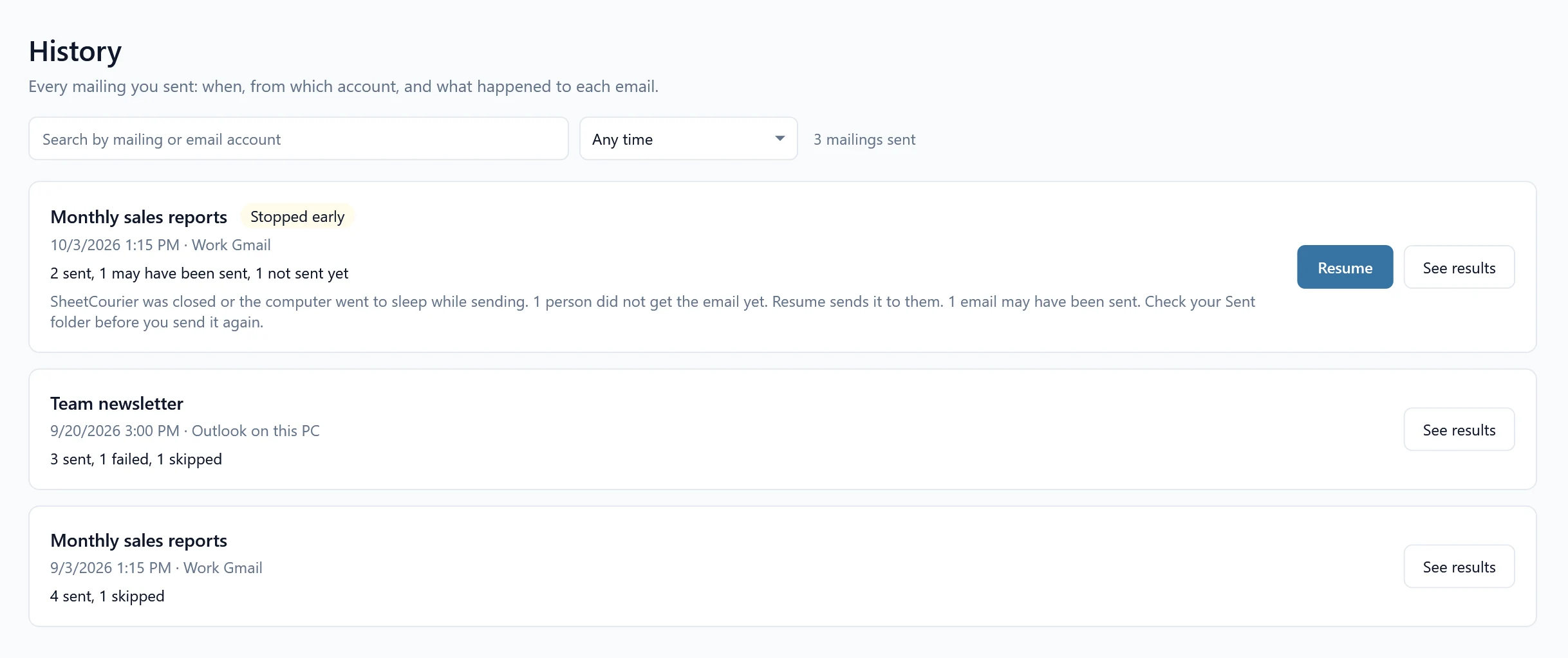
Open History in the sidebar. Each mailing is a card with the date and time, the email account and the counts, for example “17 Oct 2026, 2:05 PM” and “22 sent, 1 not sent, 1 skipped”. Use Search by mailing or email account and the date filter (Any time, Last 7 days, Last 30 days, Last 12 months). Tests carry the badge Test to myself, a mailing you stopped carries Stopped early, and one that is going out right now carries Sending now.
See each person’s result #
Click See results on a card. The window lists every person with Row, Name, Email and Result. For a mailing to a contact list there is no Row column, because contacts have no row number.
- Sent: the email went out.
- Skipped: left out on purpose, for example no email address or on your “Don’t email” list.
- Didn’t send: the provider refused it; the reason says why and what to do.
- May have been sent: the connection dropped while it was being sent, so it may have arrived. SheetCourier won’t send it again by itself. Check your Sent folder before you send to this person again.
- Not sent yet: the mailing stopped before this person. Click Resume on the card to send to them.
Search with Search by name, address or reason, or filter by result. Each choice shows how many people it has, for example Everyone (24) or Didn’t send (1).
Put rejected addresses on the “Don’t email” list #
When the receiving server said an address doesn’t exist, the window offers a button above the search box, for example Add the 3 addresses the server rejected to Don’t email. SheetCourier asks first (“Add 3 addresses to the “Don’t email” list?”) and then puts them on the list with the reason Address does not exist, so no mailing emails them again. Only addresses the server rejected as unknown count; an email that was too big or refused for another reason does not. Each row also has its own Add to Don’t email link.
If the server refused nearly everyone, the button is not shown and the window says “The server refused nearly everyone” instead: then the problem is usually your account or its settings, not the addresses. See Unsubscribes and bounces.
Export #
Click Export to save the rows you see as an Excel workbook (.xlsx) or a CSV file. The file has the row (not for contact lists), name, email, result, reason, subject and time for each person.