
After a mailing, SheetCourier shows how many emails were sent, skipped and not sent, with the reason for each person who didn’t get it. Nobody ever gets the same mailing twice.
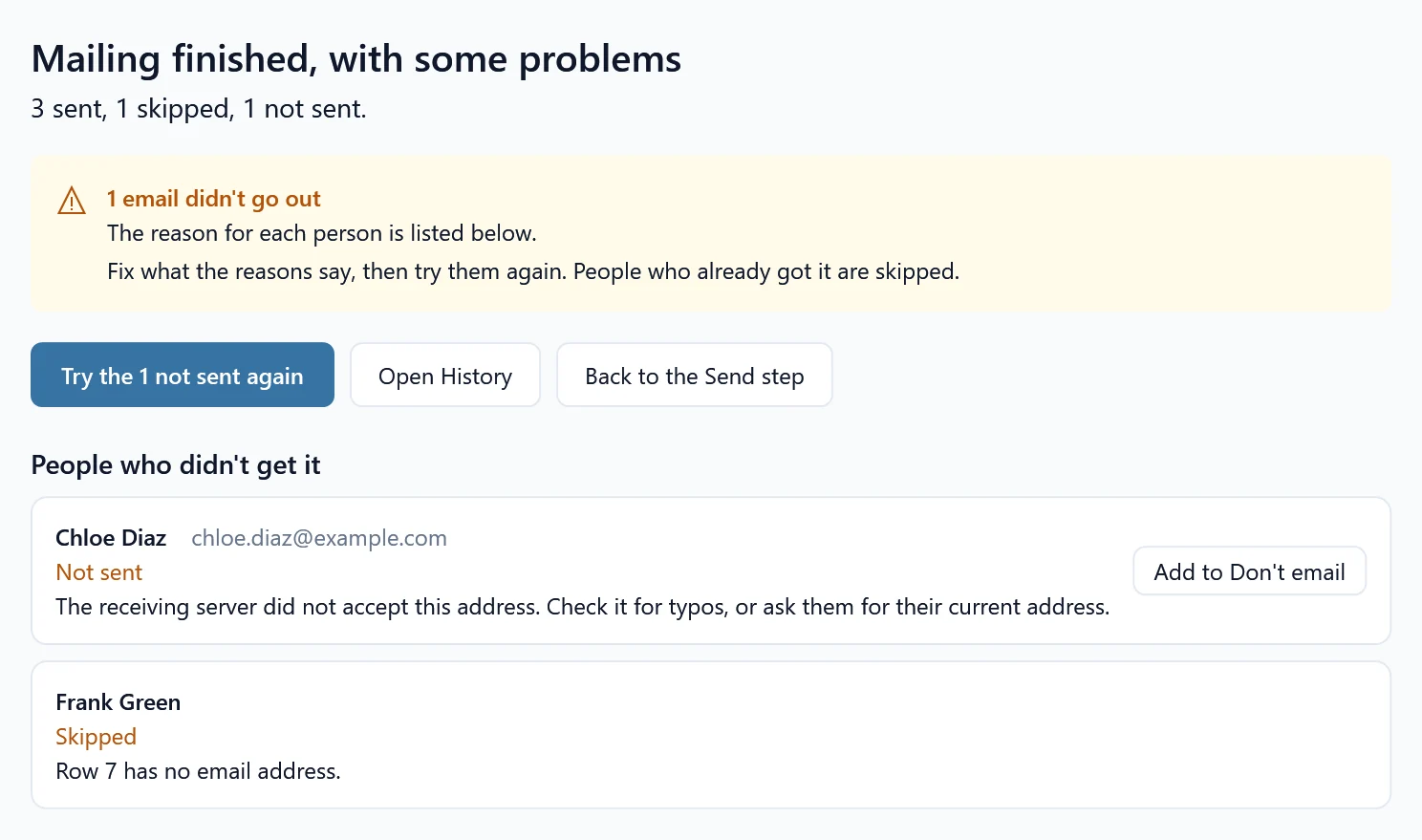
Your own reasons will read a little differently; the common ones are below.
Some emails were not sent #
Read the reason next to each person, fix what it says, then click Try the … not sent again. People who already got it are skipped. Common reasons:
- “The address doesn’t exist or doesn’t accept email”: check it for typos, or click Add to Don’t email.
- “This email is too big”: make the attachments smaller.
- “The recipient’s email server asked to try again later”: SheetCourier tries once more by itself.
The mailing stopped #
SheetCourier stops a mailing when something affects every email, for example after 3 failed emails in a row, when the password is refused, or when the provider’s daily limit is reached. The result says why. Fix the problem, then click Finish this mailing to send to the people not sent yet.
- Password refused: see Google refused my password.
- Daily limit reached: send again tomorrow; see Daily sending limits explained.
- “Your internet connection dropped and didn’t come back”: finish the mailing when you are back online.
- Outlook problems: see Outlook asks if a program may send email.
“May have been sent” #
If the connection dropped while an email was on its way, the server didn’t confirm it, so it may have arrived. SheetCourier won’t send it again by itself. Check your Sent folder (or ask the person) before you send to them again.
The app was closed or the PC restarted during a mailing #
The Mailings page shows “A mailing stopped before it finished”. Click Finish this mailing. SheetCourier sends to the people not sent yet. You can also click Resume on the mailing in History.
It seems stuck #
- “Waiting for the internet to come back”: your connection dropped. SheetCourier tries again on its own.
- “Your email provider asked for a short break”: the provider asked to slow down. SheetCourier waits and continues.
- Through Outlook: Outlook may be showing a question. Switch to Outlook and answer it, and check its Outbox.
- At the normal pace, each email takes 4 to 8 seconds. The progress shows “About … left”.
Everything is also listed per person in History.