
You don’t need a file to send a mailing. In step 1, Your list, you can type the people in, or paste them from an email, a document or a spreadsheet. SheetCourier keeps the list inside the mailing, so Send again and Edit work later just like with a file.
Type or paste your list #
- On the Mailings page, click New mailing and pick Type or paste addresses. (In a mailing you already have, choose Type or paste addresses at the top of step 1.)
- In the box Type or paste your list, paste your rows, or type one person per line, like:
Anna Berger, anna@example.com
A moment later SheetCourier shows your list below the box, finds the column with the email addresses and says how many people get the email, the same as for a file.
What you can paste #
- Just the addresses, one per line.
- One person per line, name and address separated by a comma or a semicolon:
Anna Berger, anna@example.com - Name and address as email programs write them:
Anna Berger <anna@example.com> - A To line from Outlook or Gmail:
Anna Berger <anna@example.com>; Ben Carter <ben@example.com>. Each address becomes one person. - Rows copied from Excel: select the cells in Excel (with the column names, if you like), press Ctrl+C, click into the box and press Ctrl+V.
Empty lines are left out. Names in any language and emoji are kept as typed.
Column names #
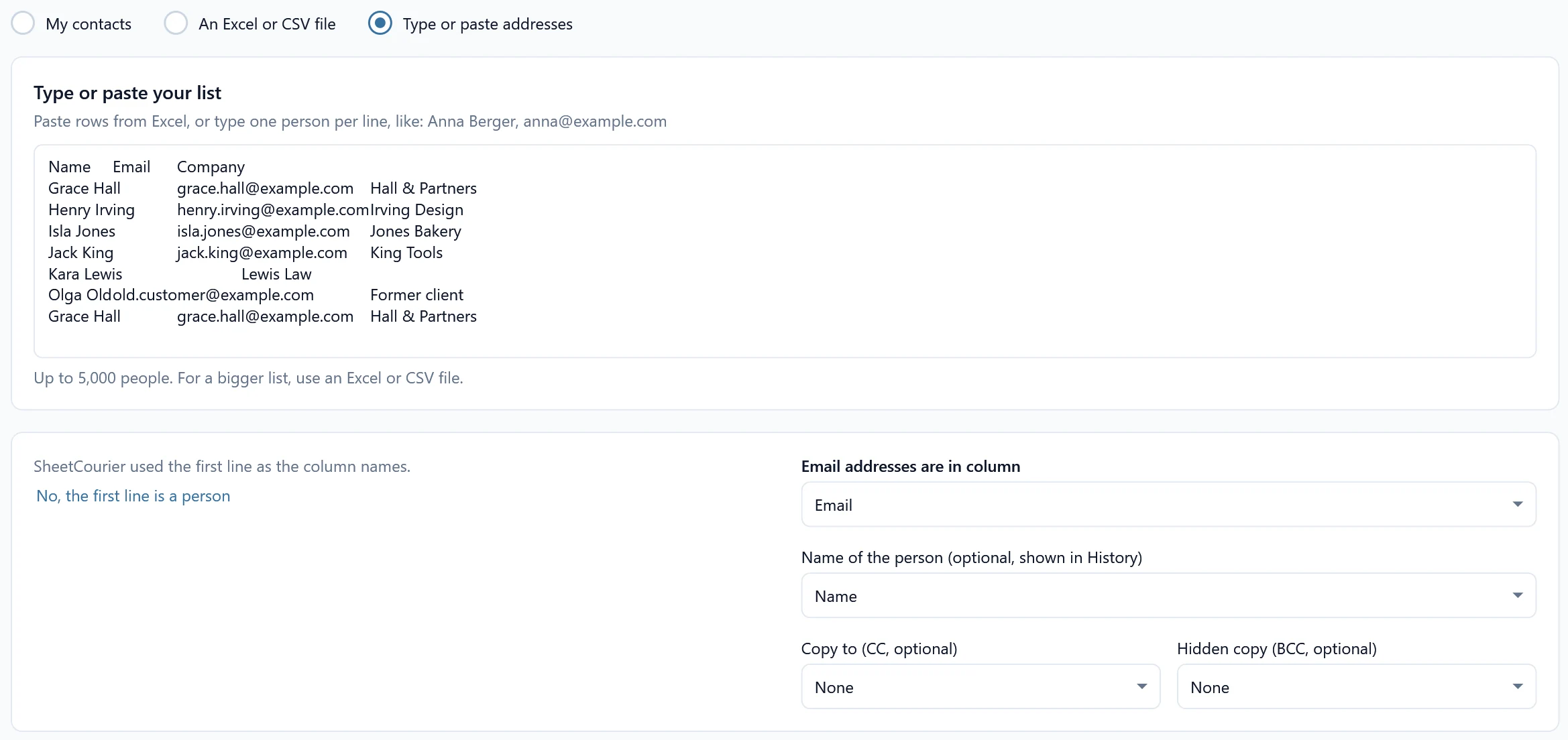
SheetCourier looks at your first line and sets things up for you:
- One email address per line: there is nothing to set up. SheetCourier says “One email address per line, so there is nothing else to set up here.” The one column is called Email.
- The first line has column names, like
Name, Email, Company: SheetCourier says “SheetCourier used the first line as the column names.” If that line is really a person, click No, the first line is a person. - The first line is a person (it has an email address): it is always treated as a person.
- SheetCourier is not sure: you see the box The first line has the column names and a sentence saying what SheetCourier guessed. Tick or untick it. SheetCourier looks again when you paste another list.
Without column names, SheetCourier names the columns for you: Email for the addresses, Name for the first column with text, and Column C and so on for the rest. To give a column a better name, type over it under Column names, for example “Company”. That name is what you insert as a field in your message, like {{Company}}. Check Email addresses are in column, as you would for a file.
Problems in your list #
Below the list, SheetCourier says which rows are left out and why: no usable email address, the same address twice, or a person on your “Don’t email” list. If an address looks mistyped (anna@gmial.com), correct it in the box. Everything else works as with a file: fields, the filter Only send to some rows, copies by column, a file for each person, Excel tables, the Check and a free test to yourself.
An Excel table always comes from a workbook. With a pasted list, pick that workbook in the table window; to give each person their own rows, match a column of your pasted list, like Region, to a column of the table. See Add an Excel table to every email.
Switching between your contacts, a file and a pasted list #
You can switch between My contacts, An Excel or CSV file and Type or paste addresses at any time. SheetCourier keeps what you entered in each while the mailing is open. The mailing saves the one you chose.
When to use contacts or a file instead #
- You email the same people again and again. Save them as contacts: click Save these 4 people as a contact list (with your number) under the summary. Afterwards Use this list for this mailing switches this mailing to the new contact list. See Save a mailing’s people as contacts.
- Your list changes every month. Contacts and files are read again each time you send. A pasted list stays as it was until you change it in the mailing.
- Your list is big. A pasted list holds up to 5,000 people (about 2 MB of text). For a bigger list SheetCourier shows Use a file instead: save the list as an Excel or CSV file and pick that file, or import it into your contacts.
Next: Send your first mailing walks through the other three steps.