
Bring many people into your contacts at once from an Excel or CSV file, or from rows and addresses you paste. On the Contacts page, click Import. The Import contacts window has three steps: Your contacts, Match your columns and Lists and duplicates. At the bottom of every step it reminds you: “Only import people who agreed to get your emails.”
1. Where are your contacts? #
- Pick an Excel or CSV file: .xlsx, .xlsm, .xls, .xlsb, .csv or .txt. If the file has more than one sheet or Excel table, pick it under Sheet. Check Column names are in row (Find them for me looks for it), or tick My list has no column names, as in step 1 of a mailing.
- Paste them: rows copied from Excel, one address per line, or a To line from an email. See Type or paste addresses for what you can paste.
2. Match your columns #
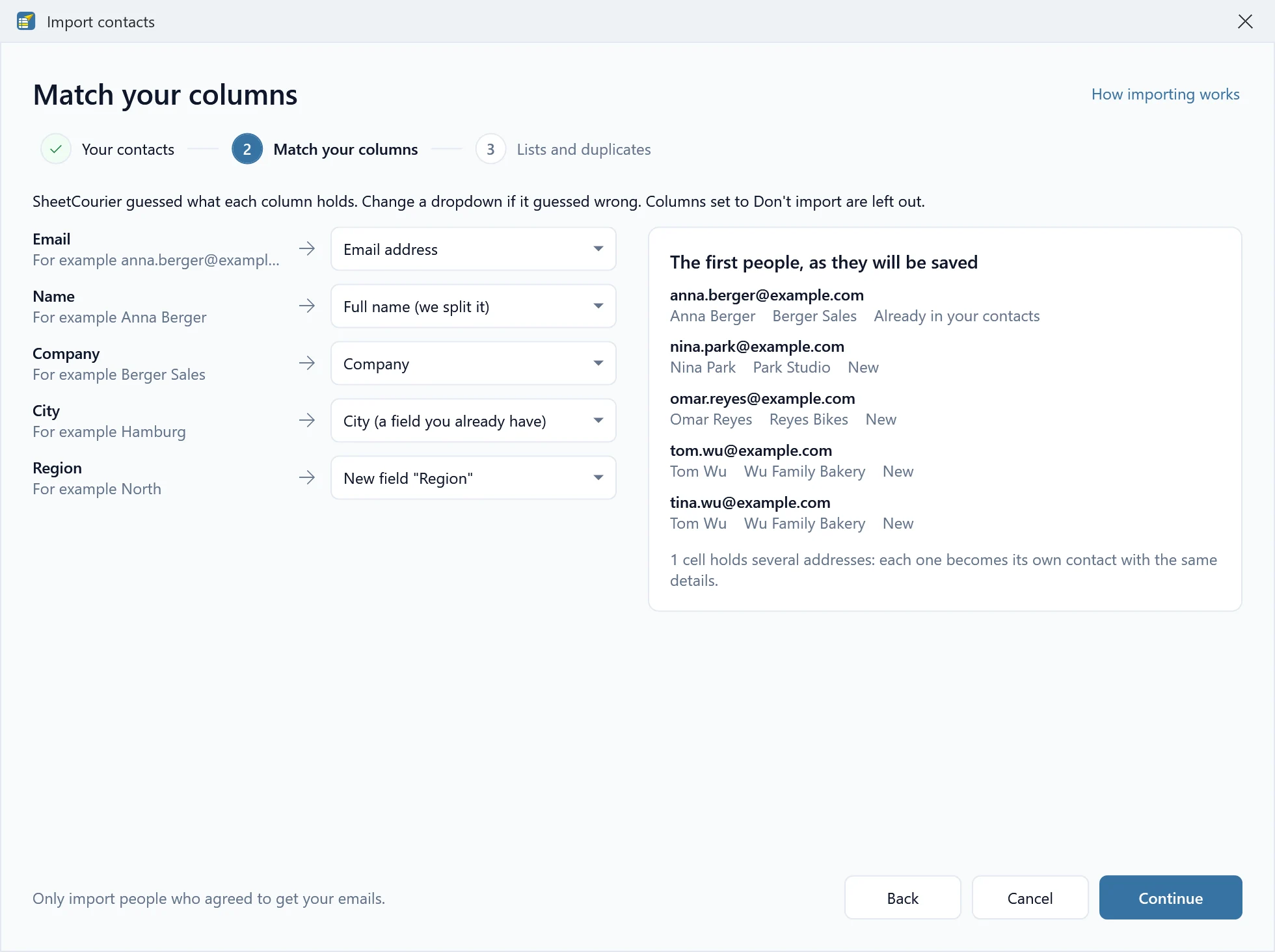
SheetCourier guesses what each column holds. For each column of your file, check or change what it becomes:
- Email address, First name, Last name, Company or Notes.
- Full name (we split it): a column like “Anna Berger” becomes the first name Anna and the last name Berger.
- One of your own fields, shown like City (a field you already have), or a new field named after the column, like New field “Region”. See Custom fields.
- Don’t import: the column is left out.
On the right, The first people, as they will be saved shows five people, and whether each one is new or already in your contacts. One column has to hold the email addresses. Until you pick it, the window says “Pick the column with the email addresses.” Two columns can’t go into the same detail either: set one of them to Don’t import.
3. Lists and duplicates #
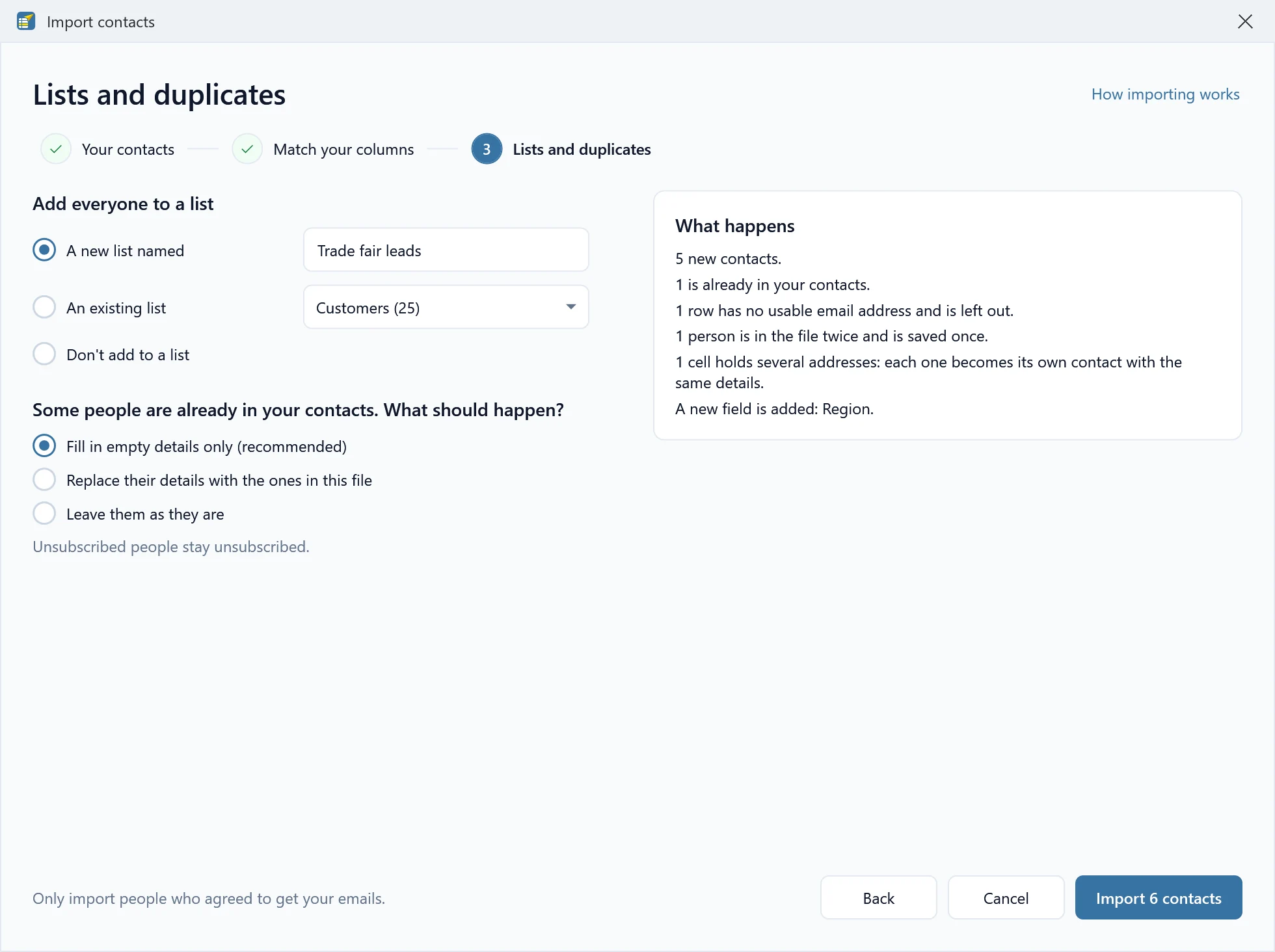
Under Add everyone to a list, pick A new list named (named after your file, which you can change), An existing list, or Don’t add to a list.
When some people are already in your contacts, SheetCourier asks once for the whole import: Some people are already in your contacts. What should happen?
- Fill in empty details only (recommended): details the contact already has stay as they are, and empty ones are filled in from the file.
- Replace their details with the ones in this file.
- Leave them as they are: they are only added to the list you picked.
Unsubscribed people stay unsubscribed, whichever you pick.
On the right, What happens sums it up, one line each, for example “1,204 new contacts.”, “36 are already in your contacts.”, “5 rows have no usable email address and are left out.”, “2 people are in the file twice and are saved once.” and “A new field is added: Region.” Then click the import button, which shows the number, for example Import 1,240 contacts.
After the import #
The window says Import finished and what was saved, for example “Imported 1,204 new contacts and updated 36. All 1,240 are in the list “Customers”.” From there:
- Show the rows that were left out saves those rows as a CSV file with a column that says why each one was left out, so you can fix them in Excel and import them again.
- Send an email to this list starts a mailing to the list (not shown when you opened the import from a mailing).
- Done closes the window.
An import is all or nothing. If you click Cancel the import, or something goes wrong halfway, SheetCourier says “Nothing was imported.” and your contacts are exactly as they were before.
Good to know #
- Several addresses in one cell (like
anna@example.com; office@example.com): each address becomes its own contact with the same details, and the summary says so. - The same person twice in the file: they are saved once. The first row wins, and later rows fill in details that are still empty.
- Addresses on your “Don’t email” list are imported and show their badge, such as Unsubscribed or Bounced. They never get an email.
Only import people who agreed to get your emails. Emailing a bought or scraped list breaks your email provider’s rules with any app.