
Your email provider allows only so many emails a day from one account. When your list is bigger than that, SheetCourier sends as many as your account allows today, and you send the mailing again on the next days until everyone has it. Nobody gets it twice.
How many a day #
| Email account | SheetCourier sends up to | What the provider allows |
|---|---|---|
| Gmail | 450 a day | About 500 a day |
| Google Workspace (Gmail with your company’s domain) | 1,800 a day | About 2,000 a day |
| Outlook.com, Hotmail | 300 a day | A few hundred a day |
| Microsoft 365 work or school account | 10,000 a day | 30 emails a minute and 10,000 recipients a day. Your company may allow fewer to people outside it. |
| Outlook on this PC | 300 a day | Depends on the account in Outlook. Work accounts usually allow more; raise the limit if yours does. |
| Yahoo, AOL | 450 a day | About 500 a day |
| iCloud | 900 a day | About 1,000 a day |
These are the limits SheetCourier fills in when you add the account. You can change them; see Daily sending limits explained for all providers. SheetCourier never sends more than the limit from one account in 24 hours.
How many days it takes #
Divide the number of people by your daily limit and round up. A list of 4,912 people takes:
- 11 days with Gmail (450 a day)
- 3 days with Google Workspace (1,800 a day)
- 17 days with Outlook.com (300 a day)
- 1 day with a Microsoft 365 work account, if your company allows it
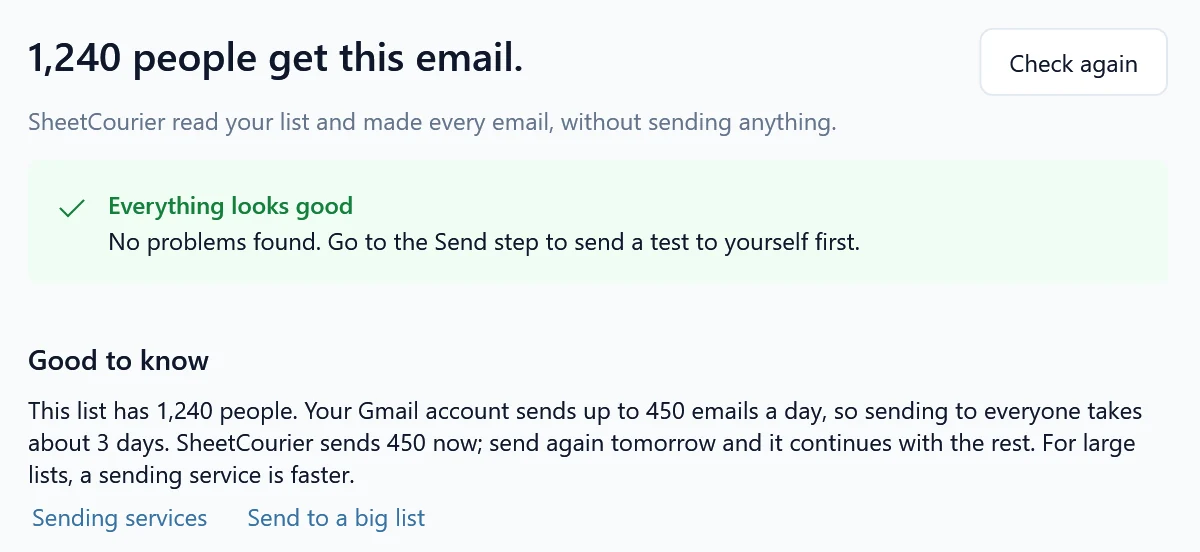
You don’t have to work this out yourself. When a mailing has more people than your account sends in a day, the Check step says so under Good to know, for example:
This list has 4,912 people. Your Gmail account sends up to 450 emails a day, so sending to everyone takes about 11 days. SheetCourier sends 450 now; send again tomorrow and it continues with the rest. For large lists, a sending service is faster.
Below it are the links Sending services and Send to a big list (this page).
Send day by day #
- Send the mailing as usual. SheetCourier asks first (Today’s limit) and offers to send the first part, for example Send 450 now. It sends to as many people as today’s limit allows, then stops and says how many are left.
- The next day, about the same time, open the mailing and click Send again. In the Send step, keep Only people who haven’t got it yet under Who should get it this time?. People who already got it are skipped, so only the rest get it.
- Repeat until the result says nobody is left.
At the normal pace of one email every 4 to 8 seconds, 450 emails take about 50 minutes (the confirmation shows the estimate). Keep SheetCourier open while it sends.
With a contact list, SheetCourier reads your contacts again each day, so people who unsubscribe in the meantime are left out, and people you added get it too. It also checks the “Don’t email” list right before each email, so someone who unsubscribes while it sends is skipped from the next email on.
When a normal mailbox is too slow #
If sending to your list takes too many days, there are two faster ways:
- A sending service with your own domain (Brevo, SMTP2GO, Amazon SES or Mailjet). SheetCourier sends through it like through any other account, and the daily limit is set by your plan with the service. You need an address on your own domain, like you@yourcompany.com. See Use a sending service for larger lists.
- A newsletter service for more than about 5,000 emails a day. Google and Yahoo have extra rules for anyone who sends that many to their users, such as an unsubscribe button that works with one click and a very low spam rate. Newsletter services are built for this; SheetCourier is not.
Send only to people who agreed to get your emails. Many people marking your emails as spam can get your account blocked, however slowly you send. Tick Add a line that lets people ask not to get these emails (good for newsletters) in step 2, and put everyone who asks on your “Don’t email” list. See Unsubscribes and bounces.