
A mailing can go to your contacts instead of an Excel file. Everyone on the lists you pick gets their own personal email, sent one by one from your own email account.
Pick your lists #
- On the Mailings page, click New mailing. SheetCourier asks Who should get this email?
- Click My contacts. (On the Contacts page, Send an email to this list in a list’s menu does the same and ticks that list for you.)
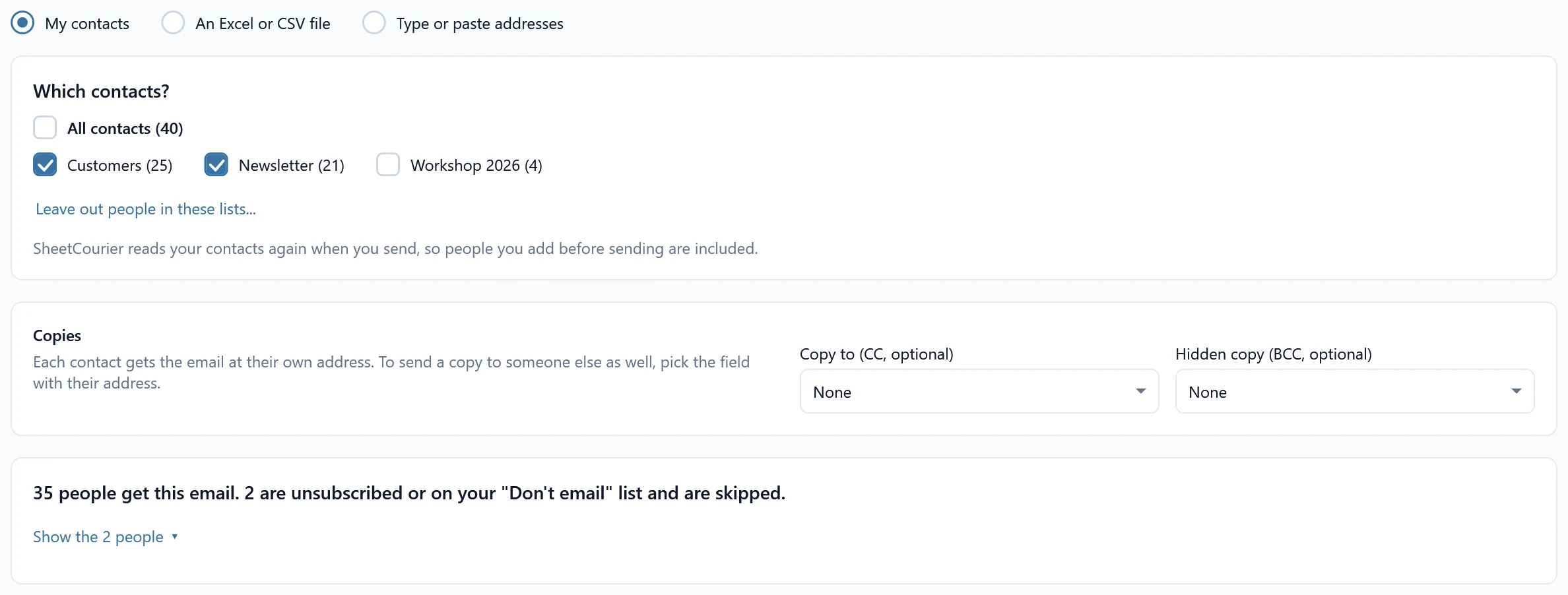
- Under Which contacts?, tick one or more lists, like “Customers (1,204)”, or All contacts (with its number, for example “All contacts (4,912)”; it greys out the single lists).
- Optional: click Leave out people in these lists… and tick lists whose people should not get this email, for example your own team. Don’t leave anyone out undoes it.
- Optional: under Copies, pick a field for Copy to (CC, optional) or Hidden copy (BCC, optional). Each contact gets the email at their own address; a copy goes to the address in that field, for example an assistant’s.
- Optional: tick Only send to some people and set Only people where a field is, is not, contains, is empty or is not empty a value, for example only people where Region is North.
Step 1 also says how many people get the email, for example “1,198 people get this email. 6 are unsubscribed or on your “Don’t email” list and are skipped.” Someone who is in two of the lists you ticked gets one email.
No contacts yet? Step 1 says “You have no contacts yet” and shows Import contacts and Add a contact, and brings you back to the mailing afterwards. No lists yet? Tick All contacts, or make lists on the Contacts page.
If a list the mailing uses was deleted, step 1 says “A list was deleted”: “The list “Customers” was deleted, so SheetCourier doesn’t know who should get this email. Pick another list.” Tick another list, or All contacts.
Write, check and send #
The other three steps work as for a file. Fields are your contacts’ details: {{First name}}, {{Company}} or one of your own fields like {{Region}}. Excel tables and a file for each person work too, matched by any field. See Custom fields and Send your first mailing.
Messages name the person instead of a row number, for example “Anna Berger (anna@example.com) is unsubscribed or on your “Don’t email” list, so SheetCourier skips them.” Several people are grouped, for example “6 people are unsubscribed or on your “Don’t email” list. They are skipped.”
Your lists are read again when you send #
The mailing remembers which lists you picked (and which to leave out), not a copy of the people. SheetCourier reads your contacts again when you send, so people you add before sending are included, and people who unsubscribed in the meantime are left out. Even during a send, SheetCourier checks the “Don’t email” list right before each email, so someone you mark as unsubscribed while it sends is skipped from the next email on.
Added people to a list after sending? Open the mailing, click Send again, and in the Send step under Who should get it this time? keep Only people who haven’t got it yet. Only the people you added since then get it. To send a new edition to the whole list, pick Everyone on the list again. See Send a mailing again every month.
A big list #
If your lists have more people than your email account may send in a day, the Check step says how many days it takes, and SheetCourier sends the first part now. See Send to a big list.