
SheetCourier can keep the people you email as contacts. Use them when you just need to email a list, like your customers, your members or a newsletter, and the list does not live in an Excel file. Contacts are free and unlimited, and they are stored only on your PC.
Open Contacts in the sidebar (or press Ctrl+2).
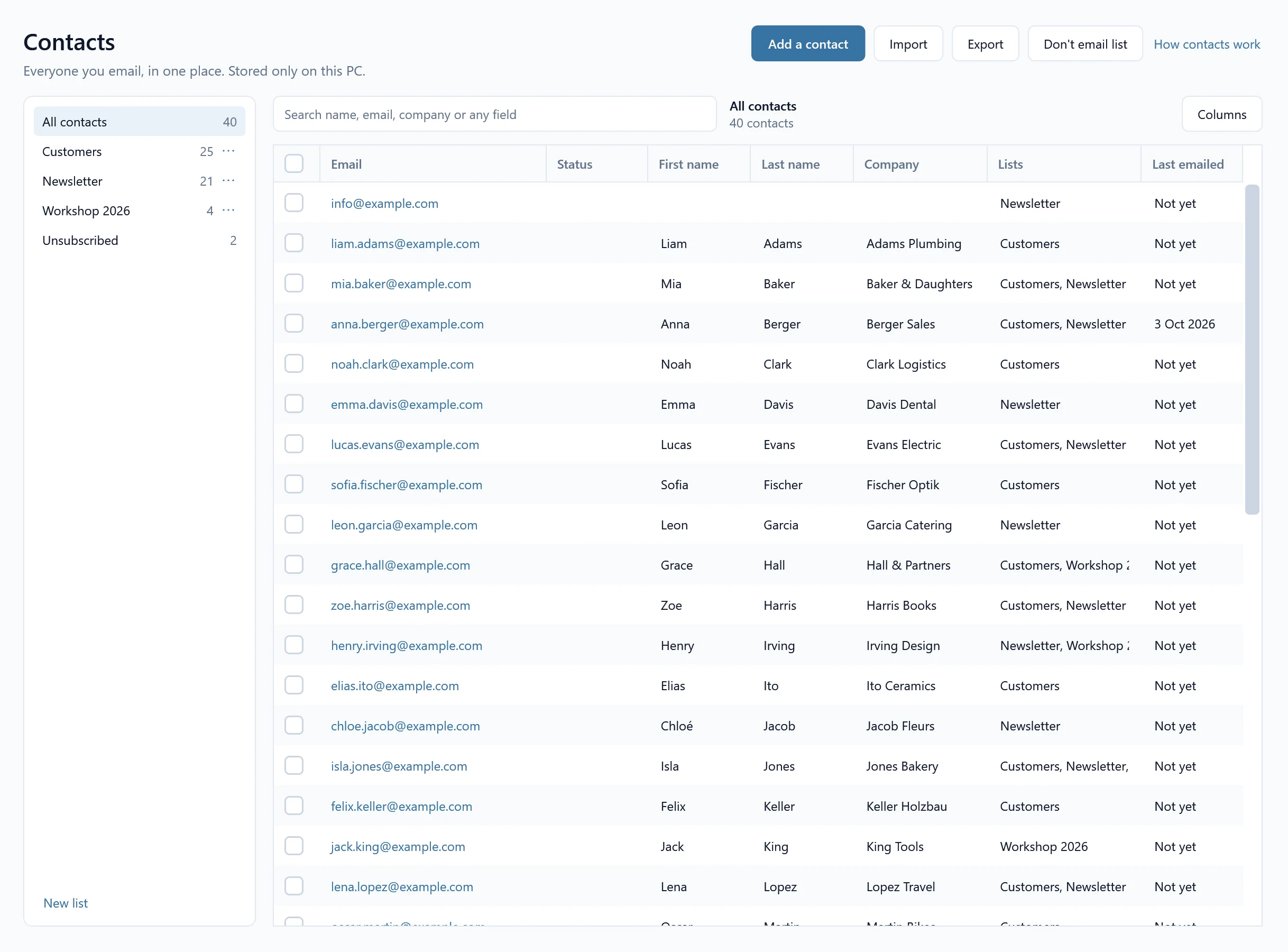
Get your people in #
- Import brings in many people at once from an Excel or CSV file, or from addresses you paste. See Import contacts from Excel or CSV.
- Add a contact adds one person by hand.
- Already have a mailing with a list? Its people can become contacts too. See Save a mailing’s people as contacts.
What a contact holds #
Each contact has an Email, a First name, a Last name, a Company and Notes. You can add your own fields, like Region or Customer number: see Custom fields. A contact can be in several lists at once: see Contact lists.
Every contact has one email address, and each address is in your contacts only once. Upper and lower case don’t matter, so Anna@Example.com and anna@example.com are the same person. If you add an address that is already there, SheetCourier says so, for example “anna@example.com is already in your contacts (Anna Berger). Open that contact instead?”, with the buttons Open Anna Berger and Cancel.
Find and edit people #
Type into Search name, email, company or any field to find people. The list on the left narrows the grid to All contacts, one of your lists, or Unsubscribed.
The grid shows Email, Status, First name, Last name, Company, Lists and Last emailed (a date like 3 Oct 2026, or “Not yet”). Your own fields, like City, are hidden at first: click Columns at the top right of the grid and tick the ones you want to see, or pick Show all columns. Right-clicking a column heading opens the same menu.
Double-click a person, click their email address, or select them and press Enter to open their details. There you change their name, company, fields and notes, and tick the lists they belong to.
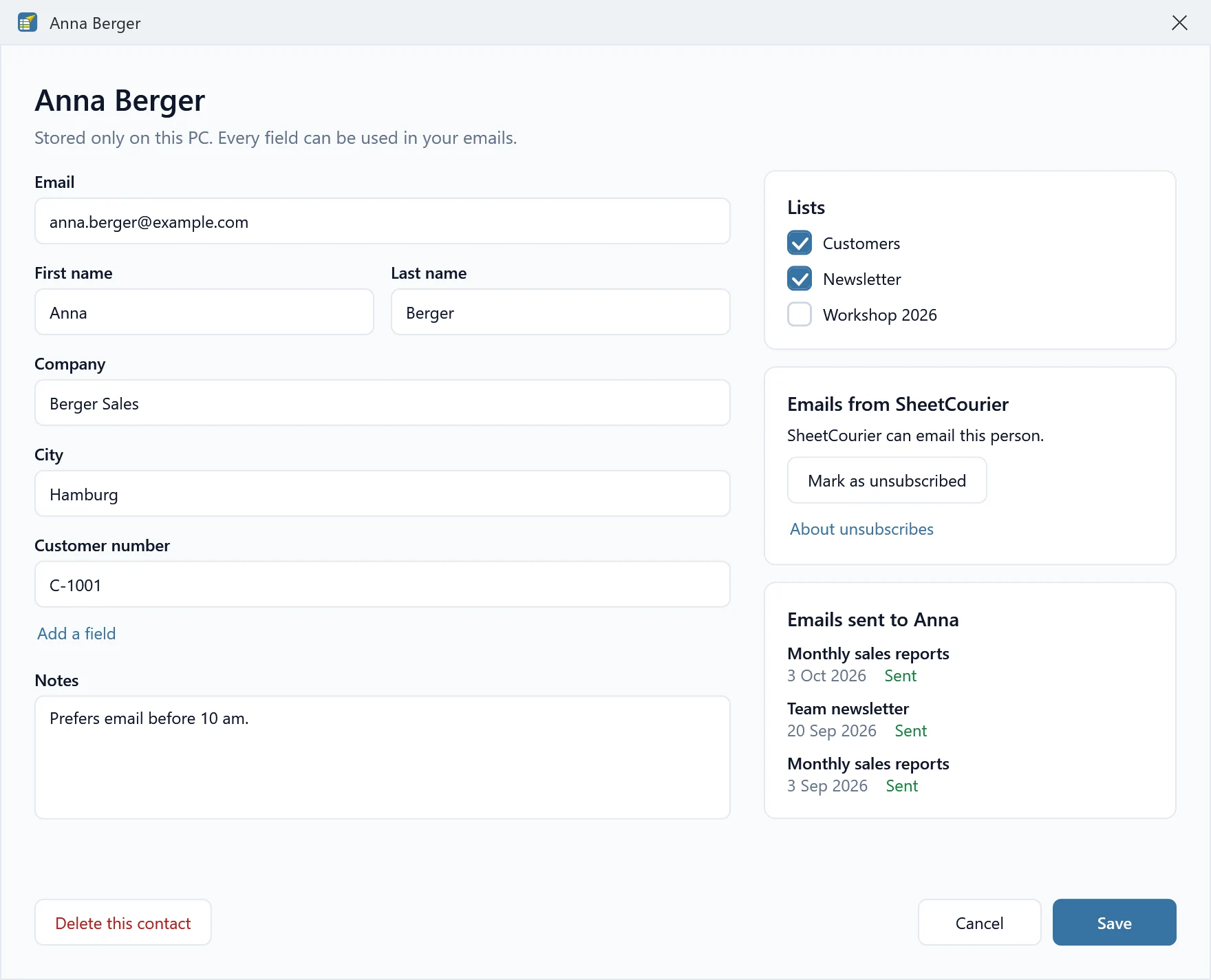
- Emails from SheetCourier says whether SheetCourier may email this person, with Mark as unsubscribed or Allow emails again.
- Emails sent to the person (for example “Emails sent to Anna”) lists each mailing with its date and result: “Sent”, “May have been sent”, “Not sent” with the reason, or “Skipped”. “May have been sent” means SheetCourier was interrupted while that email was going out; it never sends it again by itself.
- Delete this contact removes the person, after asking first.
Work with many people at once #
Tick the boxes in front of people. The tick box in the heading selects everyone who matches your search. A bar above the grid then says how many are selected, for example “3 selected”, and offers:
- Add to list: pick a list, or New list… to make one with these people.
- Remove from this list, when you have a list open.
- Mark as unsubscribed, and Allow emails again when someone you ticked is on the “Don’t email” list.
- Delete.
- Select all 1,204 people that match (with your own number), to go from a few ticked people to everyone in the search, and Clear selection.
Delete contacts #
Select the people and click Delete. SheetCourier asks first, “Delete 3 contacts?”:
Their details are removed from this PC. History keeps the emails already sent, and unsubscribed people stay on your Don’t email list.
Click Delete 3 contacts (with your number) to go ahead.
So deleting someone never makes them emailable again. If they asked not to get your emails, they stay on your “Don’t email” list.
Who unsubscribed #
The Status column shows a badge for people who should not get your emails: Unsubscribed, Bounced or Don’t email. They are skipped in every mailing. See Unsubscribes and bounces.
Export #
Click Export to save the people you see (the list you have open and your search), or only the ones you ticked, as an Excel workbook (.xlsx) or a CSV file. Export this list in a list’s menu saves one list.
Only add people who agreed to get your emails. Your contacts are saved in SheetCourier’s folder on this PC and in its daily safety copies. See Where is my data?
Next: Send to a contact list.